

To view the synchronization log of a PADS4 Viewer
-
Click on the Viewer tab in the navigation pane.
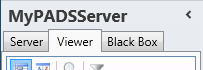
- Select a Viewer from the list of available destinations.
- Click Synchronization log in the list of available viewer information categories.
To view the synchronization log of a black box file
- Make sure the black box has been added to the application.
-
Click on the Black Box tab in the navigation pane.
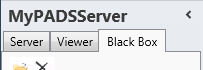
- Select the black box item in the list of available black boxes.
- Click Synchronization log in the list of available black box information categories.
Synchronization log window
The synchronization log window shows all log messages that have been generated by the content synchronization process on a Viewer PC. With this information, you can check when the synchronization process has run and get details about the items being synchronized.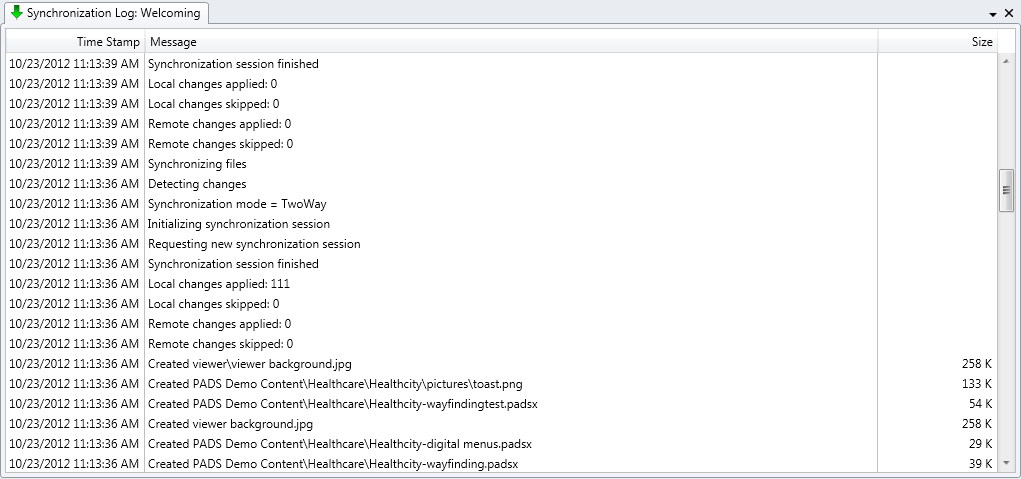
Date and time at which the item was logged. Message
The actual item that has been logged. Usually, each synchronization session starts with the message ‘Requesting new synchronization session’ and ends with ‘Synchronization session finished’. Size
If the synchronization process adds new items to your content library, then here the size of the added file is listed.
Clearing the synchronization log
By clearing the synchronization log, you can restart the logging process of your PADS4 Viewer. To clear the synchronization log:-
Click Clear Log on the Home menu.

- Click Yes to confirm that you want to clear the synchronization log.
Saving the synchronization log
To save the synchronization log for viewing it offline at a later moment, you can save it together with other black box information of your Viewer. To save the synchronization log:- Click Save Black Box on the Home menu.
- Enter a File name and click Save to save the information.