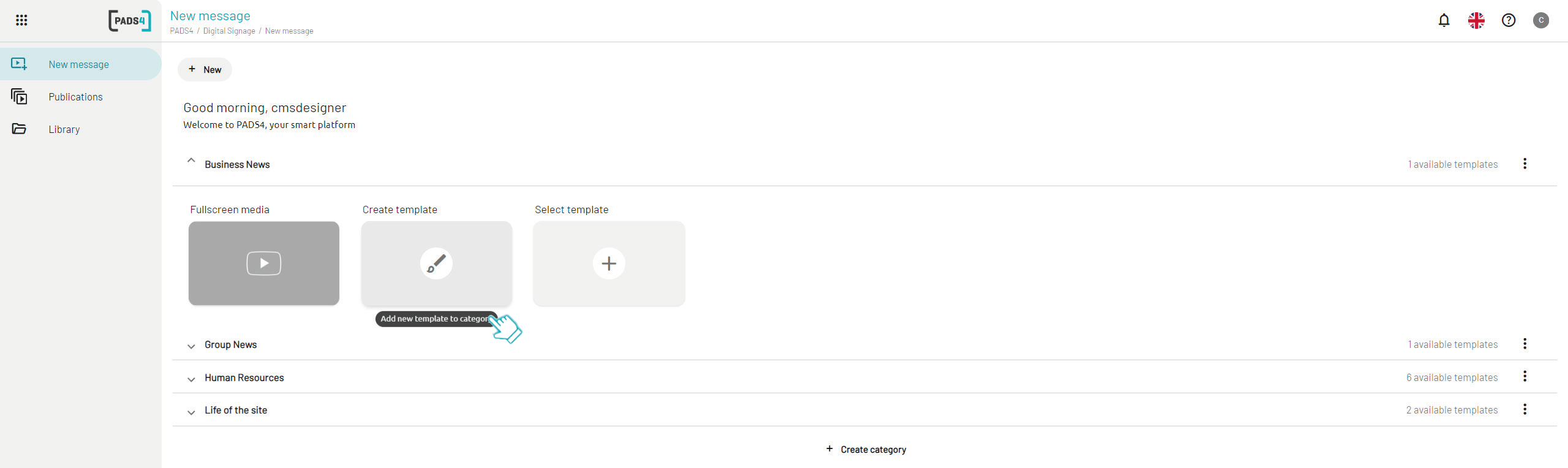
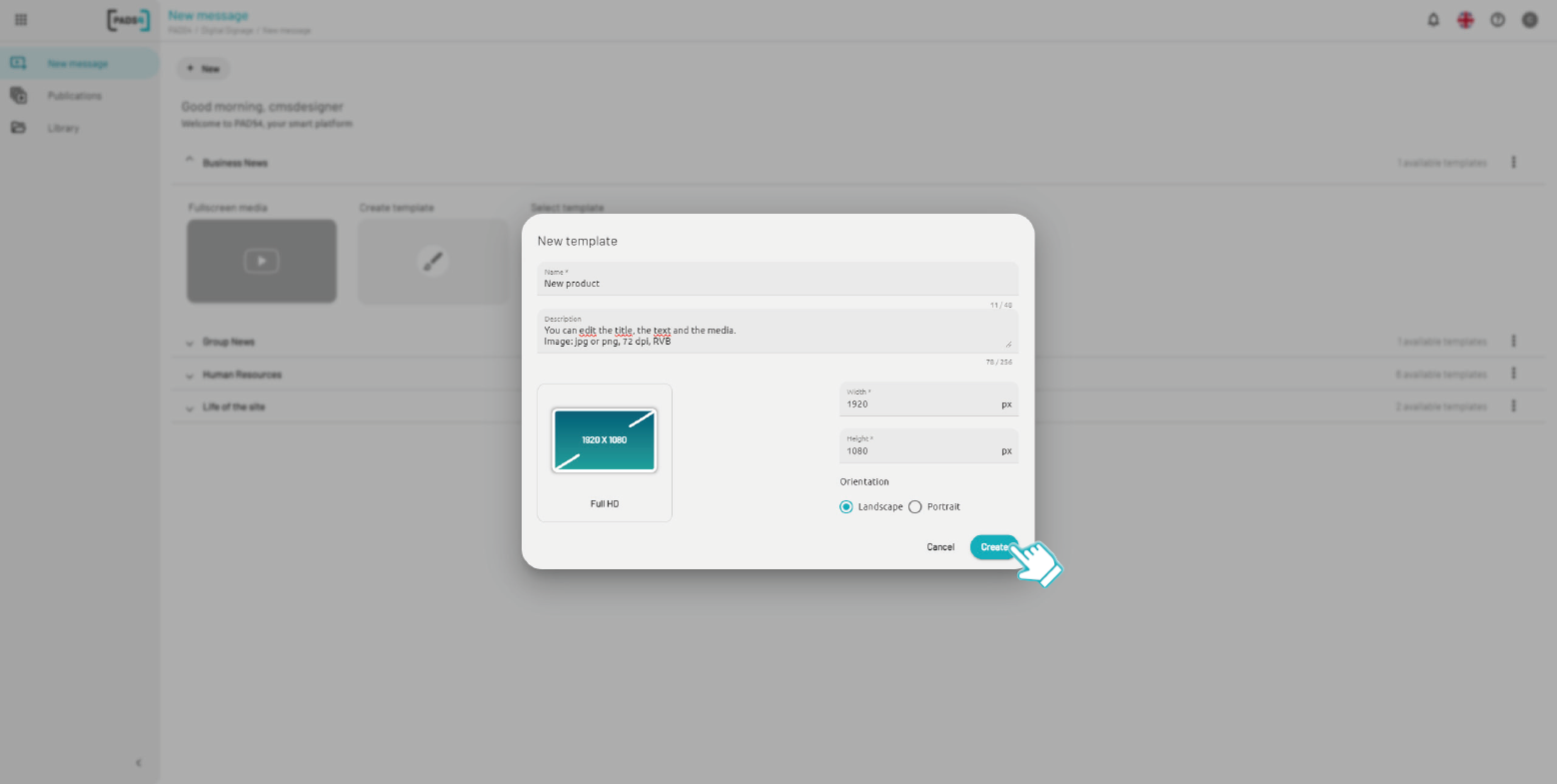
- Name your template.
- Add a description to help other users when publishing messages with this template.
- Choose the format and orientation based on your screens (landscape or portrait).
- Click Create.
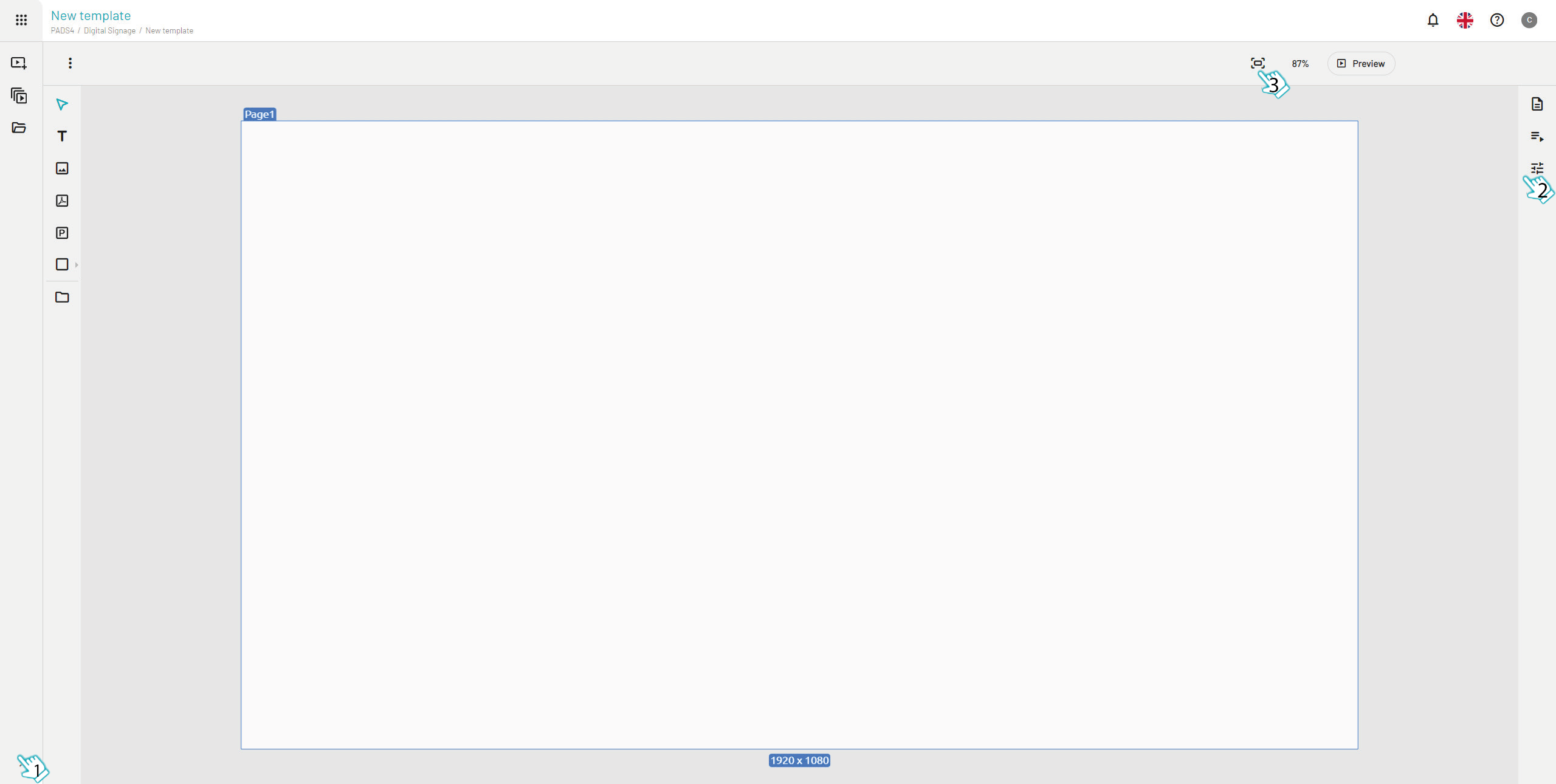
- Collapse the left panel (1) and the property panel (2) to maximize space for your main design canvas.
- Click the Fit to page button (3) to automatically scale and center your content to fit the full page preview.
Placing elements
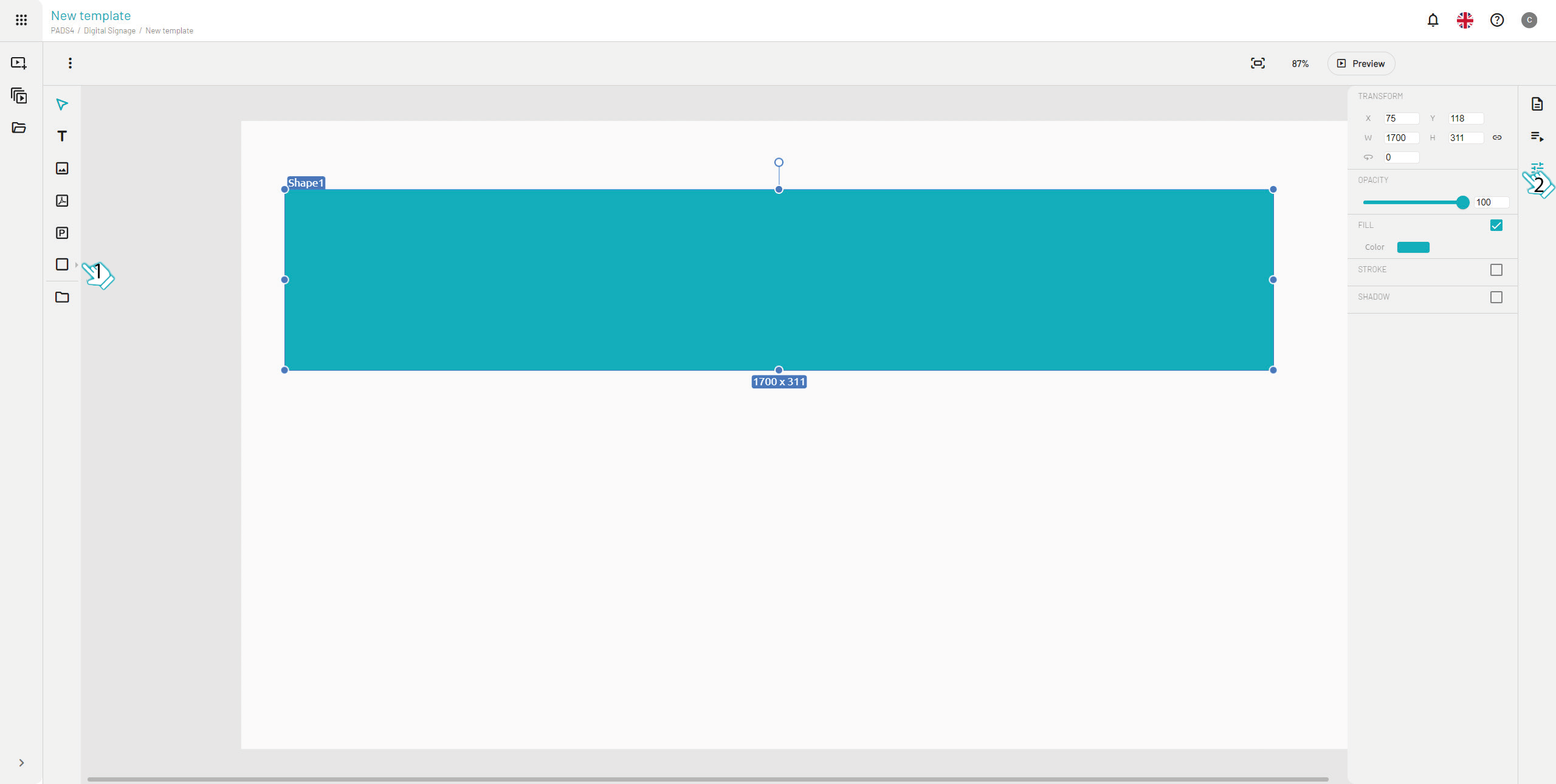
To add basic shapes to your template in the Web Designer:- Add a shape from the elements panel (1) on your design canvas.
- Select the shape, then adjust its properties in the right panel (2). (x=0, y=320, w=1920, h=450)
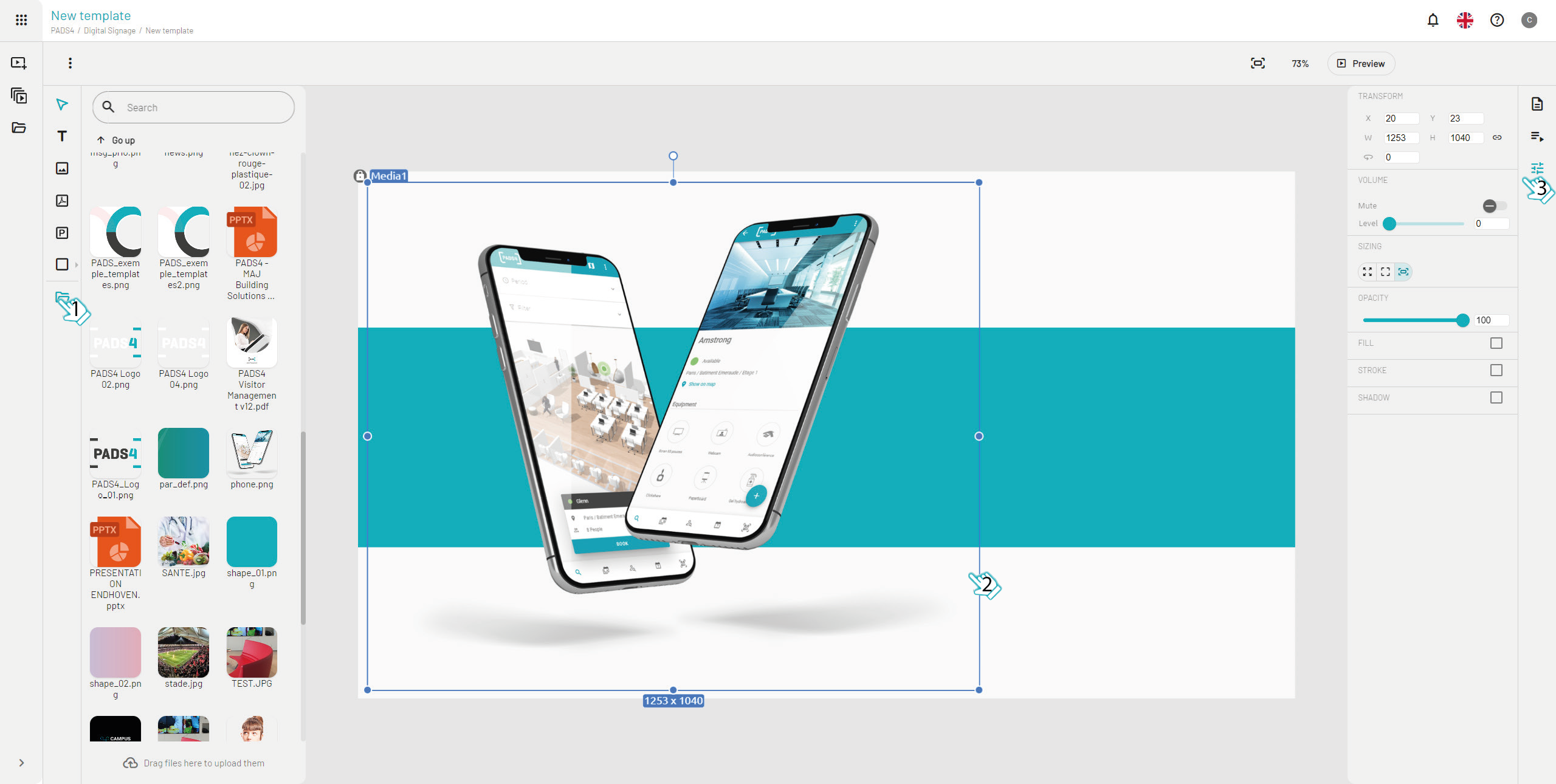
- Open the Content Library (1) to access your media assets.
- Drag and drop (2) your desired image directly onto the canvas.
- Select the image and adjust its properties in the right panel (3) to fit your PADS4 screen layout perfectly.
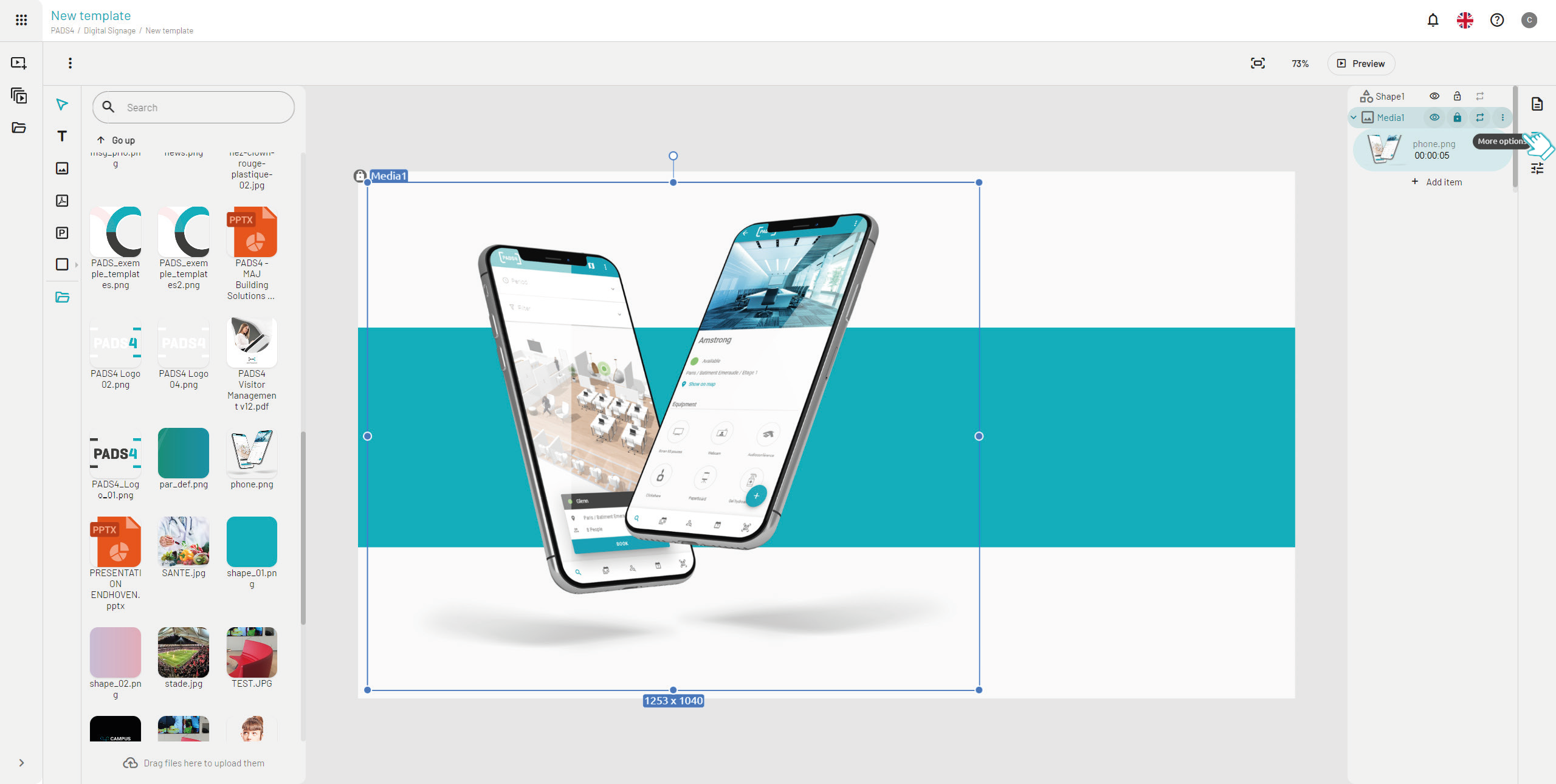
- Select the layer (image, shape, or element) and open its properties in the right panel.
- Toggle locked/unlocked status for unlocked layers, CMS users can edit the content (e.g., replace the image) when publishing messages.
- Set additional options like layer duration, add multiple overlapping items, or adjust the arrangement (e.g., send to back or bring to front).
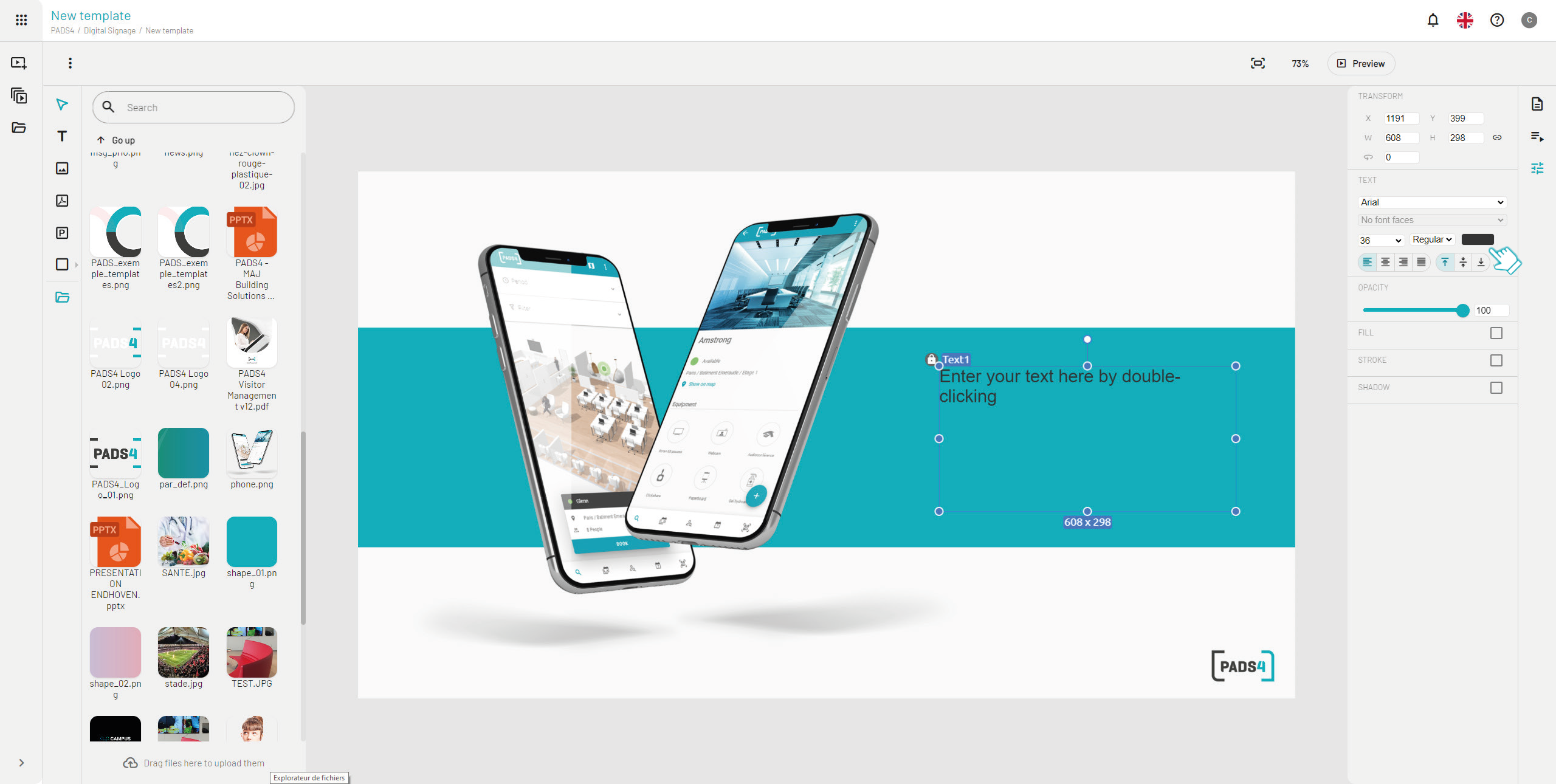
- Logo: Drag your logo to the bottom-right corner, select it, and **lock **the layer in the properties panel. CMS users cannot edit or remove it when publishing.
- Text: Add text to the canvas, select it, and set the layer to unlocked so users can edit the content for their messages.
- Style text: Adjust font family, size, color, and position in the properties panel.
Unlocking affects only text content, not styling (size, color, etc.) those stay fixed.
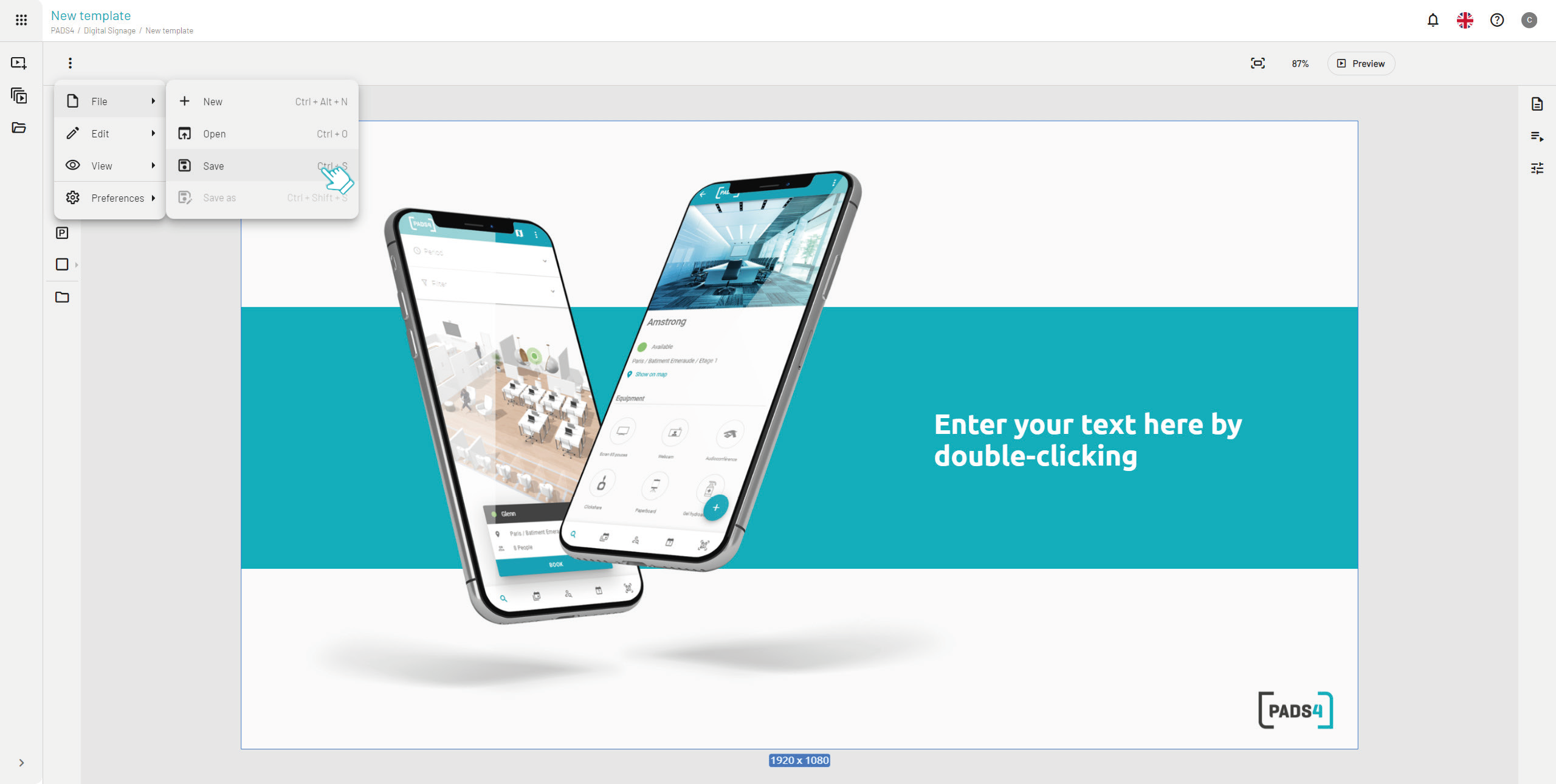
Save the new template
Once your text and all elements are finalized, save your template in the Web Designer. Click Save to store your PADS4 template. Ready for CMS users to select and publish messages with your locked logo and editable content.