

Before you begin
- Find the space that you want to book. See Search for a space.
- For a shared area such as a cafeteria, see Book a common space. For desks for a team, see Book a group workspace.
Book a space
1
Start the booking
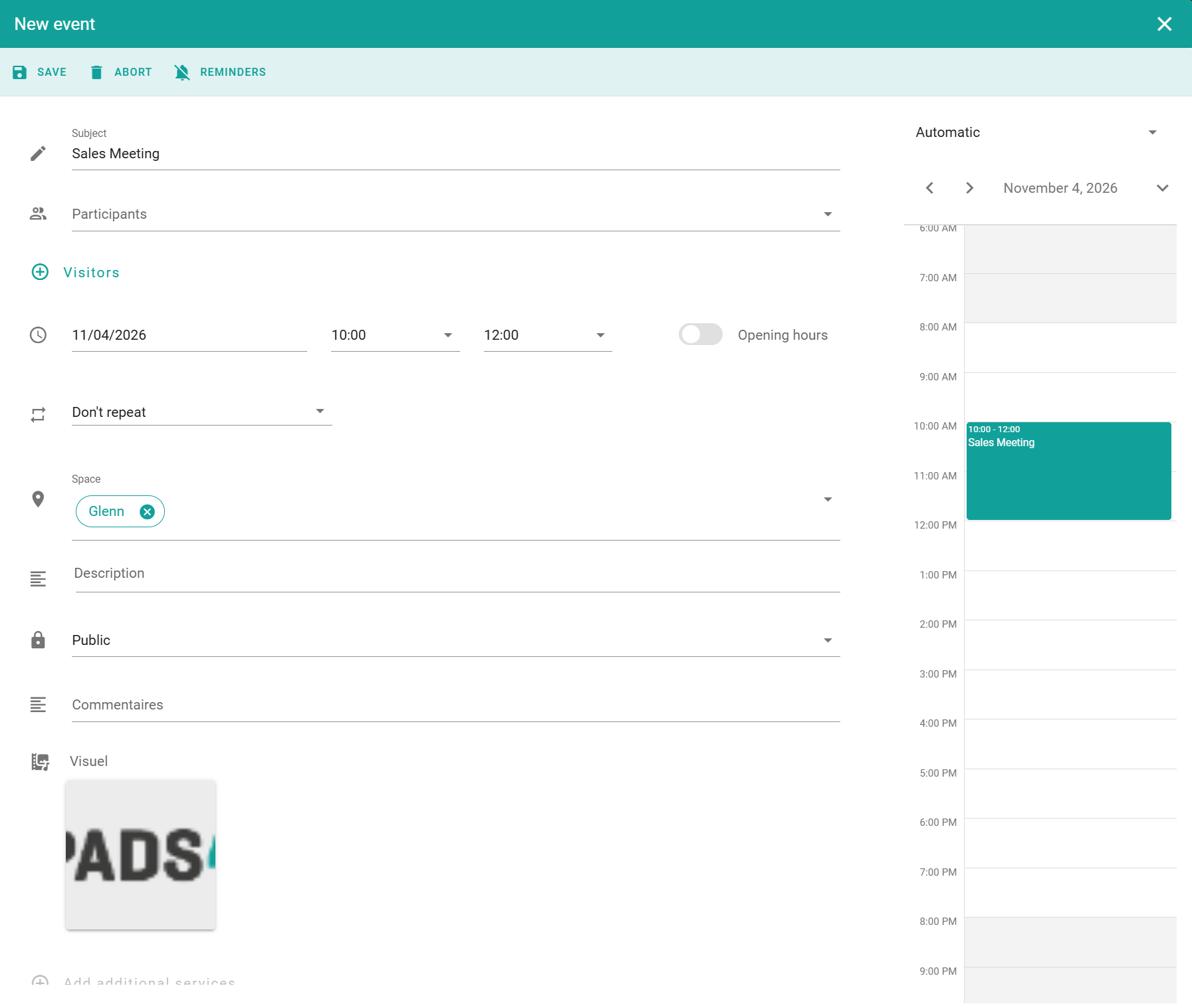
Select the space, and then select the + button in the lower-right corner of the screen. The booking window opens.
2
Enter the booking details
Complete the fields that you need. See Booking fields.
3
Add options
(Optional) Add participants and visitors, reminders, or additional services.
4
Save the booking
Select Save.
The booking appears in your calendar. See My calendar.
Some rooms need approval. In that case, the booking stays pending in your calendar until an approver confirms it. See Workflows.
Booking fields
Your administrator can turn on Teams meetings for all bookings by default. This works for rooms that are connected to Exchange only.