


The tabs of a room user
| Tabs | Use it to |
|---|---|
| General | Enter the details of the user, and set options for booking. |
| Rooms | Choose which rooms the user can view and book. |
| Delegation | Allow the user to book on behalf of another user. |
| Teleworking | Set the remote work allowance of the user. |
| Manager | Give the user rights to the rooms that the user manages. |
General
| Setting | Description |
|---|---|
| The email address of the user. | |
| Name | The last name of the user. |
| First Name | The first name of the user. |
| NFC Number | The number of the NFC card of the user. For example, a user can use an NFC access card to book a room quickly. |
| Teleworking | Select this option if the user works from an off-site location. |
| Prevent Room Booking | Select this option to stop the user from booking rooms. |
| Booking request enabled | Select this option to allow the user to send booking requests to their manager. See Submit a booking request. |
| Enable bookings overview | Turns on the Manager tab. The user can then edit meetings in the rooms for which the user is a manager. |
Rooms
Use the Rooms tab to choose the rooms that the user can use to book. The tab shows the list of rooms. Select the checkbox of each room that the user can book.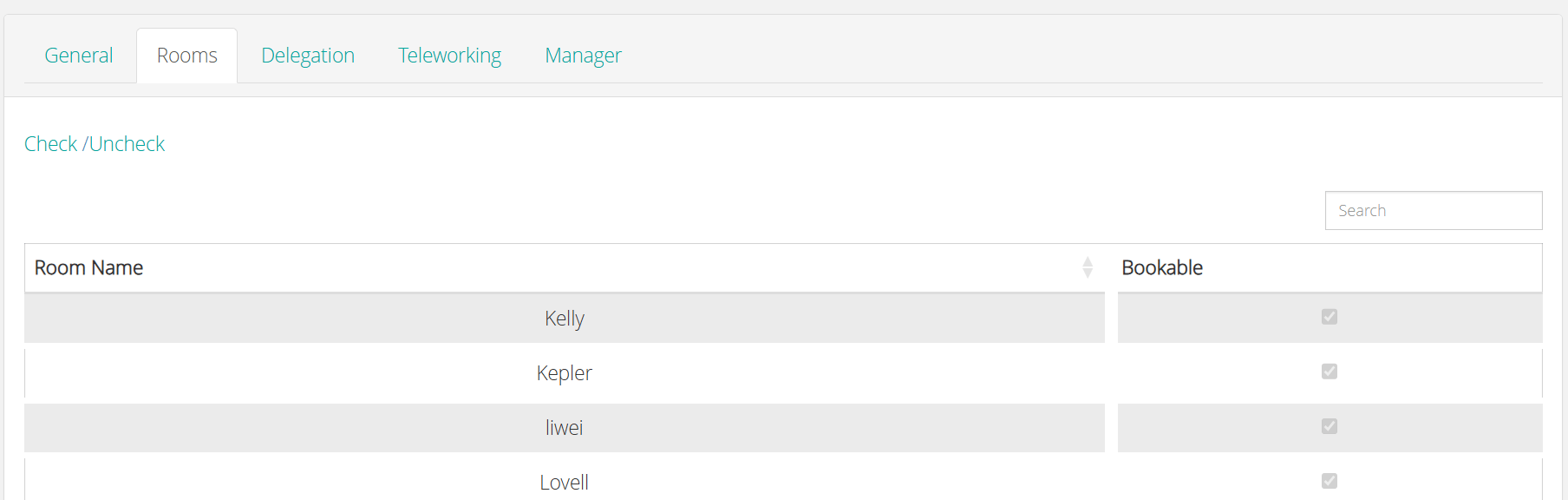
| Control | Description |
|---|---|
| Checkbox | Select the checkbox of a room to allow the user to book the room. Clear it to remove the room. |
| Search | Finds a room in the list. |
| Check / Uncheck | Selects or clears the checkboxes of all rooms at once. |
Delegation
Use the Delegation tab to allow the user to make room bookings on behalf of another user. See Book on behalf of someone else.Teleworking
Use the Teleworking tab to set the remote work allowance of the user: the maximum number of days that the user can work from home or another remote location. You can also create schedule periods, each with a start date, an end date, and the number of teleworking days that are allowed. See Set the remote work allowance.Manager
Use the Manager tab to give the user rights to the rooms that the user manages. The tab has two settings and a list of rooms.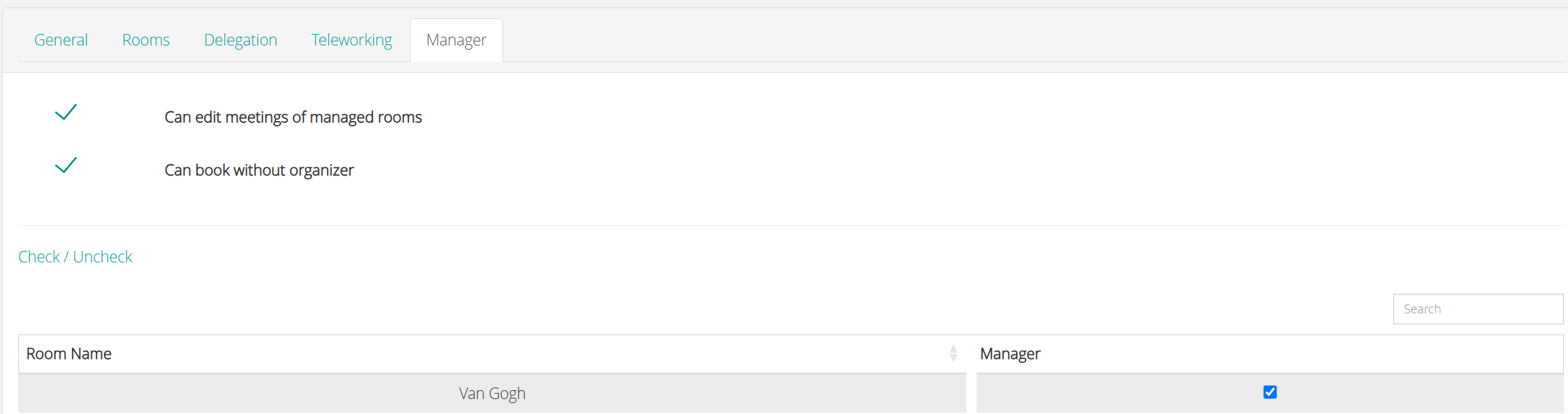
The Manager tab of a room user
| Setting | Description |
|---|---|
| Can edit meetings of managed rooms | The user can edit the meetings in the rooms that the user manages. |
| Can book without organizer | The user can book a room without an organizer. Use this when the organizer is not known, or when the organizer does not have access to PADS4 Workspace. When the user books a room, PADS4 Workspace shows the organizer of the booking as No organizer. |
| Control | Description |
|---|---|
| Check / Uncheck | Selects or clears the Manager checkbox. |
| Search | Filters the list by room name. |
| Room Name | The name of the room. |
| Manager | Select this checkbox to make the user a manager of the room. |
| Previous and Next | Move between pages when the list has more rooms. |