

How delegation works
Your administrator gives you access to the calendar of another user. The name of that user then appears in the list of calendars on the left side of PADS4 Workspace. When you select the calendar, you can view it and book through it.Before you begin
Your administrator sets up delegation. In the admin interface, go to Room Users, open the user, and use the Delegation section to allow another user to book on behalf of this user. See Users.Book on behalf of another user
1
Open the calendar list
In PADS4 Workspace, go to your calendar. On the left, below the monthly overview, you see My calendars and the name of each user for whom you can book.
2
Select the calendar of the user
Expand the name of the user, and then select Main calendar. The calendar shows the bookings and the remote work of that user.
3
Make the booking
Book a space in the usual way. PADS4 Workspace makes the booking for the user whose calendar you selected. See Book a space.
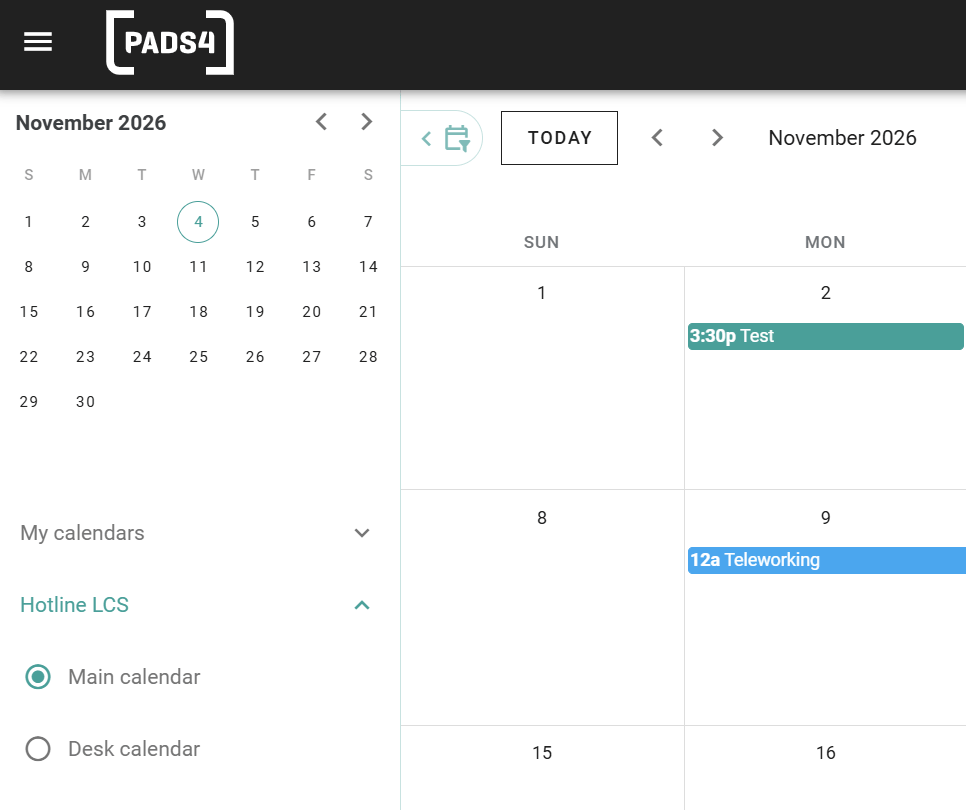
The calendars of a delegate.
Use the Location filter below the calendars to limit what you see to one location.
The booking appears in the calendar of the user for whom you booked.