How to use roles in PADS4
The System Management and License Management licenses are required to administer your users and roles.
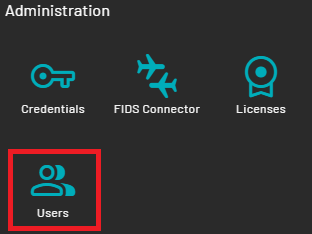
- To access user management, log in to your PADS4 Web Portal with your Administrator account. Go to Dashboard, and on the bottom left go to Users.
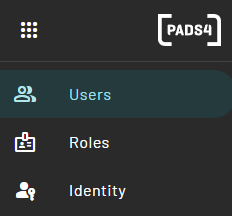
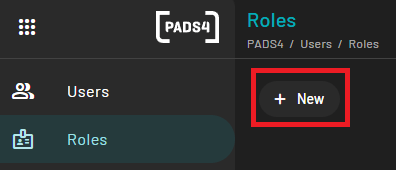
- On the left-hand side, you can switch between Users and Roles.
- In the users overview, you see the users and their corresponding information:
- Name
- Username
- Roles
- License

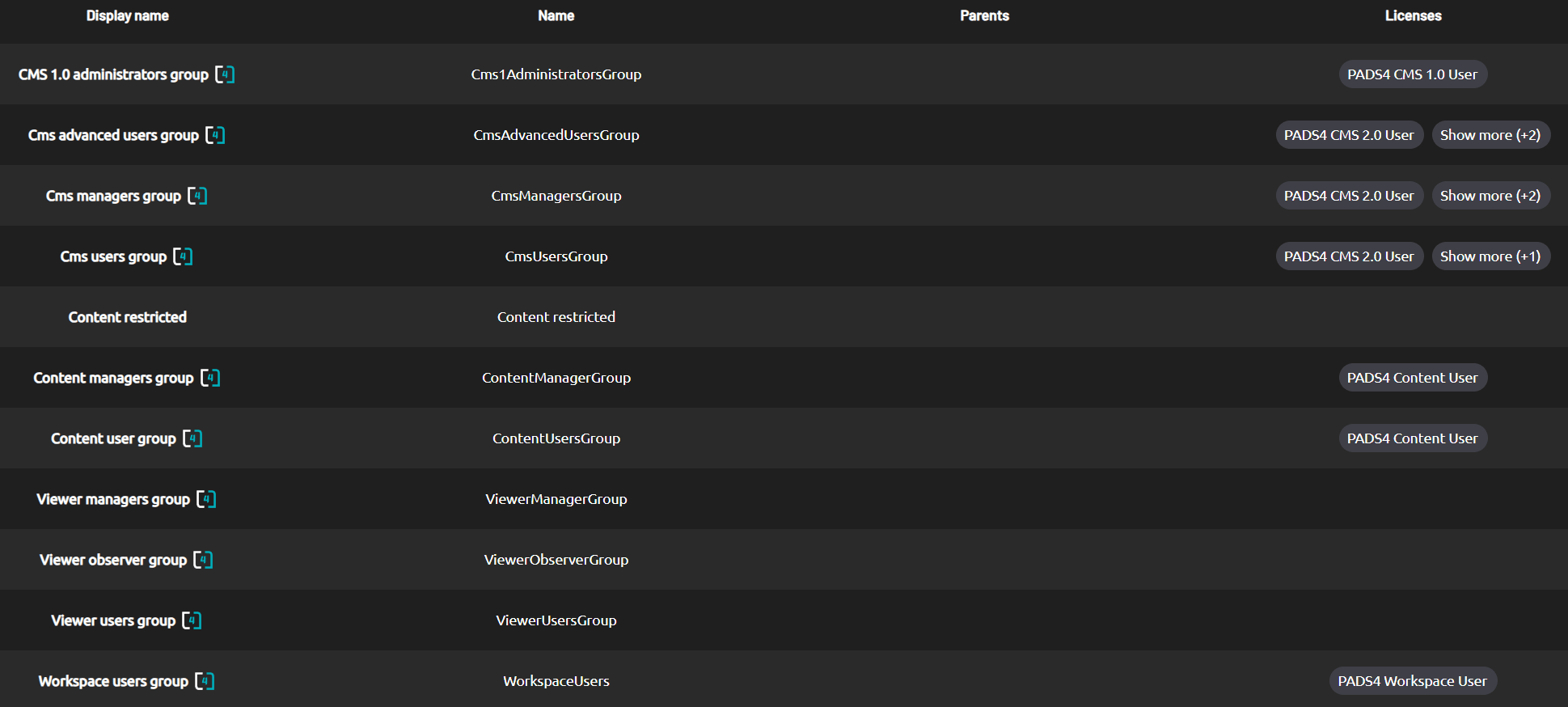
- The Roles section shows an overview of the available roles, including the default roles explained below.
Search for users
Use the search function to quickly locate specific users in the system. It searches across key fields: Name, Username, Roles, and License. This is ideal for admins managing PADS4. How to search- Enter keywords in the search box (e.g., “john.doe”, “admin role”, or “Cms users group”).
- Results filter dynamically as you type. You don’t need to press Enter.
Default roles
PADS4 version 2025.1 has five default roles. PADS4 version 2025.2 adds five more roles, which are listed later in this article.
CMS Advanced users group
CMS Manager group
CMS User group
Content Managers group
Content User group
With the release of PADS4 version 2025.2, the following default roles have been added.
The viewer roles require an Agent or System Management (only for online/offline status and removal of viewers) license to be effective outside of CMS 2.0. The roles only set permissions once access has been granted by the license that has been assigned to the user.You can choose to adjust the default viewer roles to automatically add this license to users who have this role assigned.
Viewer manager group
Viewer observer group
Viewer user group
Workspace users group
CMS 1.0 administrators group
Customizing roles
- You can edit these roles to your preferred configuration, or create your own roles. In your own roles, you can specify other roles that the role is a member of, or assign certain licenses.
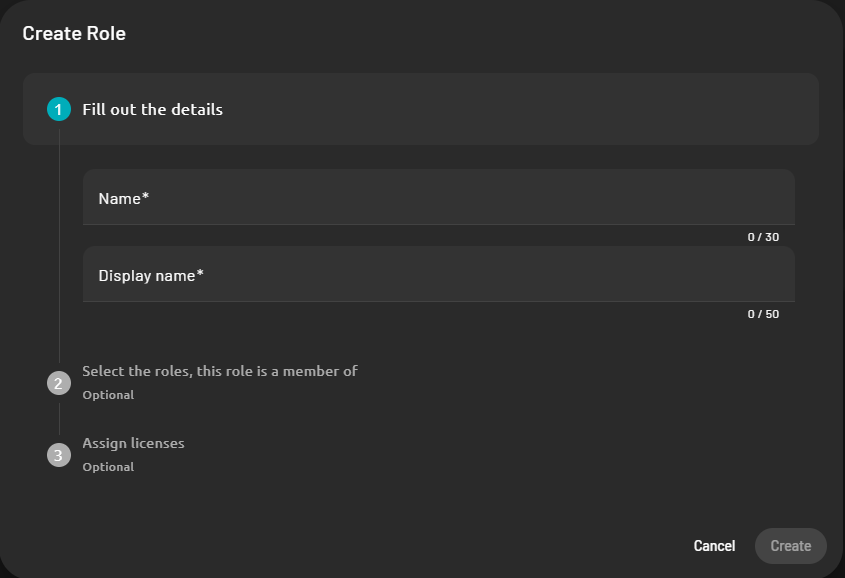
- With these roles or the self-created roles, you can then further specify the access that users with a certain role have to applications available in the PADS4 Web Portal.
Content library
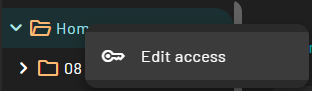
- Right-click the folder that you want to change or review access for and click “Edit access”.
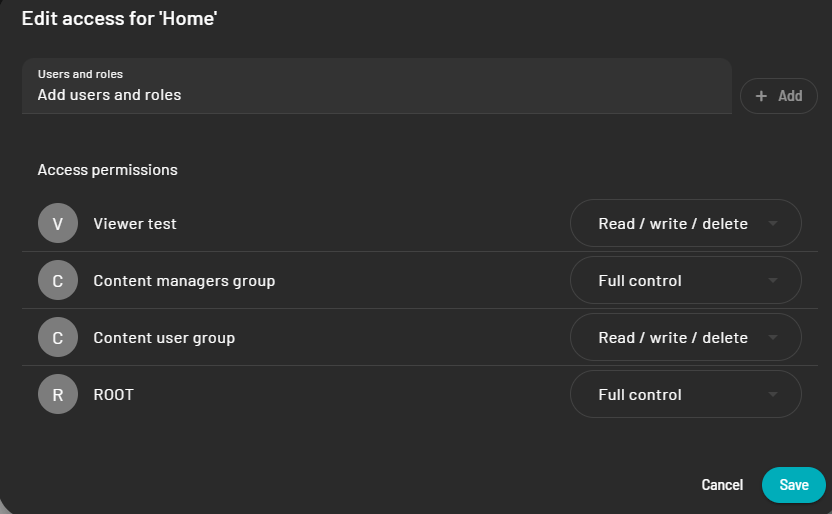
- An overview of the roles and users with their rights on this folder appears. Here you can add or remove roles and users.
Web designer categories
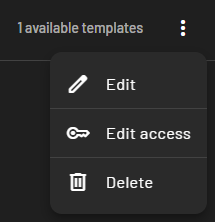
- Click the three dots on the right of your category and click “Edit access”.
Web designer templates
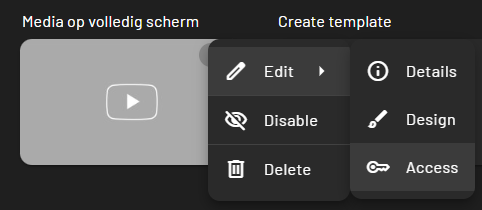
- Hover over a template, click the three dots, and click “Edit access”.
Viewers & viewer groups
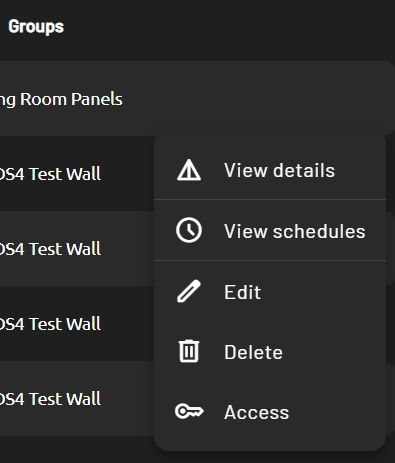
- In Tree view, right-click the viewer group and click “Edit Access”.
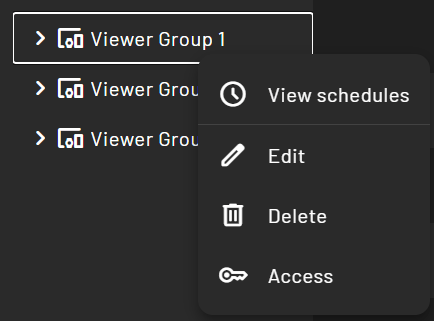
- In Detail view, hover over either the viewer group or viewer, click the three dots, and click “Edit access”.