

Prerequisites
Before creating a new domain, ensure that your PADS4 installation is updated to version 2023.1 or later, as domain functionality is only supported from this version onward.
Default Domain
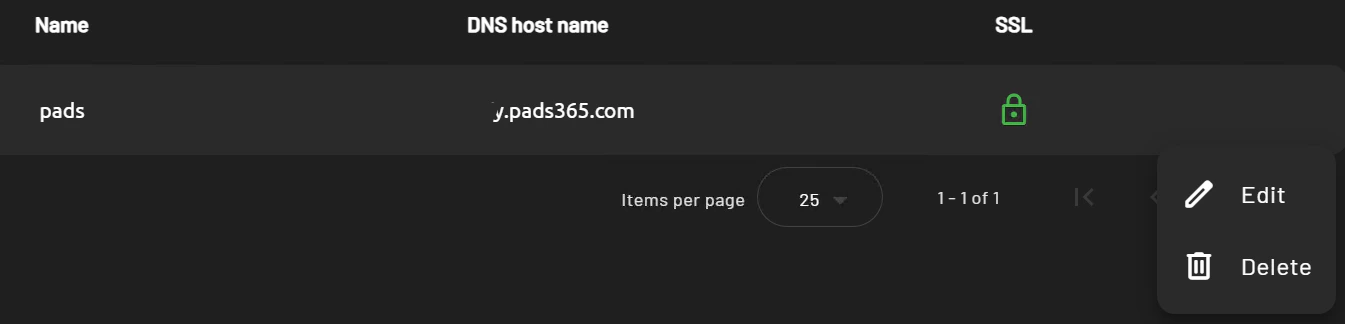
During PADS4 installation, a default domain named PADS is automatically created. This serves as the initial environment.Editing the Default Domain
From the Domains section of the root interface:- Select the PADS domain entry.
- Click the three dots ⁝ menu to access edit options.
- Update the DNS Host Name to match your server’s address.
- Upload your third-party signed SSL certificate (.CRT) and private key (.KEY).
Creating a new PADS4 Domain
Follow the steps below to create a new PADS4 domain.- Click + New in the Domains dashboard.
- Enter the domain details:
Provide a domain name (e.g., “CompanyA” or “Branch1”). - DNS Host Name – Specify the domain’s DNS hostname.
- Certificate File – Upload the third-party signed SSL certificate (
.CRT format). - Private Key File – Upload the third-party signed private key (
.KEY format).