This document provides step-by-step instructions for creating OAuth2 credentials for SMTP authentication using Google and Microsoft platforms. This document assumes the reader has basic familiarity with the Microsoft Azure Portal.

1. Register an application

  • Go to https://portal.azure.com/ and sign in with an account that has administrative privileges for Microsoft Entra ID
  • In the left menu, select App registrations
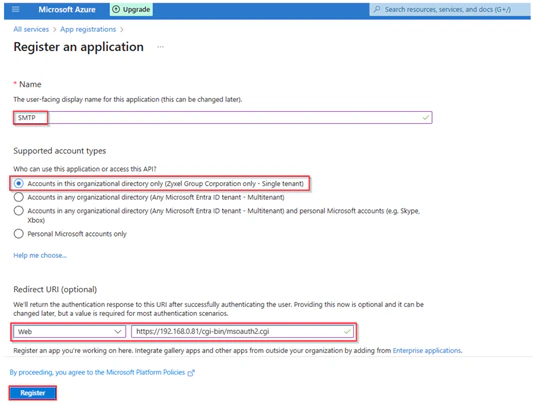
  • Configure the application:
MS Smtp1
  • Use the following information:
    • Name: Enter a descriptive name ( e.g. Gateway SMTP App )
    • Supported account types: Accounts in this organizational directory only
    • Redirect URI: The redirect URI specifies where the autorization server should send the user back after successfully authenticating to return an access token to their email account.
      • Type: Web
      • URL: http://<host>:<port>/credentials/generic/authorize/callback
        • Host: DNS name or IP address of your PADS4 Web Portal
        • Port: Optional, if your PADS4 instance does not use the default ports for HTTP or HTTPS.
  • Once the information has been filled in, click on “Register”.
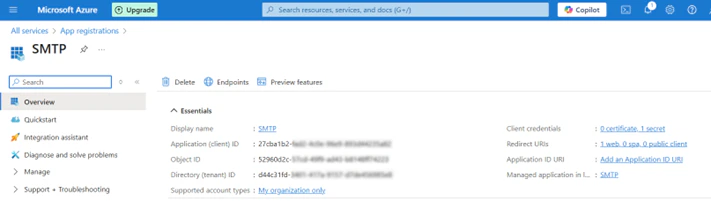
  • Now on the app Overview page, copy the Application(client) ID and Directory (tenant) ID. These are required for your gateway configuration.
MS Smtp2

2. Create client secret

  • Go to Certificates & secrets > Client Secrets > New client secret.
  • Add a description (e.g., “SMTP Secret”) and select an expiration period (e.g., 24 months).
  • ClickAdd , then immediately copy the value of the client secret. NoteThis value is only shown once, and you will not be able to retrieve it after leaving this page. If you lose it, you’ll need to generate a new one. This is your “ClientSecret”.
  • Store it securely, as it grants access to your application

3. Configure API Permissions

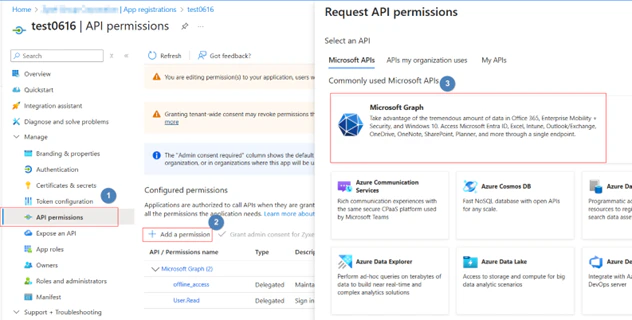
  • From the left-hand navigation of your application’s overview page, click on API permissions > +Add a permission
  • Select Microsoft Graph
MS Smtp3
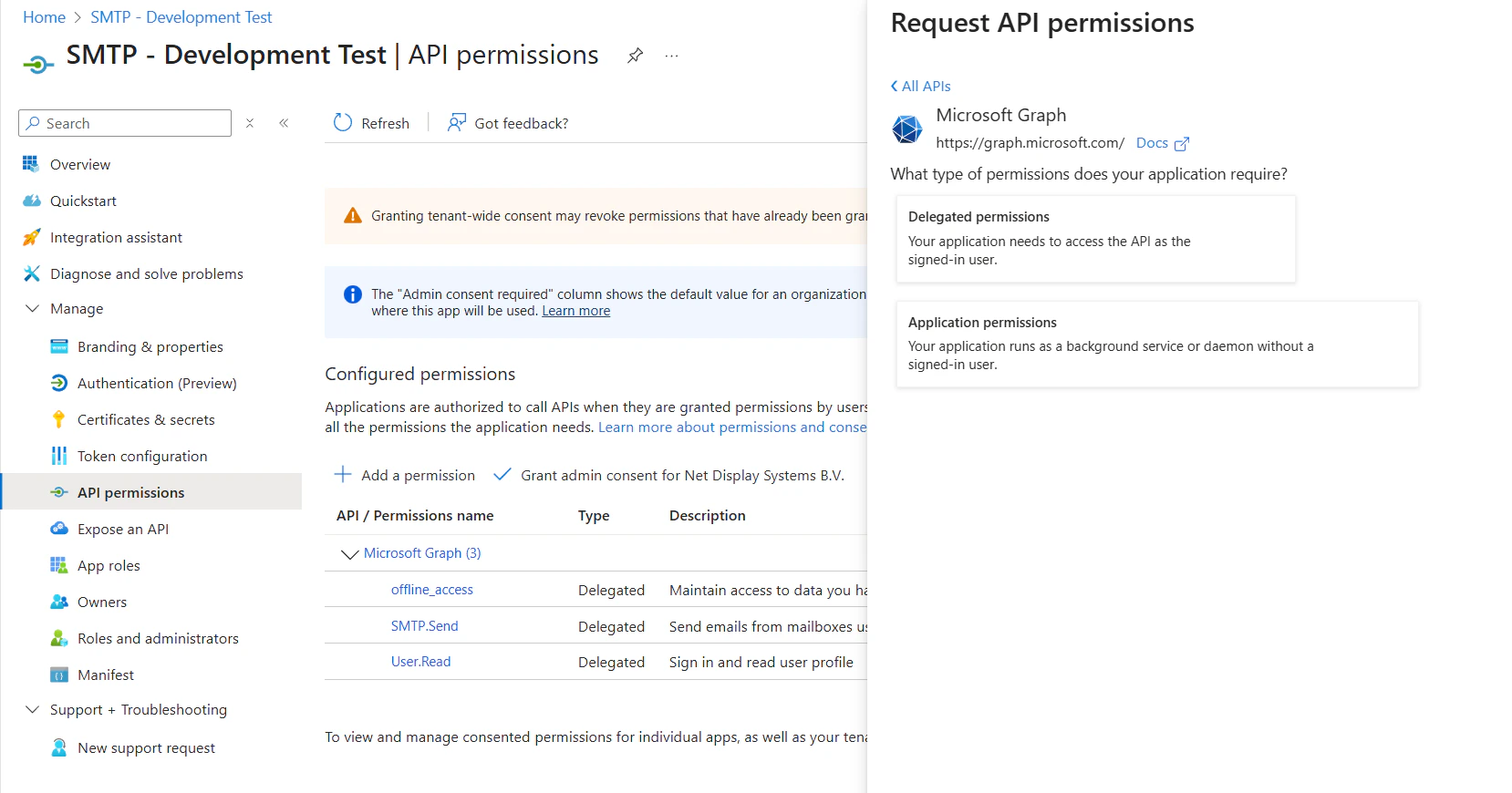
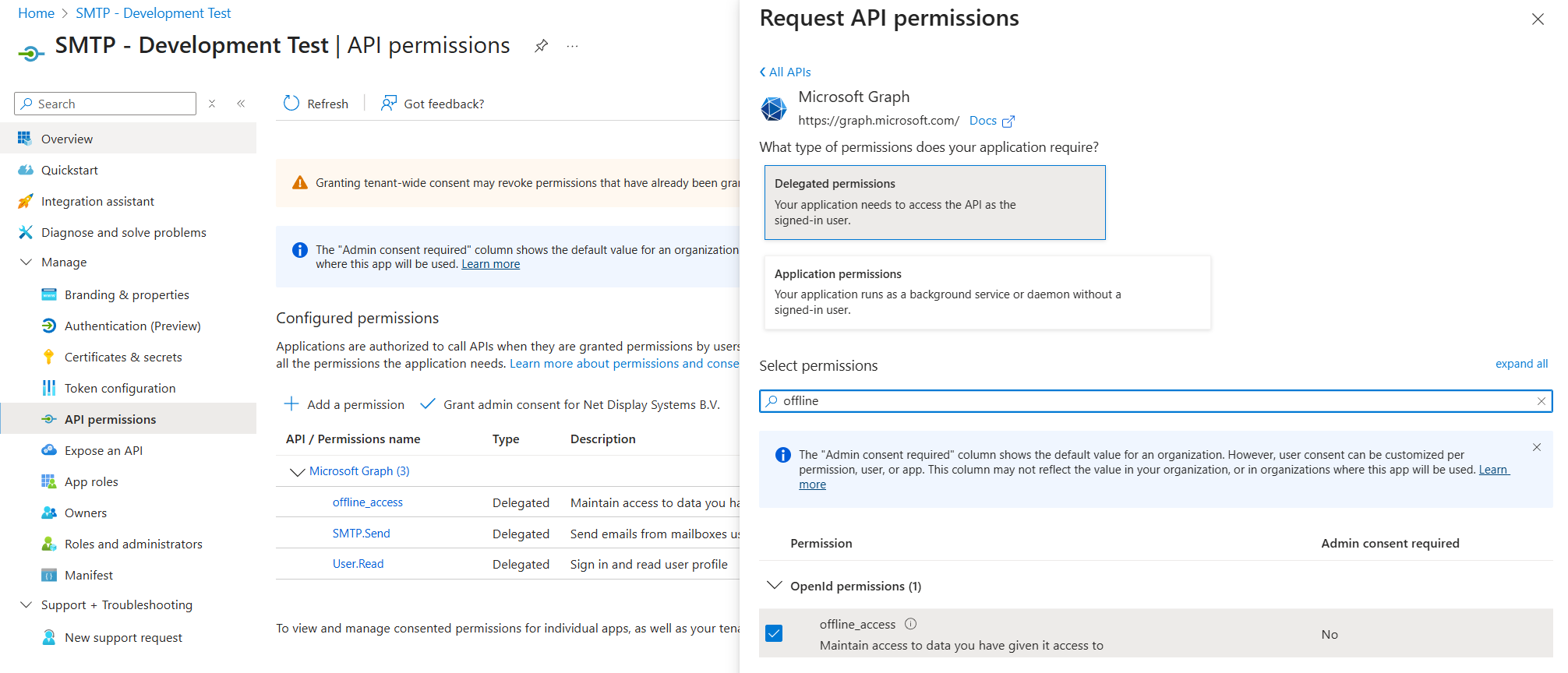
  • Choose Delegated permissions > Search for offline access
MS Smpt4
  • Add offline_access permission.
MS Smtp5
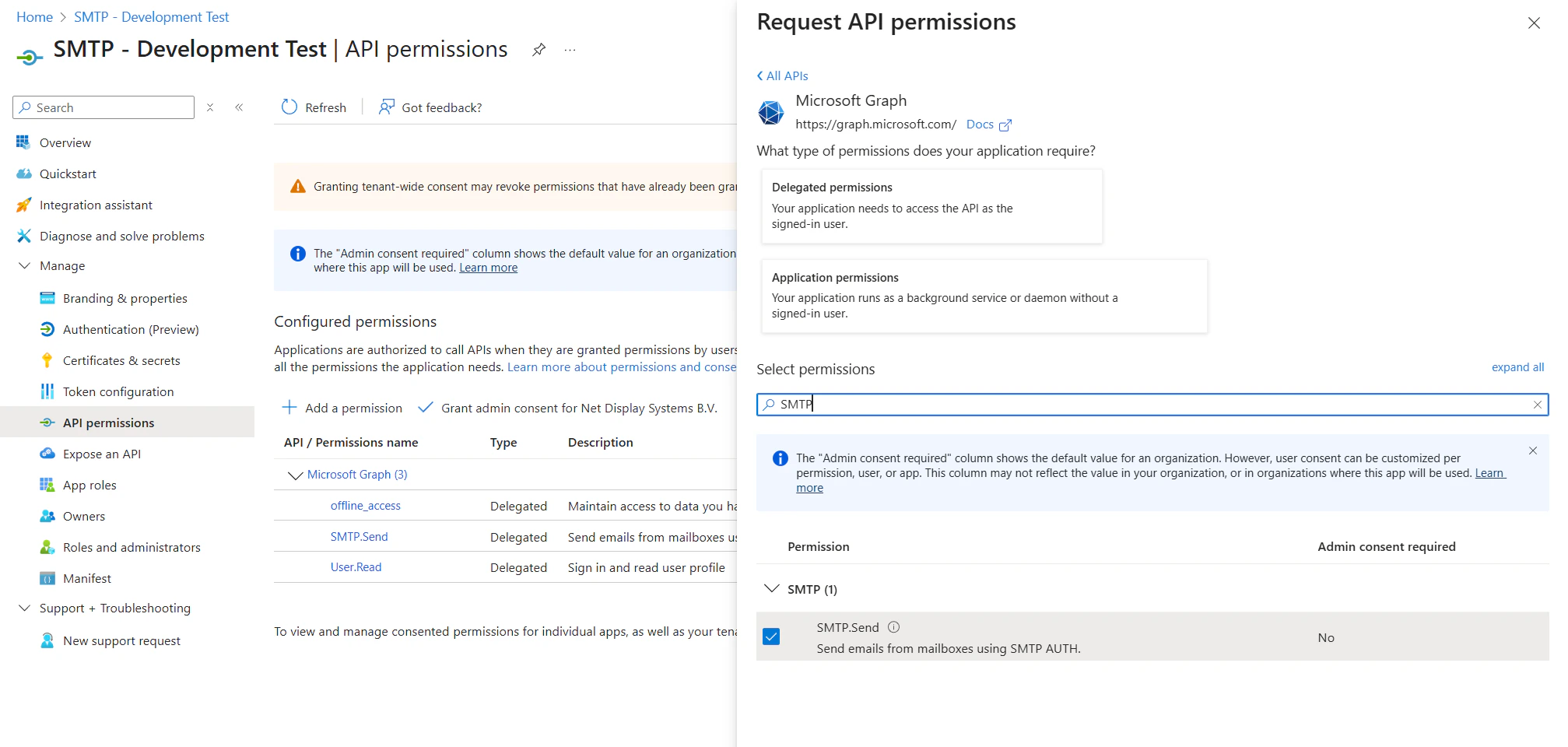
  • Search for permission SMTP.Send and this permission as well.
MS Smtp6

5. Configuration in PADS4

To begin:
  • Open your web browser.
  • Navigate to the PADS4 server URL (either a DNS name or IP address).
  • Log in using an Administrator account.
Once logged in:
  • Click on Dashboard.
  • Use the Toggle Sidebar button at the top-right of the screen.
  • Navigate to Credentials.
  • Then select Providers.
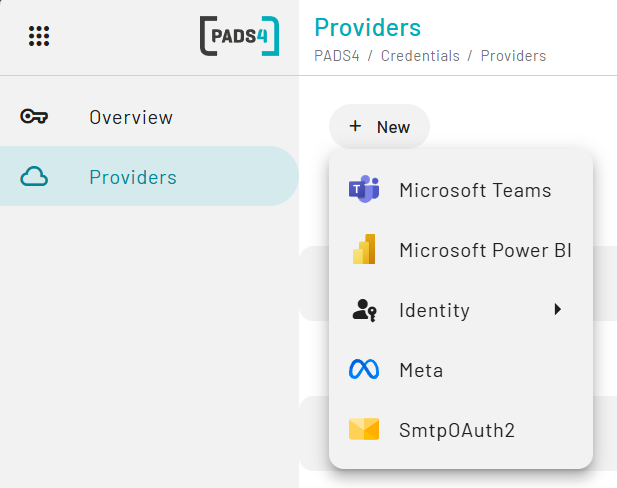
  • Click on New
SMTP Oauth2white
  • Select SMTPOAuth2
MS Smtp7
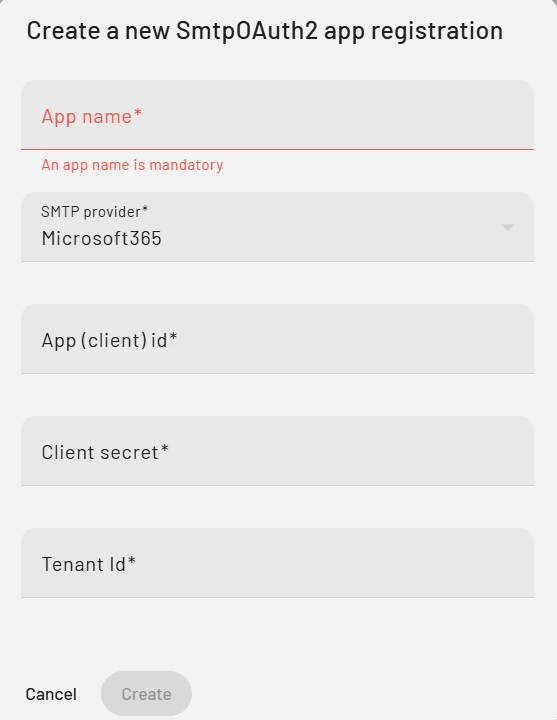
  • Fill in the information as follows:
    • App name: Represent the name of your provider in PADS4 (can be any value)
    • SMTP Provider: Microsoft
    • App (client) ID: Application ID from Azure/Entra ID described at the end of step 1
    • Client Secret: Retrieved from from Azure/Entra ID described at the end of step 1
    • Tenant ID: Directory ID from Azure/Entra ID described at the end of step 1
  • Click on create
  • Now go to the overview page and select the SMTP provider that you have just configured.
  • Click connect, choose your user account and grant the request access.