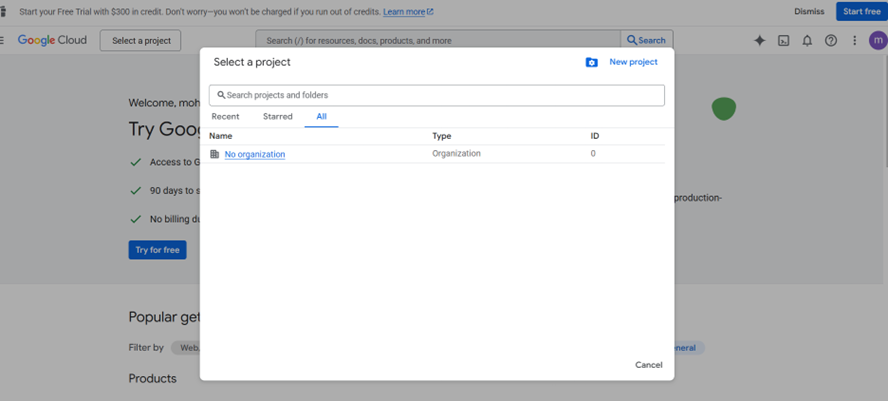
1. Create a Google Cloud project
- Navigate to the Google Cloud Console: https://console.cloud.google.com/
- Click on the project dropdown at the top of the page and select ‘Select a Project’ and then Click on the ‘New Project’.
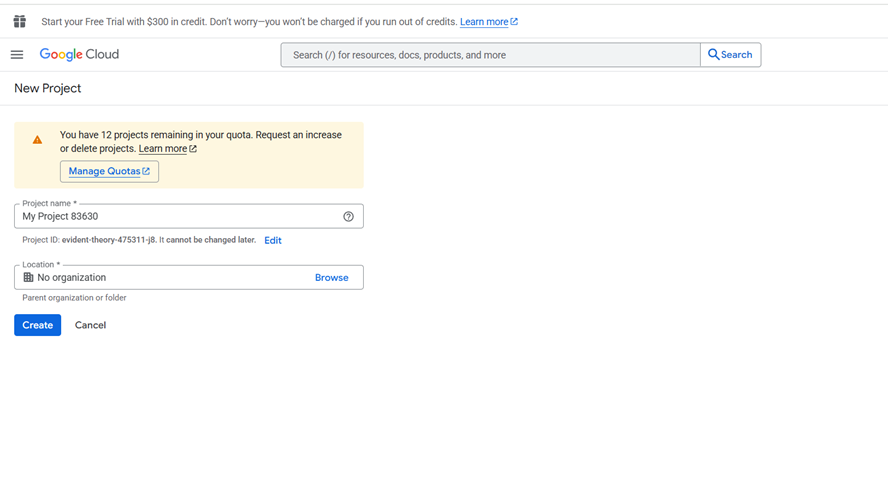
- Project name: Enter a descriptive name for your project
- Location: Select the appropriate location or leave as default
- Click Create to create your project
2. Enable Gmail API
- In your newly created project, go to API’s & Services > Library
- Search for “Gmail API” in the search bar
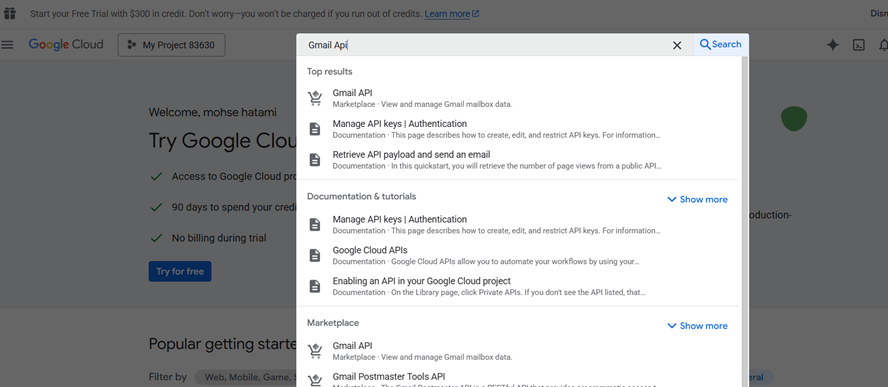
- Click on Gmail API from the results
- Click on Enable button to enable the Gmail API for your project
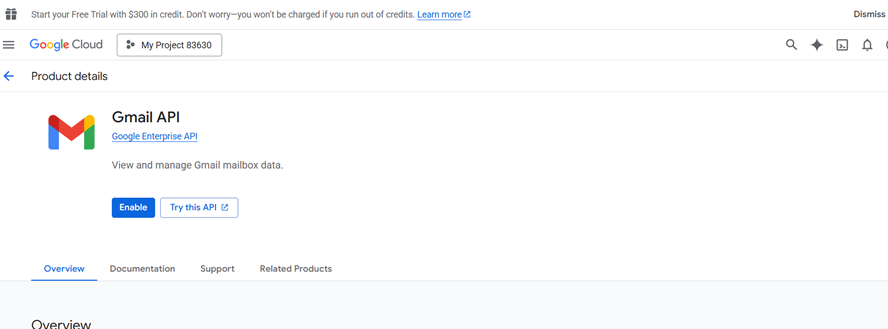
3. Configure OAuth consent screen
- Navigate to API’s & Services > OAuth consent screen
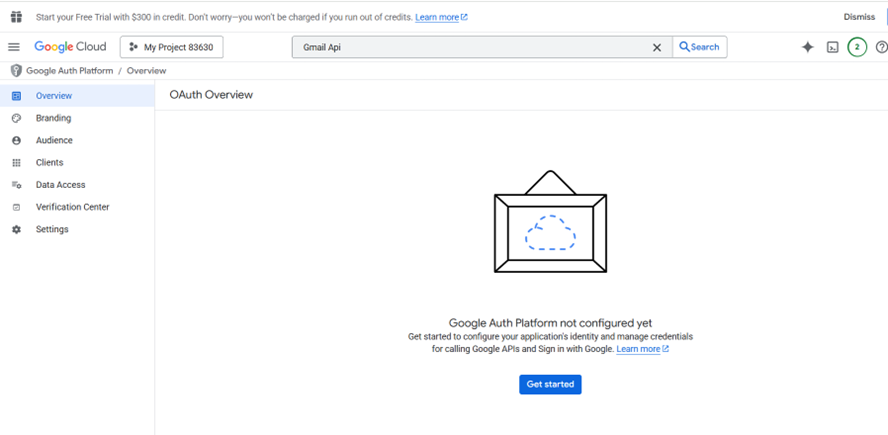
- Click Get started
- Fill in the required app information
- Appname: Name of your application e.g. PADS4
- User support email: Select your email address
- Developer contact information: Enter your email address
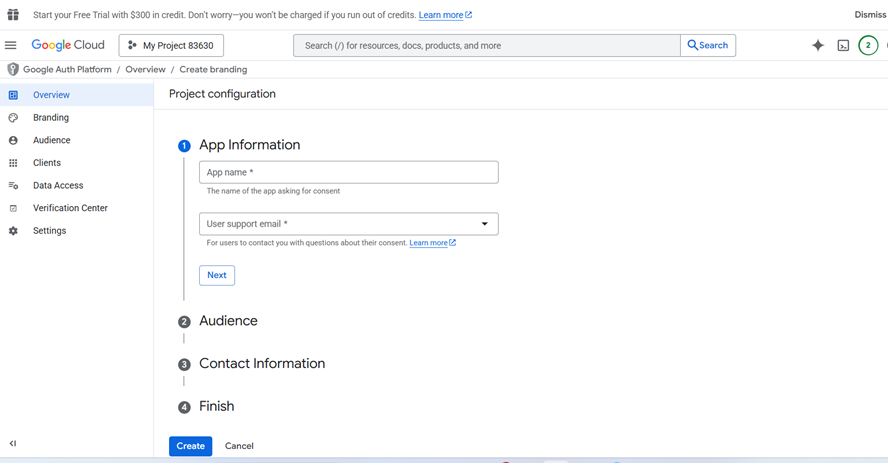
- Select the user type
- Internal: For Google Workspace users only (recommended if applicable)
- External: For any Google account user
- Click Save and continue
4. Create OAuth2 credentials
- Go to API’s & Services > Clients
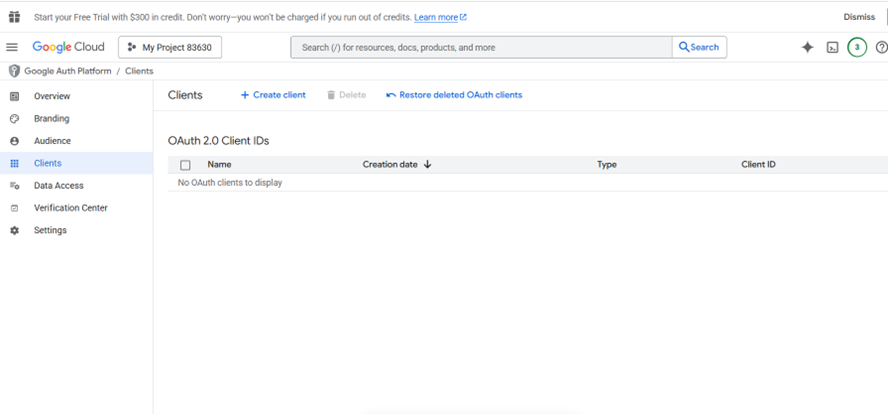
- Click on Create client
- Select Web application as the application type (Web application)
- Enter a name for your OAuth client
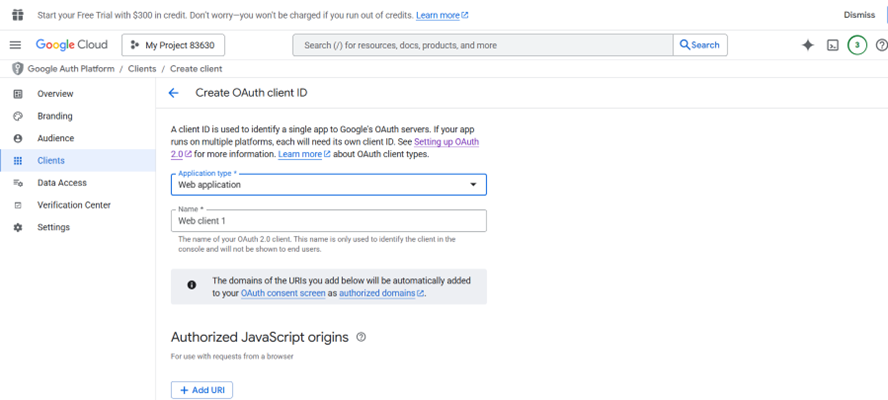
- Under Authorized redirect URI’s, click Add URI and enter:
- http://<host>:<port>/credentials/generic/authorize/callback
- Host: DNS name or IP address of your PADS4 Web Portal
- Port: Optional, if the PADS4 Web Portal is not using the default ports for HTTP or HTTPS, you should specify the port number.
- http://<host>:<port>/credentials/generic/authorize/callback
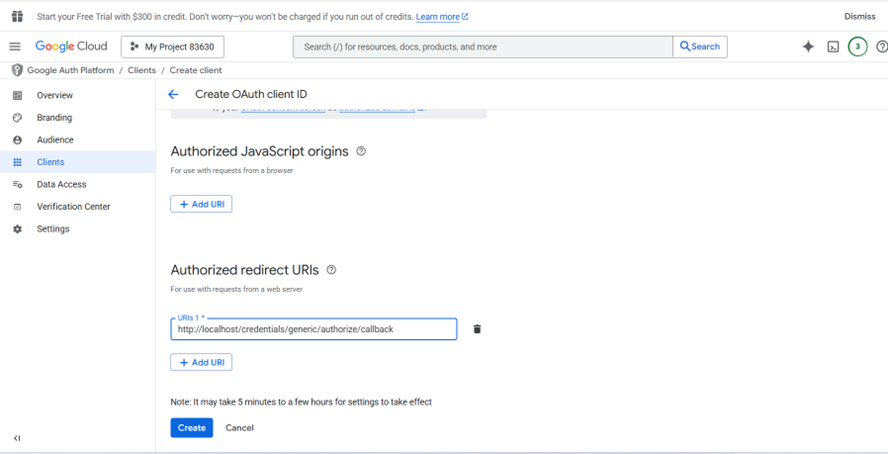
- Click on create
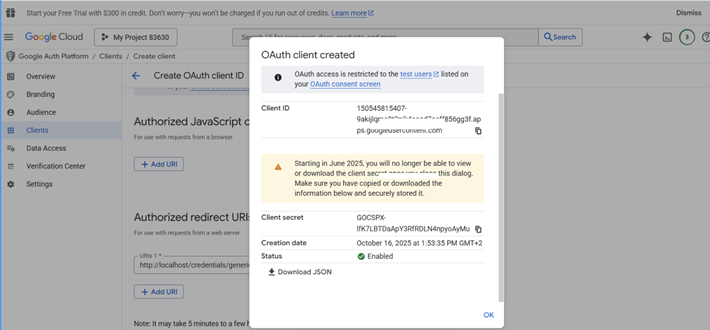
- A dialog will appear with your client ID and client secret. Copy or download these values and store them securely as you will need them for the PADS4 configuration
5. Configuration in PADS4
To begin:- Open your web browser.
- Navigate to the PADS4 server URL (either a DNS name or IP address).
- Log in using an Administrator account.
- Click on Dashboard.
- Use the Toggle Sidebar button at the top-right of the screen.
- Navigate to Credentials.
- Then select Providers.
- Click on New
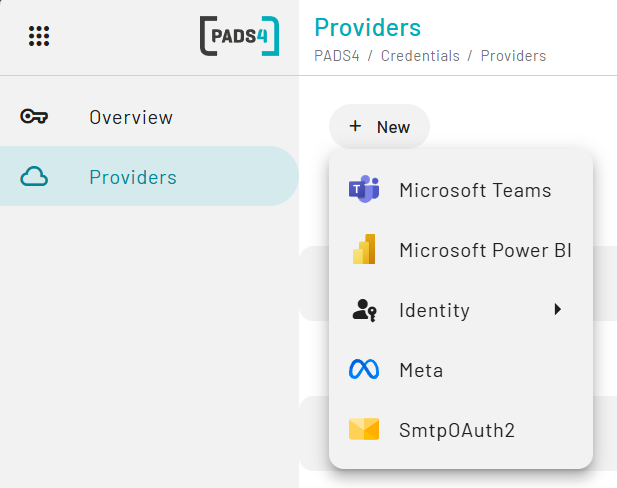
- Select SMTPOAuth2
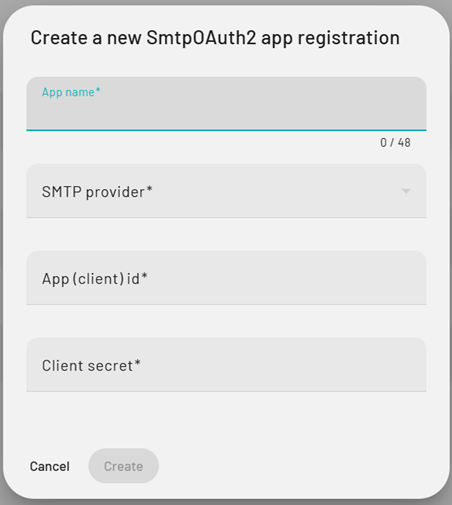
- Fill in the information as follows:
- App name: Represent the name of your provider in PADS4 (can be any value)
- SMTP Provider: Google
- App (client) ID: Retrieved from Google Cloud Console described in step 4
- Client Secret: Retrieved from Google Cloud Console described in step 4
- Click on create
- Now go to the overview page and select the SMTP provider that you have just configured.
- Click connect, select your user account and grant the request access.
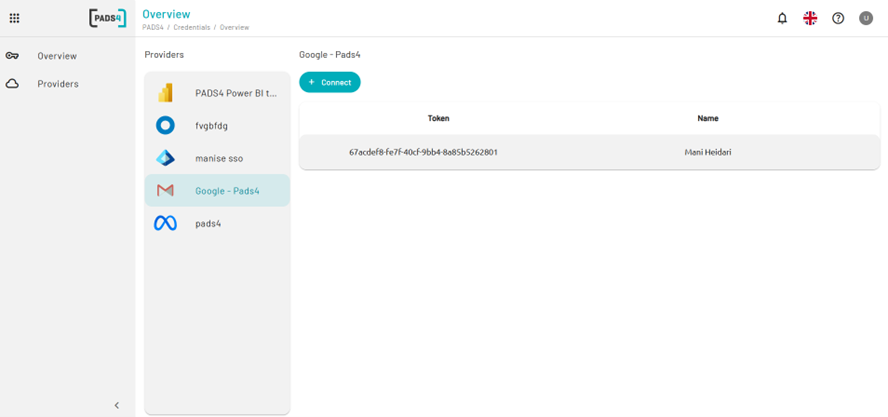
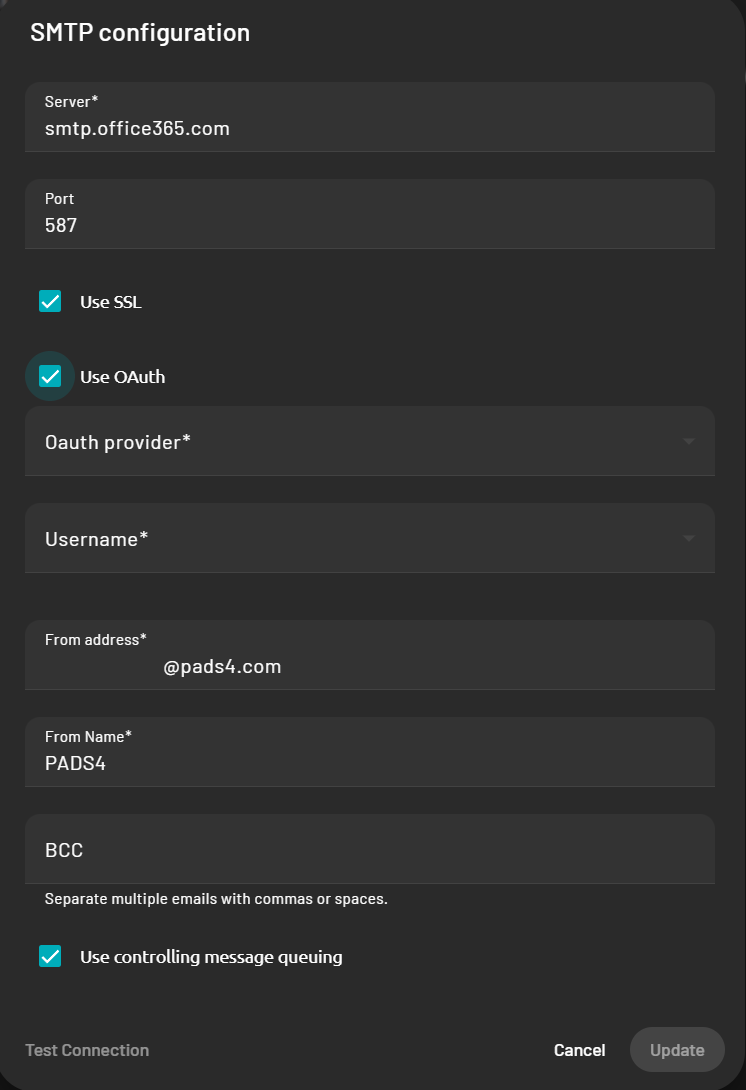
How to use this set up in the SMTP configuration.
Once logged in:- Click on Home.
- Use the Toggle Sidebar button at the top-left of the screen.
- Navigate to Config.
- Then click Edit