Configure SCIM user provisioning between Okta and PADS4 to automatically create, update, and deactivate users and groups through the Okta application.
User provisioning is the process of automatically creating, updating, and removing user accounts. It ensures that users get the right access when they join, change roles, or leave the organization.To enable user provisioning, PADS4 uses the SCIM (System for Cross-domain Identity Management) standard. SCIM provides a consistent and automated way to create, update, and deactivate users.To set up user provisioning, create an identity provider by following the SSO configuration instructions in this document. Then enable the SCIM option on it and set up the SCIM configuration on the external identity provider.
While you configure your PADS4 identity provider, you can enable the SCIM Provisioning option.To enable it while creating the identity provider:
Click the “SCIM Provisioning” step
Click “Enable SCIM Provisioning”
After you enable it, keep the following data:
SCIM URL
SCIM Access Token
You reuse these values later when you configure SCIM Provisioning on the external identity provider.On Okta, you can enable the user provisioning feature on the same application you previously created for SSO.
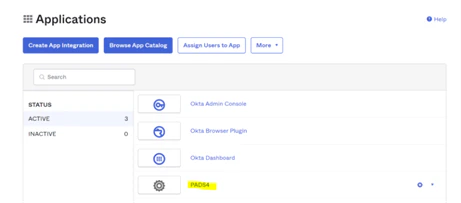
Open the application you previously created for the SSO configuration
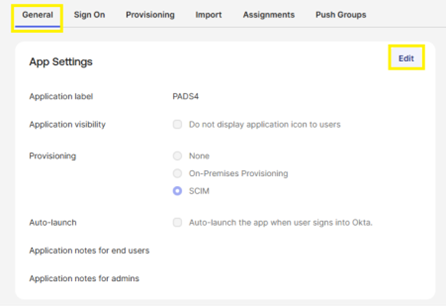
Click the “General” tab, then click the “Edit” button in the “App settings” panel
Check the “SCIM” option on the “Provisioning” field
Click “Save”
After you save the option, a new “Provisioning” tab appears at the top.
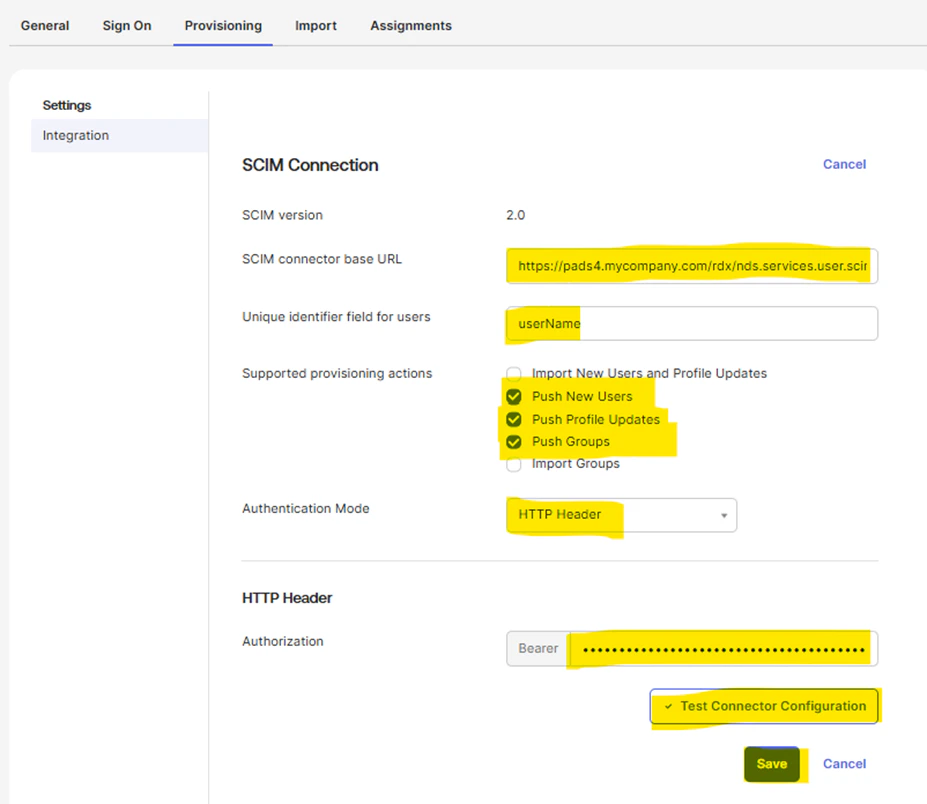
Click the “Provisioning” tab
Click the “Edit” button and enter the following information:
SCIM Connector URL – Enter the URL shown on the PADS4 identity provider as “SCIM URL” (e.g. https://pads4.mycompany.com/rdx/nds.services.user.scim/api/v1/scim)
Unique identifier field for users – Defines the unique identifier that Okta and PADS4 use as a shared reference. Default is “username”
Supported provisioning actions – Select the following actions
Push new users
Push profile updates
Push groups
Authentication Mode – Select “HTTP Header”
HTTP Header
Authorization – Enter the token shown on the PADS4 identity provider as “SCIM Access token”
Attention: This SCIM Connector URL must be publicly accessible because Okta uses it as a callback for user provisioning.
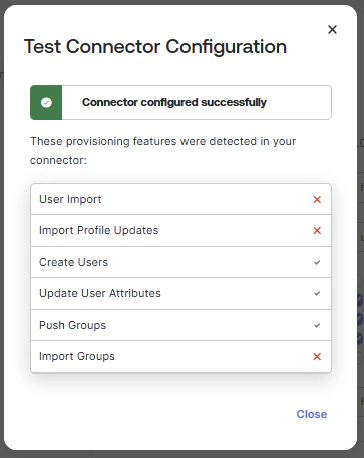
Click “Test Connector Configuration” to ensure the configuration is OK
If the test is OK, click the “Save” button to apply this configuration
After you save the integration configuration, new tabs appear on the left.
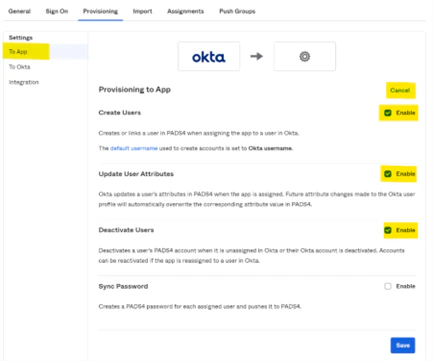
Click the “To App” tab, then click the “Edit” button in the “Provisioning to App” section
Check “Enable” checkboxes for the following sections:
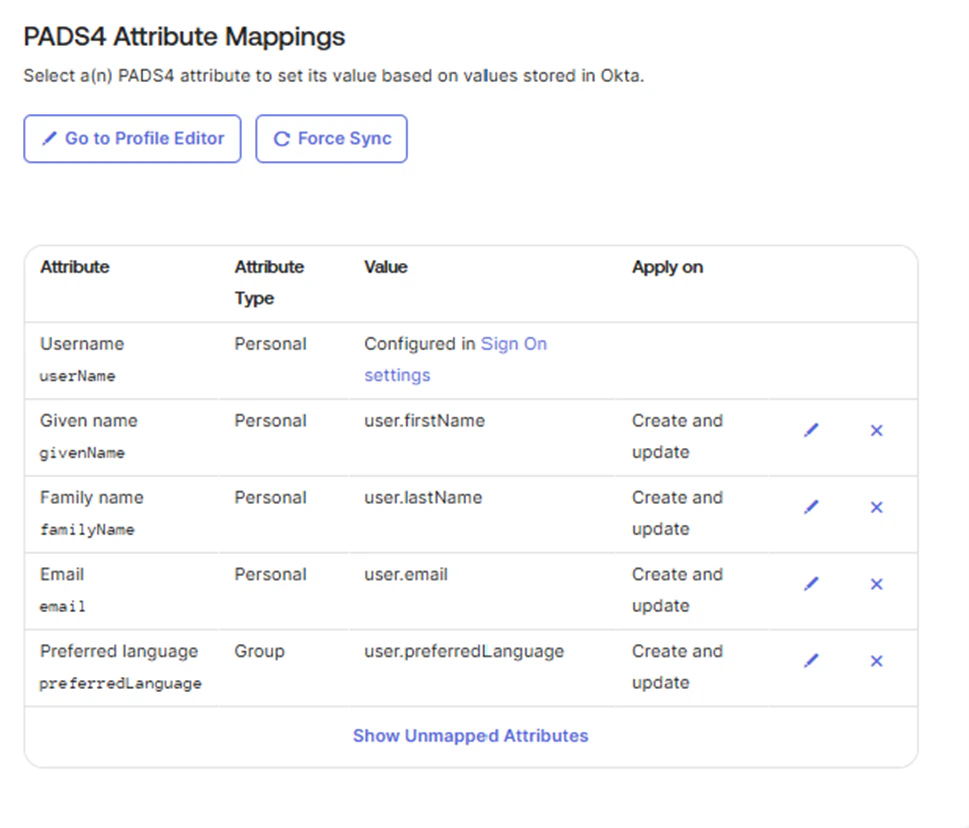
Okta configures user and group mapping by default when you create the application. Ensure that at least the following attributes are mapped on your application:
(Optional) Add optional attributes
You can also add optional attributes that PADS4 defines.To use them, click “Add New Mapping” again for each attribute and set it up.Currently, the optional attributes available are:
Target attribute
Comment
nfc
Synchronizes any value entered in the NFC property of the PADS4 user
On Okta, define which group members synchronize with the application.You configure this the same way as the single sign-on (SSO) configuration. The user groups you already defined for SSO apply to this configuration automatically.To extend this user group list, follow the instructions in the Assign user groups to the application section of the respective SSO article.
Assistant
Responses are generated using AI and may contain mistakes.