1. Enable SCIM on PADS4 identity provider
While you configure your PADS4 identity provider, you can enable the SCIM Provisioning option. To enable it while creating the identity provider:- Click the “SCIM Provisioning” step
- Click “Enable SCIM Provisioning”
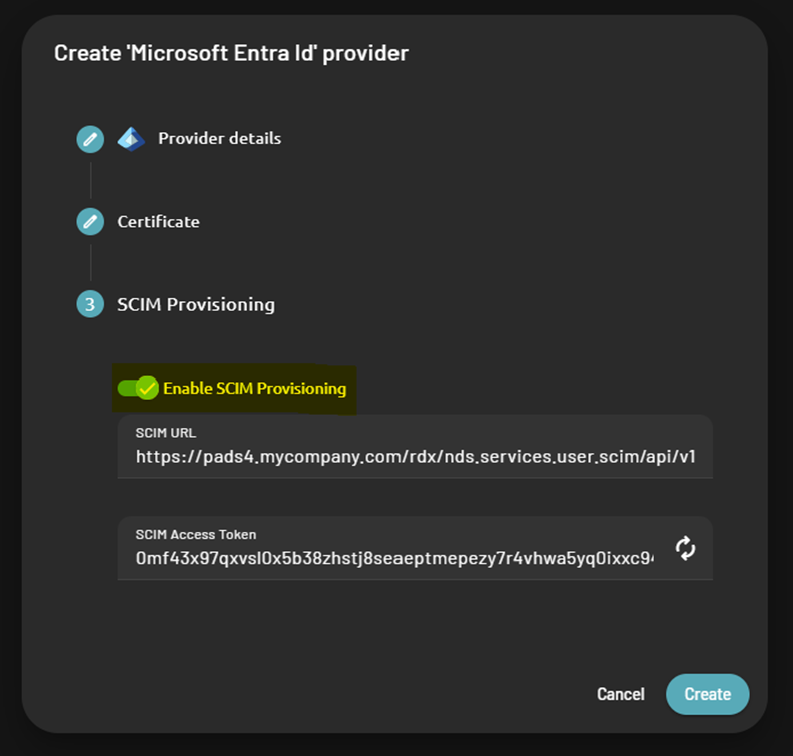
- SCIM URL
- SCIM Access Token
2. Configure SCIM on external identity provider
Now that SCIM Provisioning is enabled on PADS4, set up the SCIM user provisioning configuration on the external identity provider.Microsoft Entra identity provider
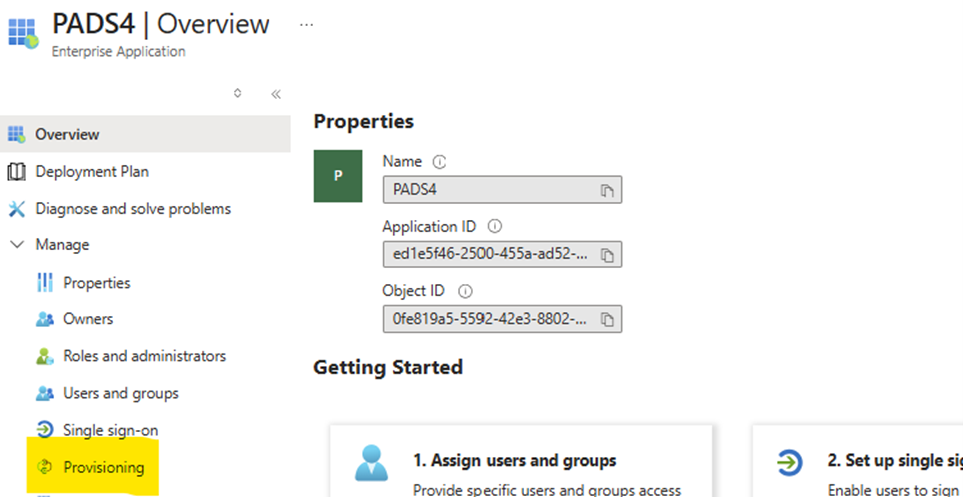
On Microsoft Entra, you can enable the user provisioning feature on the same application you previously created for SSO.- Open the enterprise application you previously created
- In the left menu, click “Provisioning”
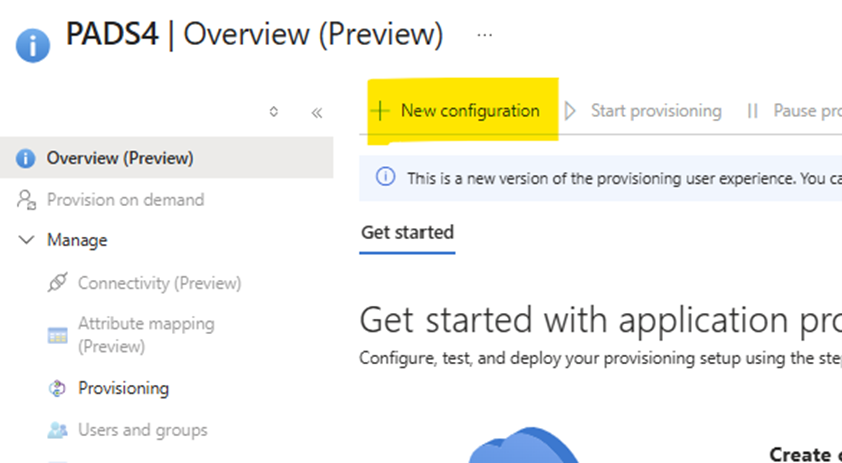
- On the overview page that opens, click “New Configuration”
Create the provisioning configuration
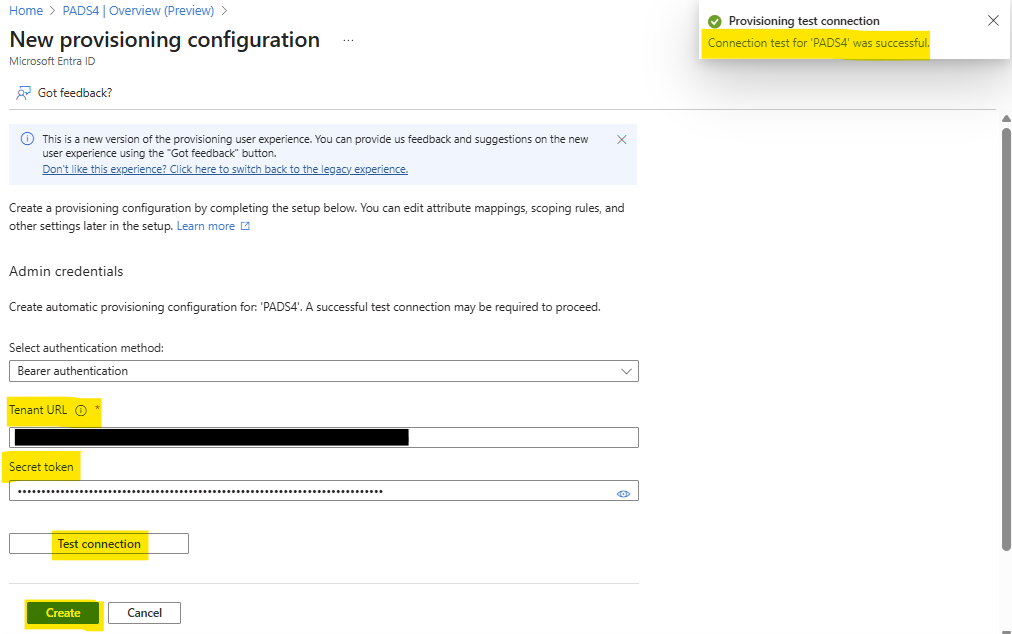
- On the new configuration page, enter the following information:
- Authentication method – PADS4 uses Bearer authentication for SCIM, so select “Bearer authentication”
- Tenant URL – Enter the URL shown on the PADS4 identity provider as “SCIM URL” (e.g.
https://pads4.mycompany.com/rdx/nds.services.user.scim/api/v1/scim) - Secret Token – Enter the token shown on the PADS4 identity provider as “SCIM Access token”
- Click “Test connection” to ensure the connection is OK
- If the connection is OK, click the “Create” button
Configure user & group mapping
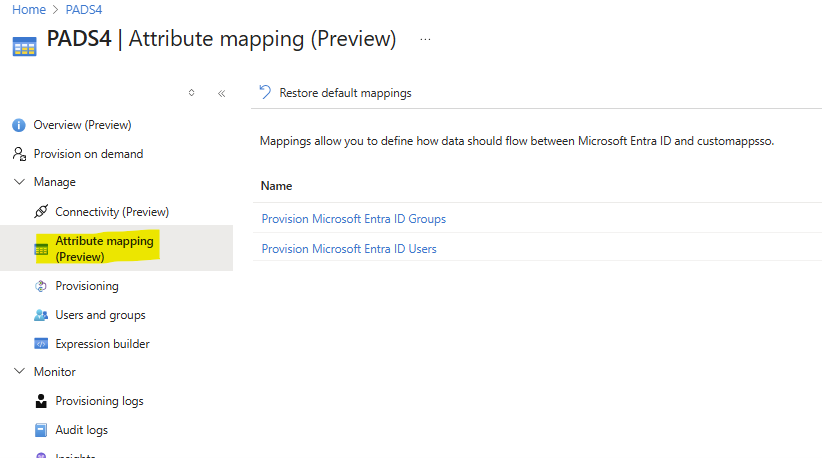
Now that the user provisioning configuration is done, configure the user and group mapping.- In the Provisioning page menu, click “Attribute mapping”
- Set up the group mapping configuration
Microsoft Entra configures the group mapping as expected by default. Ensure that the following settings are applied.

- Set up the user mapping configuration
- By default, the user mapping is configured as shown below.
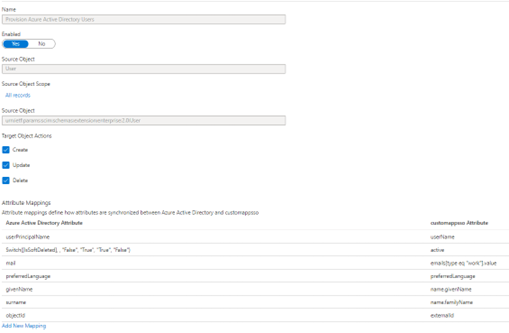
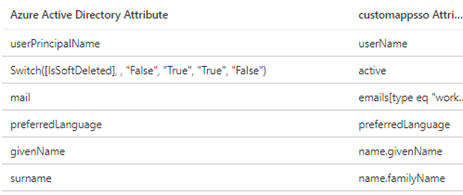
- From the initial configuration, keep the following attributes
- You can delete all mapped attributes that don’t exist in this list.
- Add the new externalId custom attribute
- After you delete the non-existing attributes, click the “Add New Mapping” button and enter the following information to create the externalId attribute
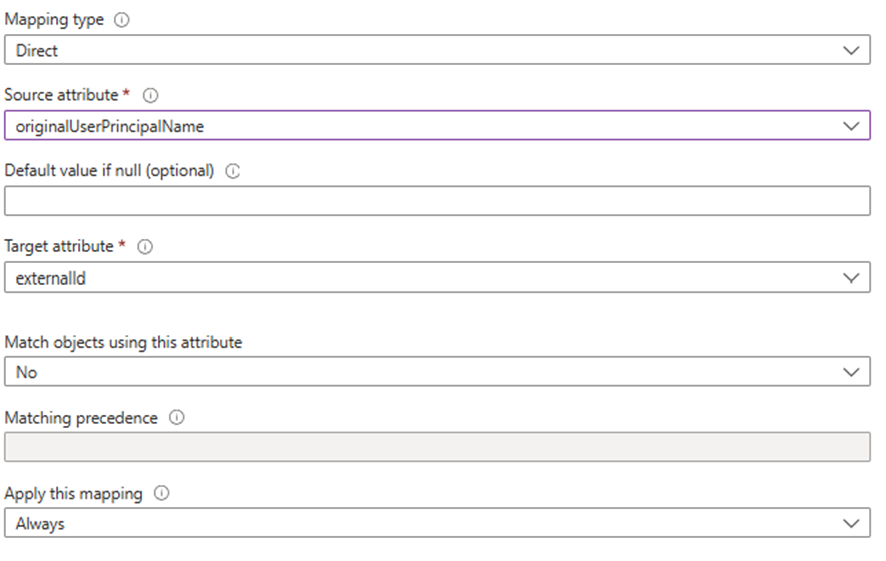
- (Optional) Add optional attributes
- Click “Save” to save the user mapping configuration
Assign allowed group to access the application
On Microsoft Entra, define which group members synchronize with the application. You configure this the same way as the single sign-on (SSO) configuration. The user groups you already defined for SSO apply to this configuration automatically. To extend this user group list, follow the instructions in the Assign user groups to the application section of the respective SSO article.Start the provisioning service
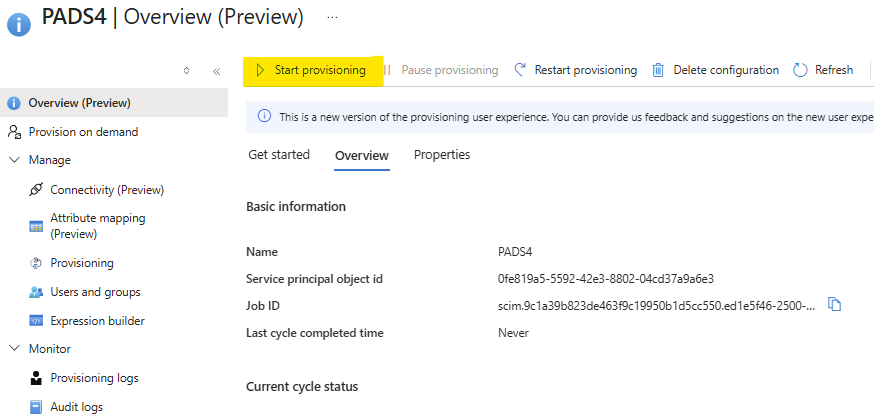
After you complete the provisioning configuration on both Microsoft Entra (Azure) and PADS4 and assign the groups to the application, you can start the provisioning service. To start it, go to the Provisioning tab in the left menu and click the “Start provisioning” button.