

1. Access the PADS4 CTRL Center
To begin:- Open your web browser.
- Navigate to the PADS4 server URL (either a DNS name or IP address).
- Log in using an Administrator account.
- Click Home.
- Use the Toggle Sidebar button at the top-left of the screen.
- Navigate to Credentials.
- Then select Providers.
2. Create the Okta application
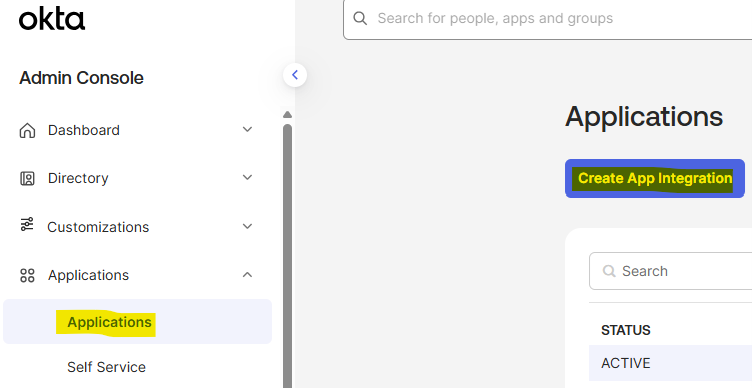
To configure an Okta identity provider, connect to Okta as an Administrator and create a new Okta app integration.- On Okta, go to the Applications page.
- Click “Create App Integration”.
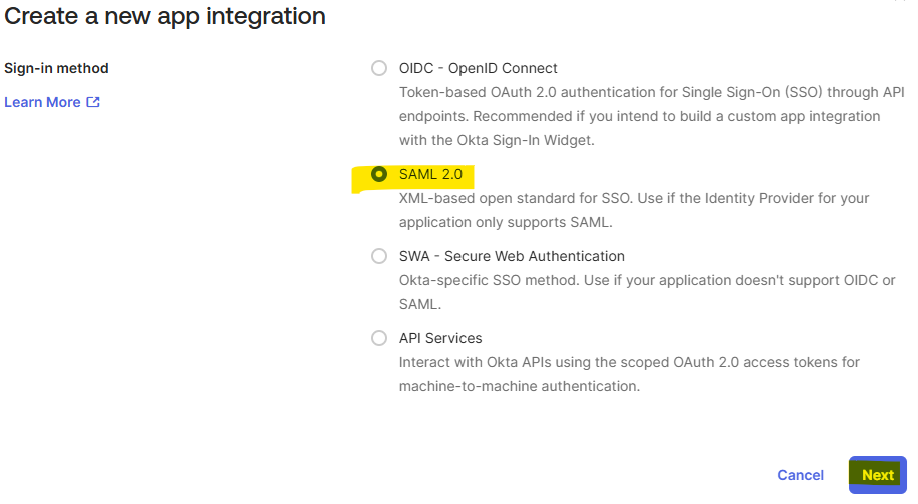
- Select the “SAML 2.0” sign-in method and click “Next”.
- Fill in the information requested in the form and click “Next”.
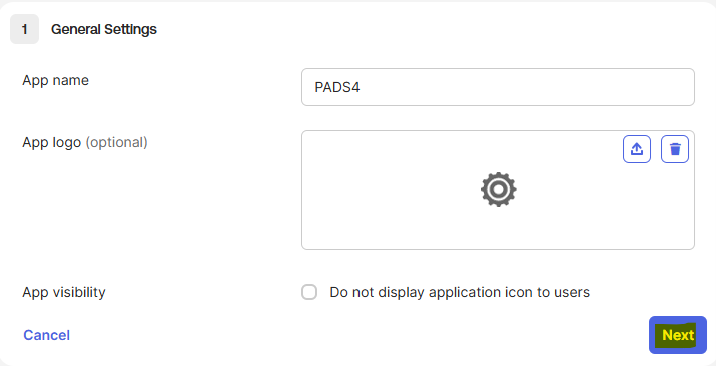
- Name: PADS4
3. Set up SAML 2.0 configuration
- Edit the SAML Settings configuration.
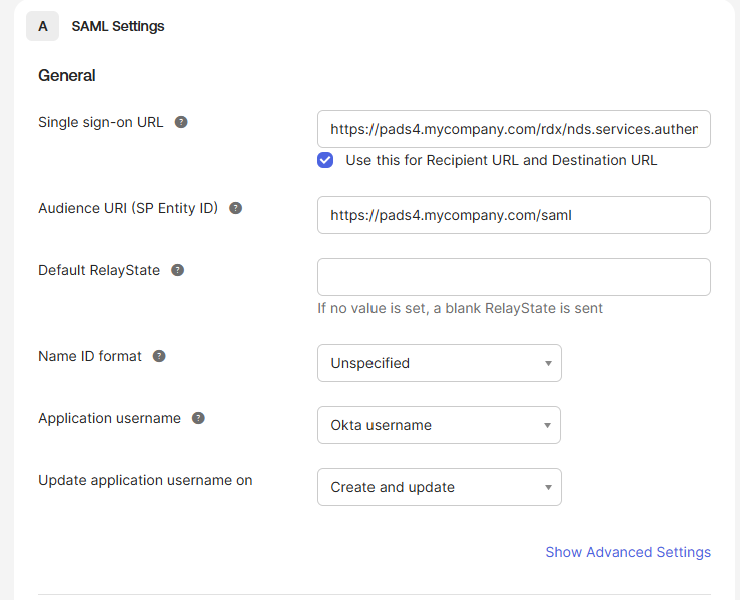
Make sure the values “Single sign-on URL” and “Audience URI (SP Entity ID)” have the structure as described below or the configuration will not work.
- Single sign-on URL:
- local PADS4 URL with /rdx/nds.services.authentication.integration/api/v1/pads/Saml2/Acs
- For example: https://pads4.mycompany.com/rdx/nds.services.authentication.integration/api/v1/pads/Saml2/Acs
- Audience URI (SP Entity ID):
- local PADS4 URL with /saml
- For example: https://pads4.mycompany.com/saml
If the domain of your PADS4 instance is different from “pads”, you must update the domain with your own domain name. For example, for a domain named “domainone”, the URL will be https://pads4.mycompany.com/rdx/nds.services.authentication.integration/api/v1/domainone/Saml2/Acs.Your configured domain name can be verified by logging in with your su\root account and going to the “Domains” section: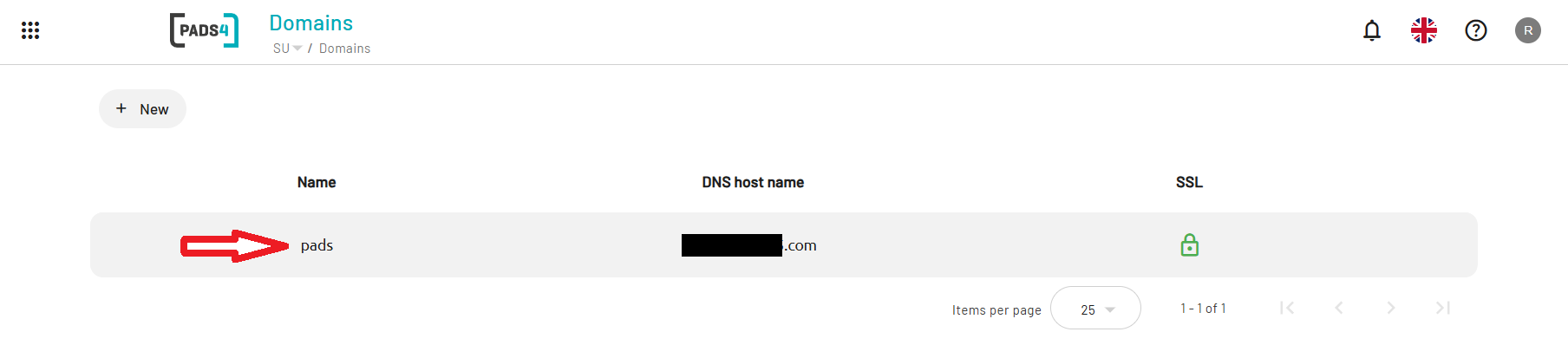
4. Attributes & claims
- Edit the attributes and claims to match the values below.
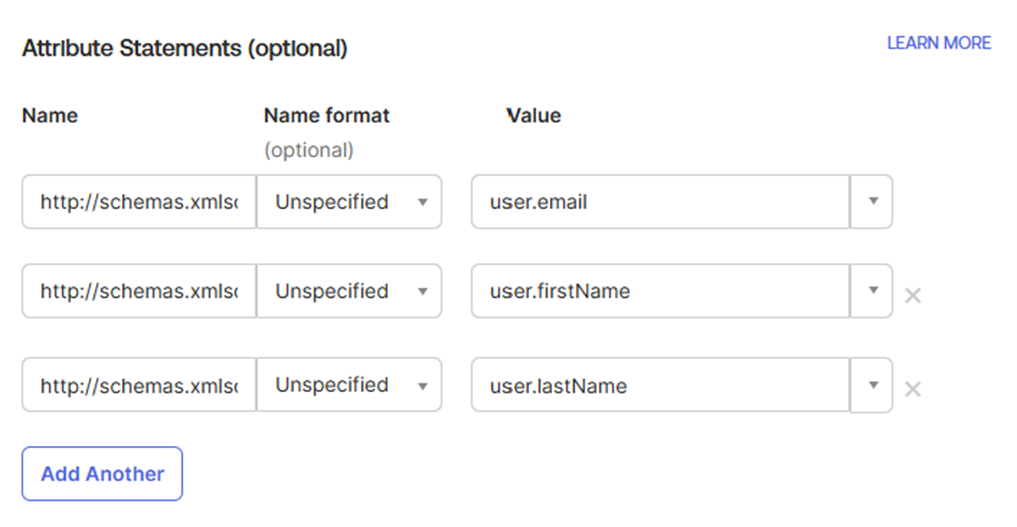
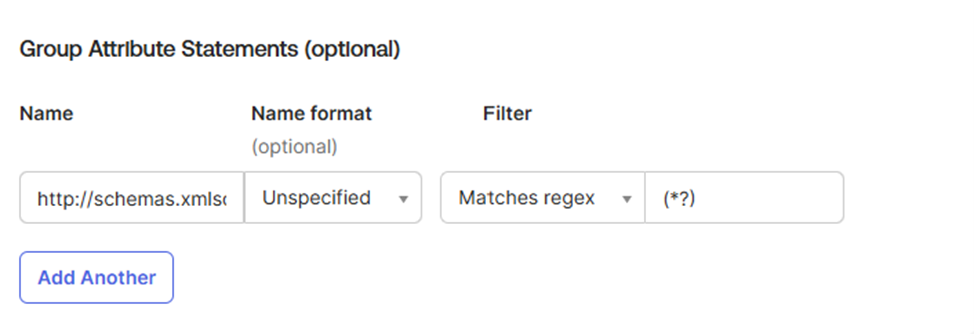
- For the group attribute, follow the configuration below and ensure the filter is set on the “Matches regex” option.
- Click the “Next” button.
- Click the “Finish” button to create the app integration.
5. Assign user groups to the application
To define which user groups have access to the application, assign the expected user groups to the application.- On the application you just created, select the “Assignments” item in the top menu.
- Click the “Assign” button and then click “Assign to groups”.
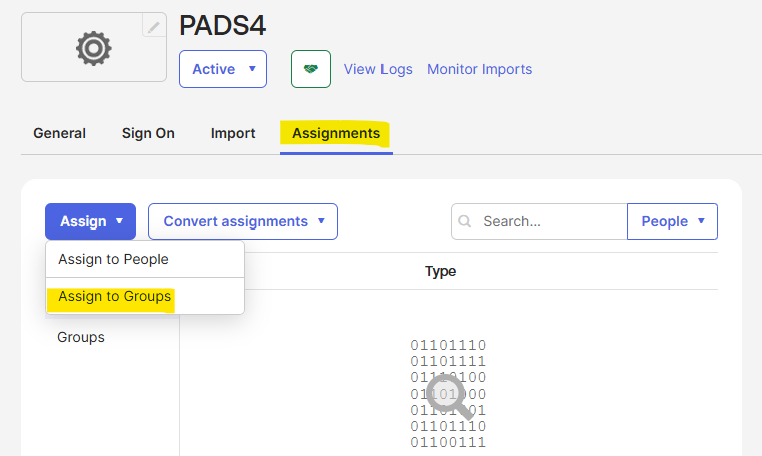
- Click “Assign” on any groups you want to assign to the application and click “Done”.
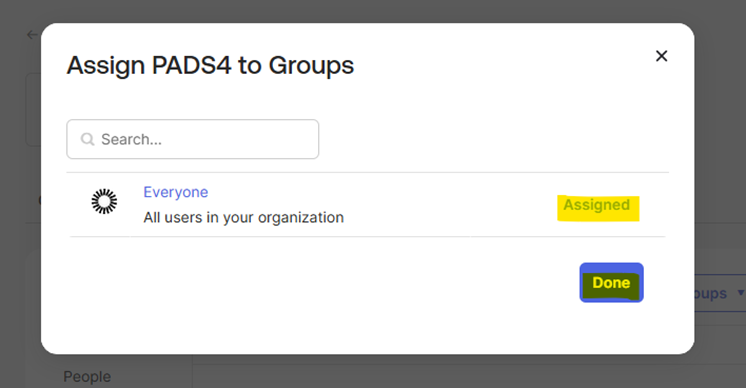
6. Collect configuration data required for creating the identity provider in PADS4
To create the identity provider in PADS4, collect some information from your newly created Okta identity provider. You need this information to configure the provider in PADS4. Click the “Sign On” tab of your created app and follow the instructions below:- Go to the “Sign On” tab.
- On the SAML 2.0 panel, click the “More details” button.
- Collect the following information:
7. Configure the provider in PADS4
With the information configured and retrieved above, you can configure the Okta integration in PADS4.- Log in to the PADS4 Web Portal of your PADS4 instance with an account that has at least the PADS4 System Management license.
- On the Dashboard, open the left menu and browse to “Credentials” at the bottom left.
- Click “Providers” followed by “New”.
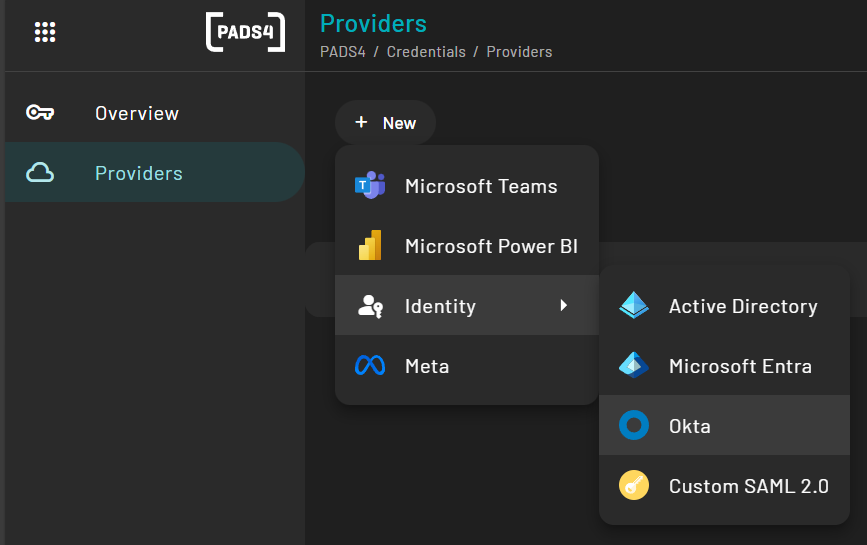
- Open the Okta configuration menu.
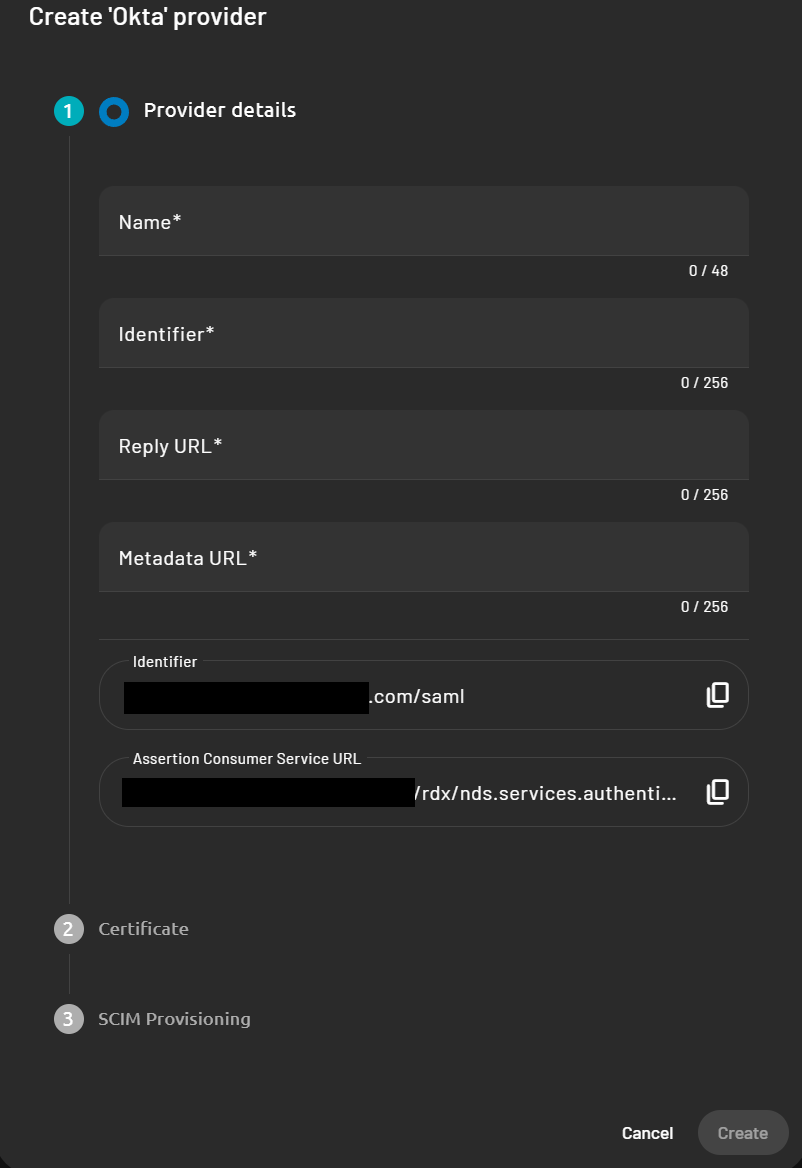
- Name: The name of your provider in PADS4 (can be any value)
- Identifier: The “Issuer” value collected in step 6.
- Reply URL: Your local PADS4 FQDN
- Example: https://pads4.mycompany.com
- Metadata URL: The “Metadata URL” collected in step 6.
- Identifier and Assertion Consumer Service URL will be filled in automatically.
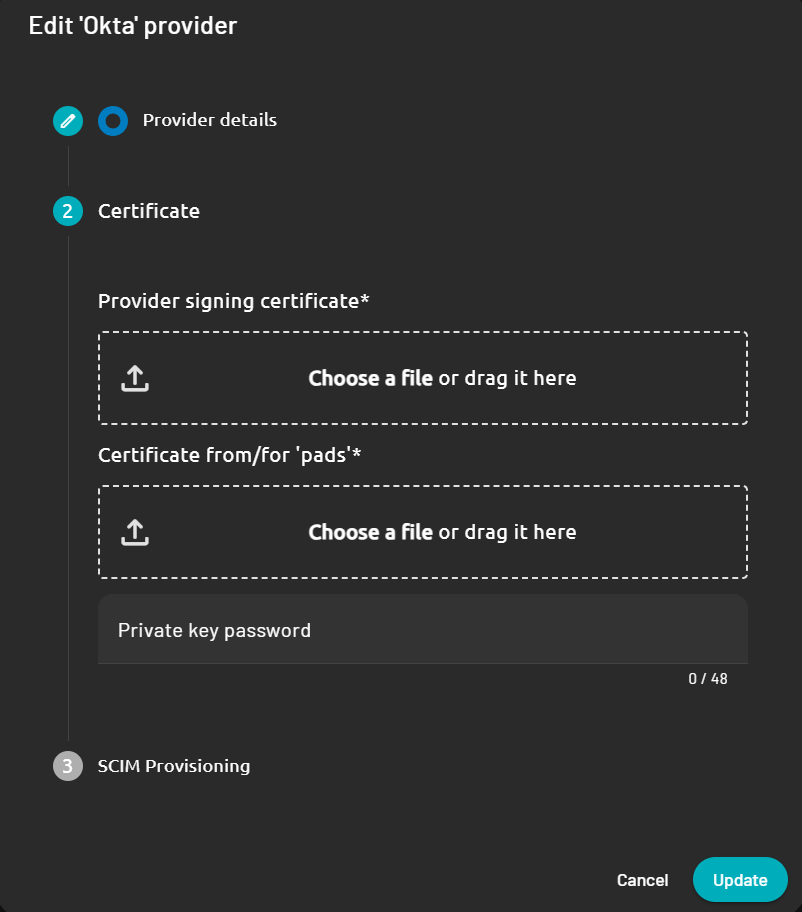
- Provider signing certificate: Upload the Okta signing certificate retrieved in step 6.
- Certificate from/for “domainone”: Upload any certificate (.PFX) you want to sign assertions from PADS4 to the external identity provider.
- Private key password: Fill in the password that relates to the PFX certificate used above.