

Default viewer permissions
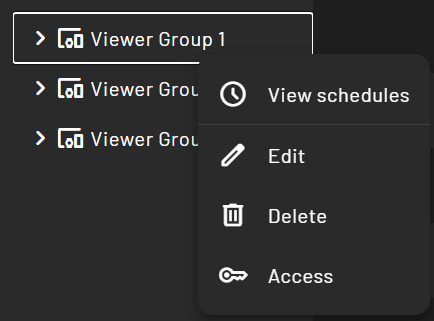
Viewer permissions work similarly to the content permissions in the PADS4 Web Portal. Right-click any viewer group or viewer to open a context menu with the option to open the “Access” menu.- In the Detail view of the viewers:

- In the Treeview view of the viewers:
How to set up permissions
To restrict a certain viewer group (or viewer), follow these steps: Log in with your administrator account and go to the Users section.- Create a new role
- Assign your newly created role to the user that requires viewer restrictions.
- Remove any of the default viewer roles if assigned.
- Now go to the Viewers overview and right-click a viewer group / viewer you want the user to be able to see.
- Click Access.
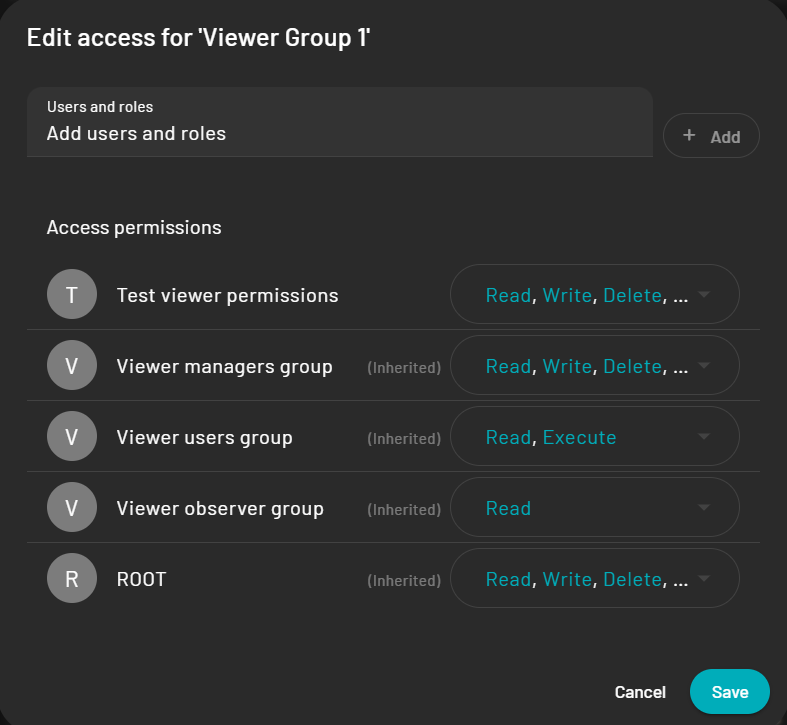
- Now add your newly created role to the list and give it at least the read permission so it can see the viewer group / viewer.
- Add more permissions if required.
- When the user who has the new role logs in, they only see the viewer groups / viewers where their role is assigned.
When you have multiple roles assigned which have different permissions, remember that the most restrictive role always overrules any other role that you might have assigned.