To display a Power BI report or dashboard in PADS4, you need two IDs from Power BI:
- The Workspace ID of the workspace that contains the item.
- The Report ID or Dashboard ID of the item you want to embed.
Both values are visible in the URL of the report or dashboard in Power BI Home.
Before you begin
Make sure you have:
Find the IDs in the Power BI URL
Open the report or dashboard in Power BI and inspect the URL in your browser’s address bar.
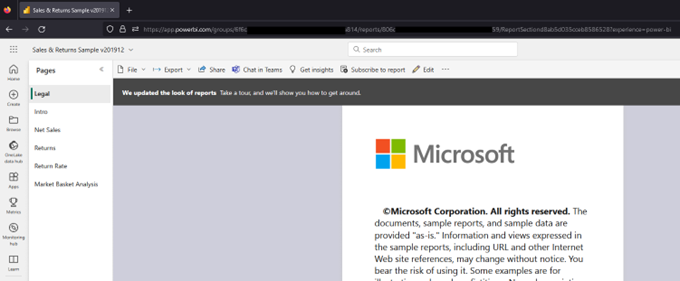
Reports
A report URL looks like this:
https://app.powerbi.com/groups/2a72e361-1e1a-43ed-a048-b44b8d2baaae/reports/d4a2c463-c469-4a58-906c-74a7bbe158ba/ReportSectiond8ab5d035cceb8586528?experience=power-bi
- Workspace ID — the value between
/groups/ and /reports/.
- Report ID — the value between
/reports/ and /ReportSection.
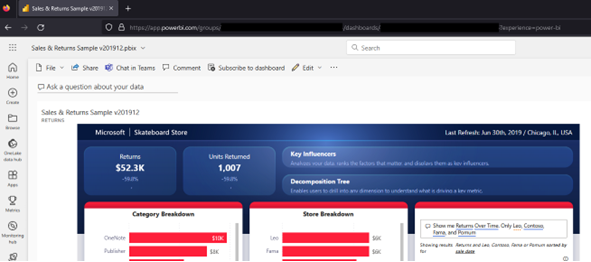
Dashboards
A dashboard URL looks like this:
https://app.powerbi.com/groups/947c4e75-b0c4-4488-aab9-ffc2b67285db/dashboards/ed6ae326-b545-44ec-8524-f951f94a0fd2?experience=power-bi
- Workspace ID — the value between
/groups/ and /dashboards/.
- Dashboard ID — the value after
/dashboards/ and before ?.
Enter the IDs in PADS4 CTRL Center
With the workspace ID and report or dashboard ID copied, open the Power BI configuration in PADS4 CTRL Center and paste the values into the corresponding fields to embed the item in your presentation.
A workspace can contain multiple reports and dashboards. Repeat this step for each item you want to embed — the workspace ID stays the same, only the report or dashboard ID changes.