

Before you begin
Make sure you have:- Completed the Azure Set-up app registration.
- Power BI admin rights on the tenant.
- Optional: a security group containing the service principal, if you want to scope embedding to that group instead of the entire organization.
Step 1: Enable service principal embedding
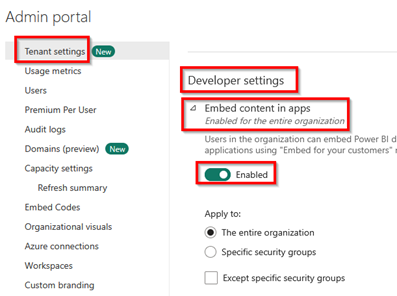
- Sign in to the Power BI admin portal.
- Go to Tenant settings.
- Scroll to Developer settings.
- Expand Embed content in apps and turn it On.
- Select the scope:
- The entire organization (default), or
- Specific security groups if you created a group for the service principal.
- Select Apply.
Step 2: Add the service principal to a Power BI workspace
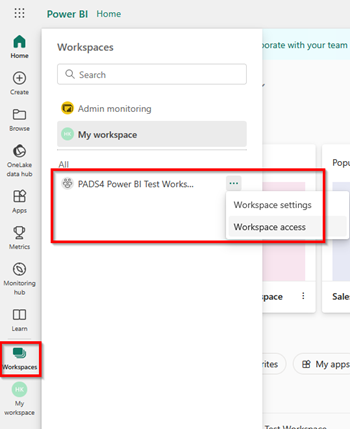
Grant the Azure app registration access to each workspace whose reports or dashboards you want to embed in PADS4.- Sign in to Power BI Home.
- Select Workspaces in the left menu.
- Find the workspace, open More options, and select Workspace access.
- Select Add people or groups.
- Search for the app registration name you created in Azure.
- Add it as Member or Admin.
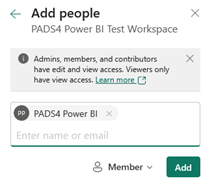
- Select Add to save the changes.