

- Open PADS4 Design to start configuring the Canva integration.
Create a new presentation or open an existing one in which you want to use Canva content.

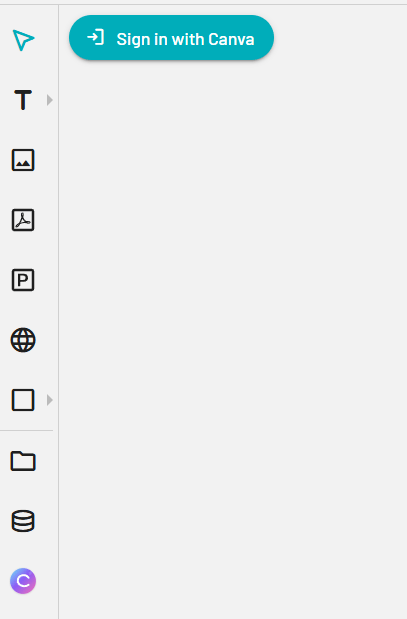
- Click the Canva icon in the toolbar.
- Select Sign in with Canva to begin the authentication process.
- A prompt will appear to create a new Canva app registration.
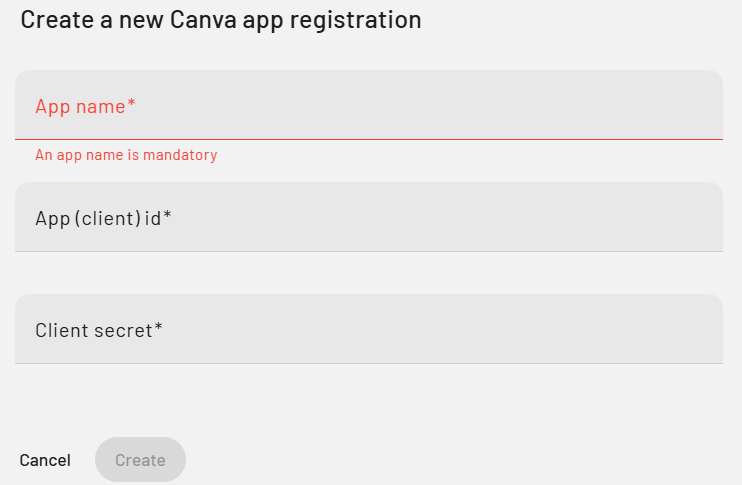
- Enter a clear and recognizable name for the integration to identify it later if needed.
- Enter the App (Client) ID and Client Secret that were generated earlier in the Canva Developer Portal.
- Click Create to register the integration within PADS4.
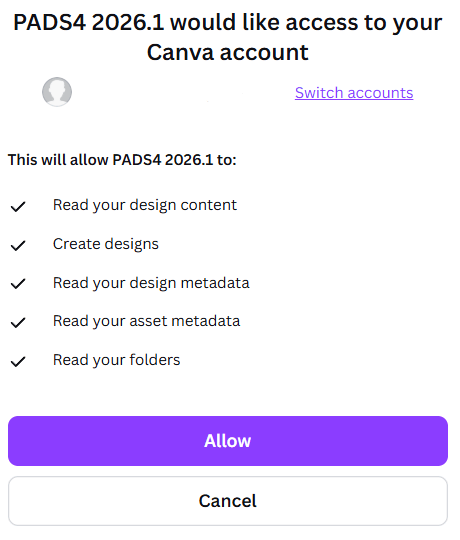
- An overview screen will appear displaying the Canva account and credentials being used. Review the details and click Allow to grant PADS4 access to your Canva content.
- After successful authorization, your Canva designs will be displayed in the left-hand panel, allowing you to browse and select content directly within Designer.
- The Canva integration is now fully configured and ready for use in your presentation.
Configaration
Connect PADS4 Designer to Canva
Authenticate PADS4 Designer with Canva from the toolbar to start importing Canva designs and assets into your digital signage presentations.