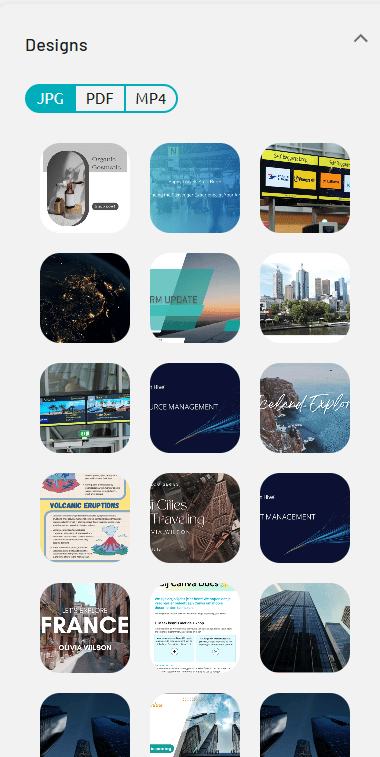
After logging in to Canva, PADS4 opens the Canva Content Library, where it displays all available Canva designs and images in one overview.From this library, you can browse the content, choose the item you want to use, and select the preferred import format before bringing it into PADS4.The library supports three import options: Image (JPG) for static visuals, PDF for document-based content, and Video (MP4) for moving content. The Image option loads the first page of the design as an image, and the PDF option creates a slideshow from the design pages. The Video option turns the design into a movie that includes all effects and animations.The items are loaded in the Media element for Image and Video, or in the Document element for PDF. Check the available elements to see the possibilities of each one.In addition, you also have access to the images available in the Canva Content Library.