

PADS4 Web Portal
- Once you have assigned licenses (PADS4 CMS 1.0 User and/or PADS4 Workspace User) to a user, the user will be added to the CMS 1.0 and/or Workspace user list. From there, access to specific parts of these applications is managed in the user profiles (more information about this in User profiles (Workspace & CMS 1.0)).
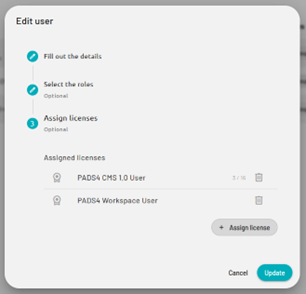
- Assign license “PADS4 Workspace User” to give the user access to Workspace. This license is enough by itself to allow access to the Workspace app. Room access and other Workspace related settings are still managed through Workspace Administration.
-
Assign license “PADS4 CMS 1.0 User” to give the user access to Crystal CMS/CMS (legacy)/ CMS 1.0 and/or administrator pages (for CMS 1.0, Workspace or both).
This license is NOT enough by itself to allow access to Crystal modules or its administrator pages. The user needs a user profile that allows access to certain parts of the Crystal platform: CMS 1.0, CMS 1.0 Administration Page, Workspace Administration Page, Wayfinding, etc.
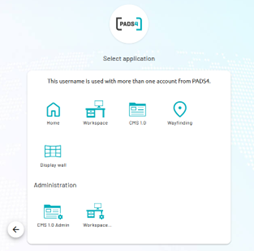
- Users that have sufficient licenses/rights will see corresponding app icons in the app selector on the login page.
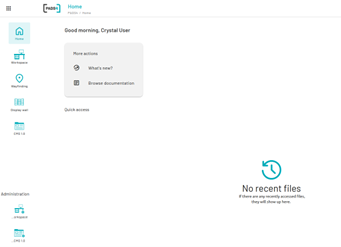
- As well as on the sidebar once you are on the Home page.
Core user information & creation
- Before, user creation was done in each app separately. Now, it always starts with creating the user through PADS4 Ctrl Center. Then, by assigning the user a CMS 1.0 and/or Workspace license it will be automatically visible in CMS 1.0 Administration Page and/or Workspace Administration Page (depending on the license).
Core information like username, firstname, lastname, nfc, and e-mail address are now managed in PADS4 only. There is no way to update this through a CMS 1.0 Admin page anymore.
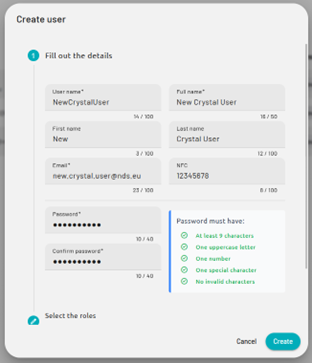
- Creating a user through a Crystal Administration Page is still possible, however. All you need to do is select the PADS4 user. There’s also an option to automatically assign the user profile. More about this user profile assignment is explained later in the document.
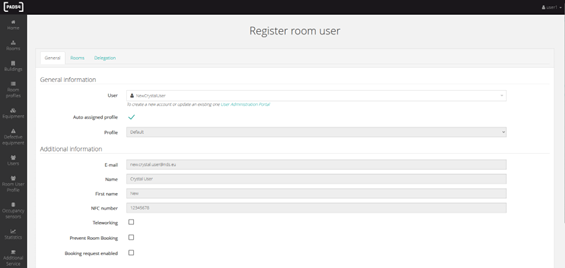
- Assuming that the current user has sufficient access to manage users in PADS4 Ctrl Center, you can click the link below the user dropdown menu to get redirected to the user management page in PADS4 Ctrl Center to manage (new) users.
User profiles (CMS 1.0 & Workspace)
- CMS and Workspace user profiles – and thus, user access management – are still managed in the corresponding administration page, but their assignment is now managed automatically by PADS4 Role Mapping settings in the CMS 1.0 Administration Plugins Page. This automatic assignment can be disabled per user if desired.
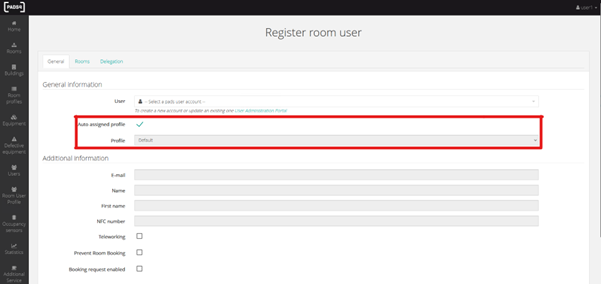
- The profile that is assigned is previewed below the checkbox for “Auto assigned profile”. The profile selected is based on the PADS4 Role(s) that are assigned to the selected PADS4 user and the PADS4 Role Mapping Settings you have configured. When this checkbox is unchecked, you’re allowed to update the profile to whatever you want.
Take into account that this user will NOT update its profile based on the PADS4 Roles assigned to the linked PADS4 User when this setting is disabled. You can update the “Auto assigned profile” setting on the user at any time.
PADS4 role mapping
- These settings can be found in CMS 1.0 Administration -> Plugins -> PADS4 Role Mapping and are a big part of proper user management. It determines which user profile should be assigned to each user:
- PADS4 Role Mapping automatically assigns a profile to a user when synchronized with a PADS4 User. Since a PADS4 user can have multiple roles, you can use ’-’ as the profile value in a mapping. This tells the synchronization to collect all mappings linked to the user’s roles and select the profile based on the order defined in the table below (top to bottom). If no mapping matches any of the user’s roles, the default profile will be applied.
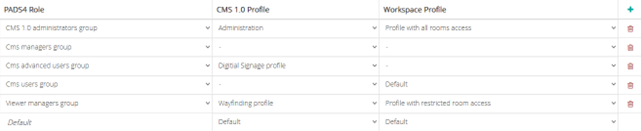
- Assuming you have the table above, it will result in the following profiles in different PADS4 Role assignment situations.
Some things to note from this example:
- The Default profiles are used as a fallback and can be changed to another profile. When the PADS4 User does not have a role assigned or none of its roles are mapped in this table, it will use the default profile.
- The ’-’ means it does not have a CMS or Workspace user profile mapped and will continue looking for other mapped roles. This means that the mapped role could end up with a default profile.
- Mapping is optional, you do not have to map all PADS4 Roles and you do not have to map a profile to a PADS4 Role.
- The table is ordered. This means that when a PADS4 User has multiple roles and more than 1 of those roles are mapped, it’ll always take the role that’s highest in the table. When this is a ’-’, it will continue looking for a lower ordered role in the list until it hits a mapped profile or the default (fallback) profile.
CMS 1.0 admin plugins
- Most of the user information is now handled in PADS4. This includes LDAP, User Provisioning/SCIM, SMTP, and Single Sign-On. Those settings are now handled by PADS4 so they have been moved from the Plugins page to PADS4 Identity providers.