

Before you begin
Make sure that:- A Data Vault has been added to your presentation. See Add a Data Vault.
Display Data Vault content in a presentation
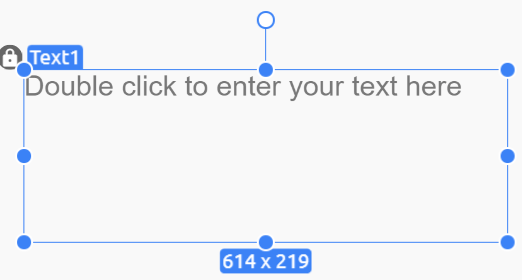
- Place an element on the canvas. On the Elements bar, select the element you want to use and drag its outline onto the canvas.
- Open the Playlist options. In the Properties pane, select Playlist, then select the element you just placed on the canvas.
- Choose Data Vault as the source. From the available playlist options, select Data Vault.

- Select a Data Vault. In the Data Vault pane that opens, select the Data Vault you want to use.
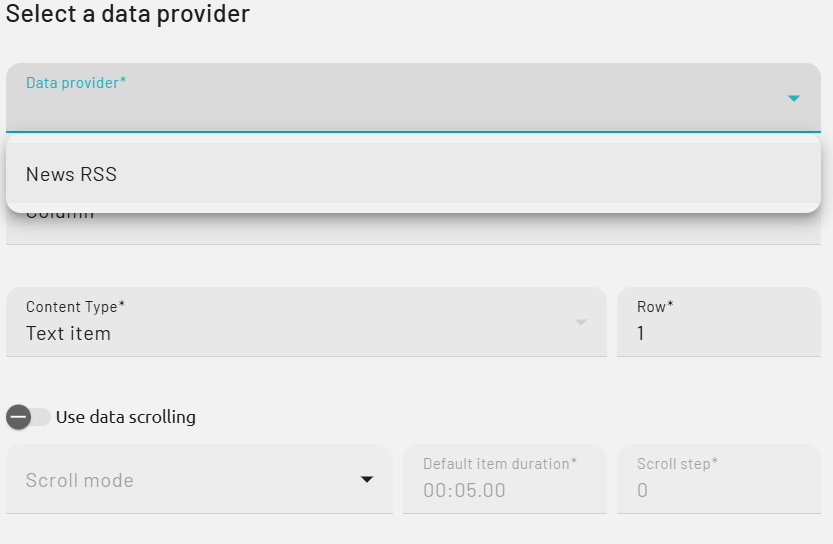
- Select a column. Pick the column whose values you want to display in the element.

- Confirm the selection. Select OK to add the content to the element.