

Before you begin
You need a desk or office that is assigned to you. If you have one, its calendar appears next to your own calendar. See Absence in PADS4 Workspace.Report an absence
1
Open your calendar
In PADS4 Workspace, go to your calendar. If you have an assigned space, you see its calendar too. This shows when you are present or absent.
2
Open the absence tool
Select the + button in the lower-right corner of the screen, and then select the red icon.
3
Select the absence period
In the calendar, select the start date and the end date of your absence. You can select several days at once.
4
Save the absence
Select Save.
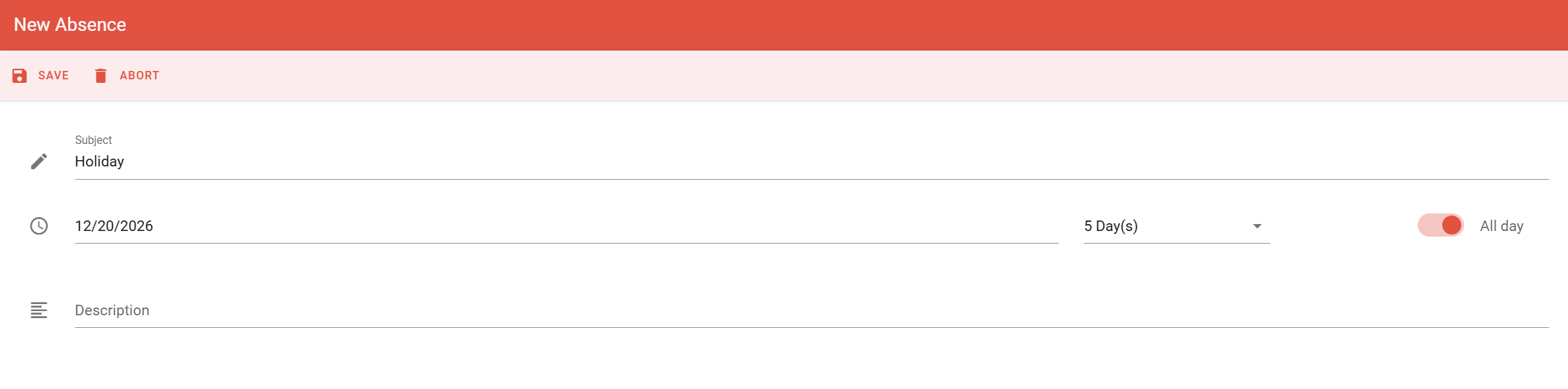
The absence appears in red in your main calendar. Administrators can see it, and your space is free for other people to book.
Change or delete an absence
If your plans change, you can change the days of an absence or delete the absence.1
Open the absence
In your calendar, select the red absence entry. The details show the period of the absence.
2
Change or delete the absence
- To change the days, select the pencil icon, change the dates, and then save your changes.
- To delete the absence, select the trash icon.