Link PADS4 motion sensors and Hue LEDs to rooms in Workspace Administration to automate occupancy bookings, releases, and room status indicators.
This article requires you to have at least PADS4 version 2025.2.
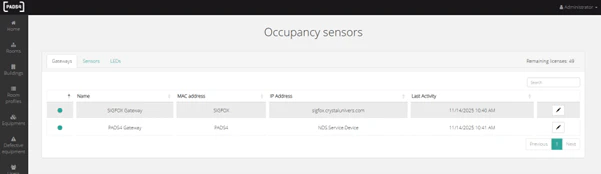
Once gateways are set up in PADS4, Workspace will automatically import them into Workspace Administration -> Occupancy Sensors. You can see a PADS4 Gateway available in the list of Gateways in Workspace Administration. This is a generic gateway that automatically imports PADS4 devices (motion sensors and LEDs) into Workspace.
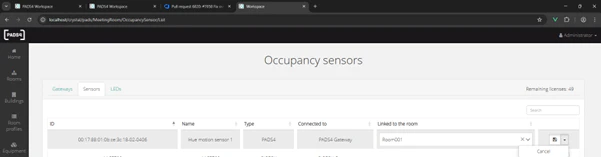
In the tabs next to it, you can find the sensors and LEDs that you can use in Workspace.
Sensors detect motion and can be linked to one room (this includes modular spaces).
You can link them by clicking on the link/chain button, selecting the room, and saving by clicking the save button. To cancel the edit, you can click the dropdown button next to the save button and select cancel.
Linking a sensor costs an IoT license. The number of licenses can be found in the top right corner of the sensor table.
License errors can occur. In that case, a warning indicator is shown on the device row. There are two cases when you could encounter an error:
The sensor is linked to an invalid room. This may occur due to the room not having a license (anymore).
The sensor is exceeding the number of available licenses.
You can hover over the warning to find out which one it is (tooltip).
Linking a sensor to a room means it will automatically create a booking on that room when the sensor is detecting sensor for the number of minutes defined in the room profile. The meeting it will create will be called PIR and has the duration that is also defined in the room profile.
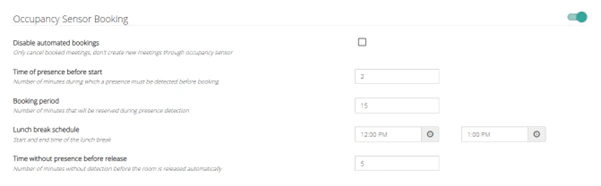
In the room profile you can also define the lunch break. Lunch break is the timerange the time that the sensor won’t be affecting any meeting. It won’t cut-off/release the booking if people are absent and it won’t create a new automatic booking either.
Take the following example of a room profile setup:
In this case, the sensor will:
Create a booking of 15 minutes once a motion sensor has detected motion for 2 minutes.
Cancel/remove a booking (automatic or not) if there was never any motion detected during the booking’s first 5 minutes.
Cut-off/release a booking (automatic or not) if there was motion detected during the meeting but hasn’t detected any new motion for 5 minutes.
Won’t cancel/release/create a booking between 12pm and 1pm.
It’s important to note that the “Time without presence before release” starts timing these 5 minutes after the motion delay has passed. So, in this case, if the motion delay of the sensor was set to 120 seconds (2 minutes), it will release/cancel 7 minutes after the sensor notified that it did not detect any motion anymore. If it detects motion during these 7 minutes, it will repeat the process.Finally, the automatic bookings never overwrite/overlap existing bookings. Take the example from before; If it automatically creates a meeting 9 minutes before an upcoming booking, this automatic booking will only take 9 minutes even though the room profile is configured to create a booking of 15 minutes.
LEDs only react on events, but not by themselves. You must link it to either a room or a sensor. To do this you must make sure that the LED has the desired linking type: Room Link or Sensor Link.
You can update this type in the edit dialogue (clicking the pencil on the right side of the sensor row).
When the type is set to Room Link, you can select a room to link the LED to using the link (chain-icon) button. The LED will then indicate the status of the linked room (modular spaces are also allowed): Red for currently occupied/reserved by a booking and green for free / no current booking.
When the type is set to Sensor Link, you can select a sensor to link the LED to. The LED will then indicate the status of the linked sensor: Red for currently detecting motion and green for no motion detected.
Once the LED turns green, that also means the motion delay has passed and the room will release/cancel the current booking after the number of minutes configured in the room profile have passed.
Assistant
Responses are generated using AI and may contain mistakes.