Introduction
A PADS4 Gateway Proxy allows you to connect gateways from your local server to your PADS4 server on another (physical) location. Some device gateways or (PADS4) servers can only connect with third-party gateways when they are on the same local network, usually for security reasons. You can install a PADS4 Gateway Proxy on a local Windows server/device and connect the gateway to it. Then connect your PADS4 server to the proxy to allow communication with those devices through the PADS4 server and the proxy. An example is a SaaS server. The server is not connected to the same LAN as a device hub (e.g. Philips Hue Hub), and the device hub does not allow connections outside of the LAN network. In that case, install the PADS4 Gateway Proxy on a server/computer on the same LAN as the device hub to connect with it. Then add this proxy as a gateway on the domain of the SaaS server.Set up a gateway proxy
- Download the latest Device Gateway here: PADS4-Device-Gateway
-
Execute
NDS.PackageManager.Setup.msifrom the Prerequisites folder. You need this manager to install the proxy later.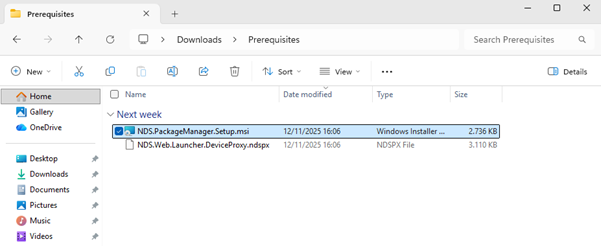
-
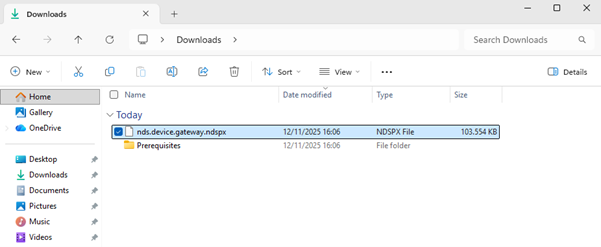
After installation, double-click (execute)
nds.device.gateway.ndspxto install the proxy. TheNDS.Web.Launcher.DeviceProxy.ndspxis installed automatically when installing the gateway package.
- Then, on the same device as where you installed the proxy, open a browser and visit http://localhost:8692/launcher. Fill in the details of your PADS4 Server to connect with. In Client ID, enter any name you want as long as it’s unique among your other proxies, in case you have more than one.
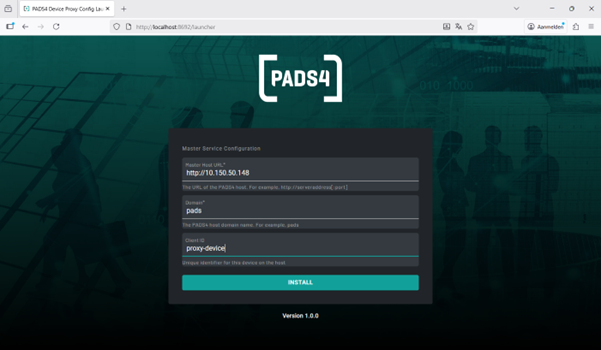
- Click
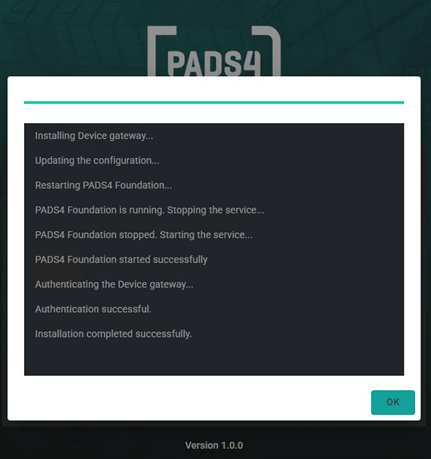
Installto start setting up the proxy. The following screenshot indicates a successful setup.
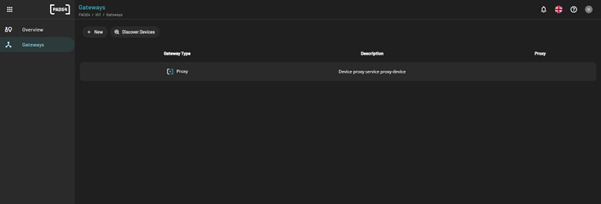
- Your PADS4 Web Portal now shows a gateway with the name you set on the proxy.
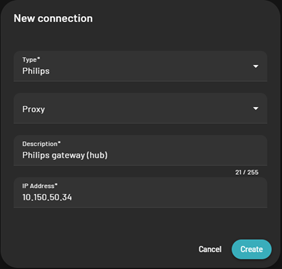
- You can now use this proxy when required while adding a gateway: