

How the token stays valid
An OAuth 2.0 access token is valid for a limited time. The external service sets this time in the token response. PADS4 reads the expiration date of each token and gets a new token from the token endpoint before the current token expires. The token ID that you use in your data providers and Data Vaults stays the same. You do not need to update your presentations or data configuration when PADS4 renews the token.PADS4 cannot renew a token when the external service rejects the request, for example because the client secret expired or an administrator revoked the consent. In that case, fix the cause and re-authenticate the token.
Before you begin
- You need access to Credentials in PADS4 CTRL Center.
- Register PADS4 as an application (client) at the external service. Collect these values from the service:
- The client ID and the client secret
- The URL of the token endpoint
- The URL of the authorization endpoint, if the service uses a grant type with user sign-in
- The grant type, the scope, and the audience that the service requires
Register the CustomOAuth2 provider
1
Open the providers
In PADS4 CTRL Center, go to Administration > Credentials, and then select Providers.
2
Add a CustomOAuth2 provider
Select New, and then select CustomOAuth2. The Create a new CustomOAuth2 app registration dialog opens.
3
Enter the provider settings
Enter the values that you collected from the external service. Fields marked with an asterisk (*) are required. See CustomOAuth2 settings for a description of each field.
4
Save the provider
Select Create. The provider appears in the list with the provider name CustomOAuth2.
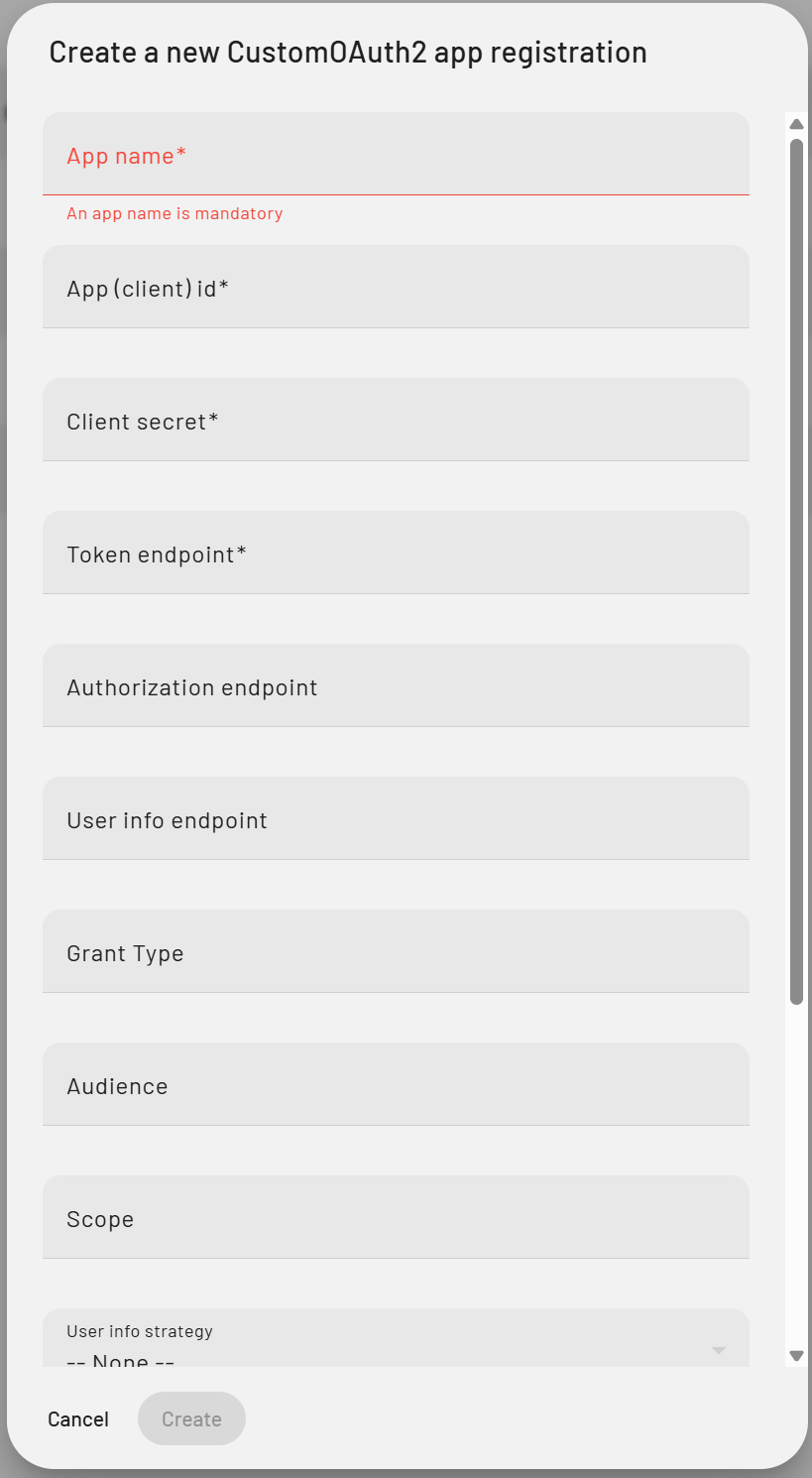
The Create a new CustomOAuth2 app registration dialog
CustomOAuth2 settings
To change a provider later, go to Providers, select the more options menu (⋮) next to the provider, and then select Edit.
Create a token
A token is the connection between PADS4 and the external service. You use the token ID in Designer and System Management.1
Open the overview
In Credentials, select Overview.
2
Select the provider
In the Providers list, select the CustomOAuth2 provider that you created.
3
Connect to the service
Select Connect. If the grant type requires a user sign-in, the sign-in page of the external service opens. Sign in with the account that PADS4 must use, and give consent.
4
Copy the token ID
The new token appears in the table with its Token, Name and RLS Role. Select the copy icon next to the token ID to copy it.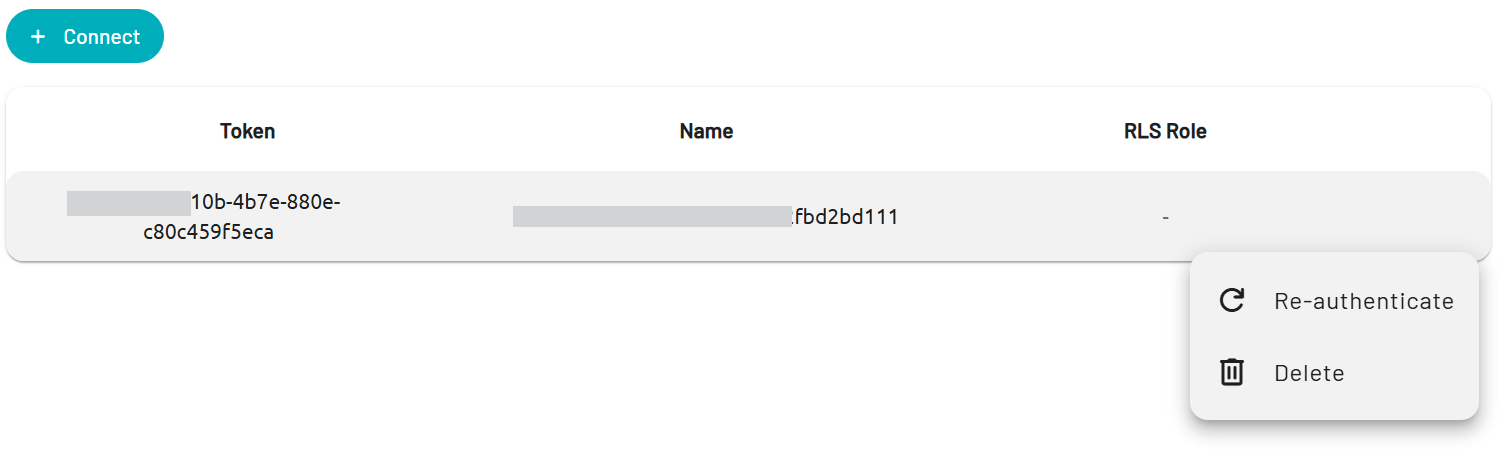
Use the token in a data provider or Data Vault
You do not enter the credentials of the external service in your data configuration. You refer to the token instead. PADS4 adds the current access token to each request.- PADS4 Designer
- In PADS4 Designer, open a data provider that supports Advanced Connection Settings.
- In Advanced Connection Settings, select Add a header.
- Select oauth2 from Predefined Header.
- Copy the token that you created in CTRL Center.
- Save the data provider and test the connection.
The data provider or Data Vault shows data from the external service. The data keeps updating after the first access token expires, because PADS4 renews the token.
Manage tokens
In Credentials > Overview, select the provider, and then select the more options menu (⋮) next to a token:- Re-authenticate: Gets a new token from the external service with the current provider settings. Use it after you edit the provider, after you replace the client secret, or when PADS4 cannot renew the token. The token ID stays the same.
- Delete: Removes the token. Data providers and Data Vaults that use this token can no longer get data from the external service.