

Create a rule
- Open the Rules properties. In the Properties pane, select Rules, then select the element you want the rule to apply to.
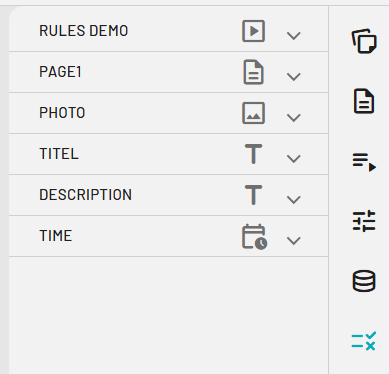
- Add a new rule. Select Add Rule.

- Open the Rules pane. The Rules pane opens, ready for you to define the condition and action.
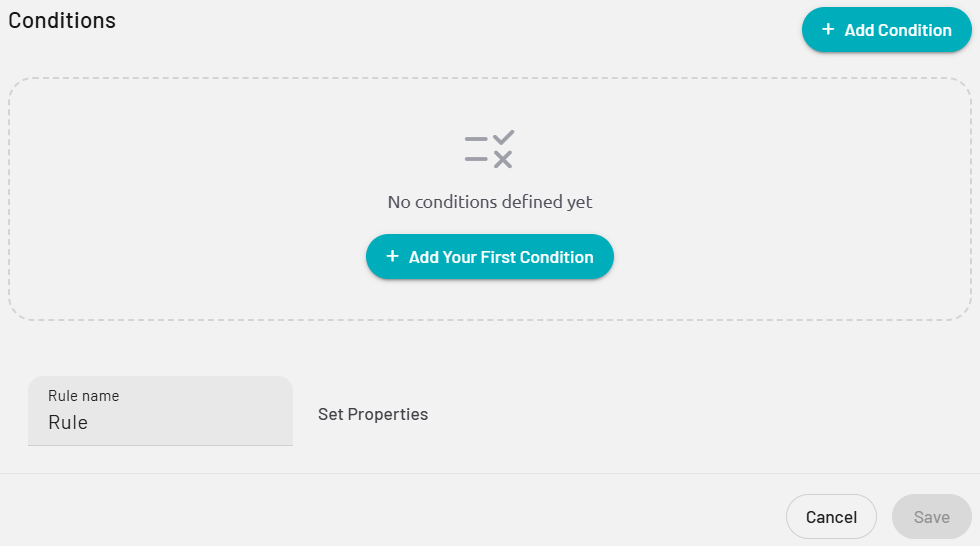
- Add a condition. Select Add Condition.
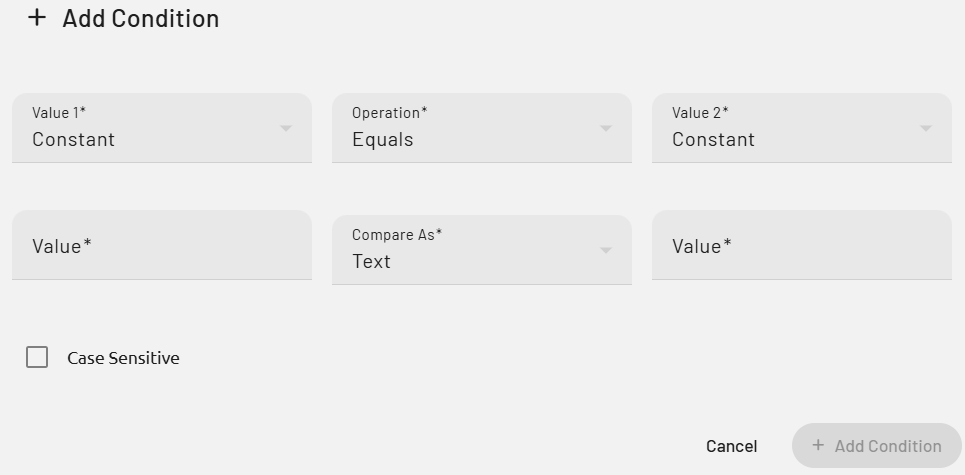
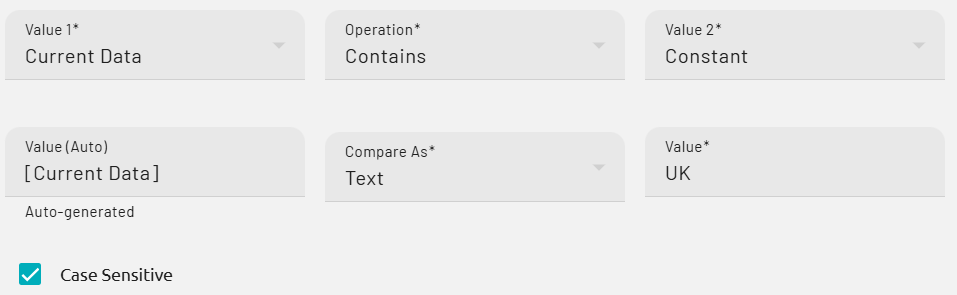
- Configure the condition. Fill in the details that describe when the rule should trigger.
- Define the action. Select Set Properties to specify what happens when the condition is met.

- Choose which properties change. In the Configure Rule Properties screen, change one or more properties that the action should update.
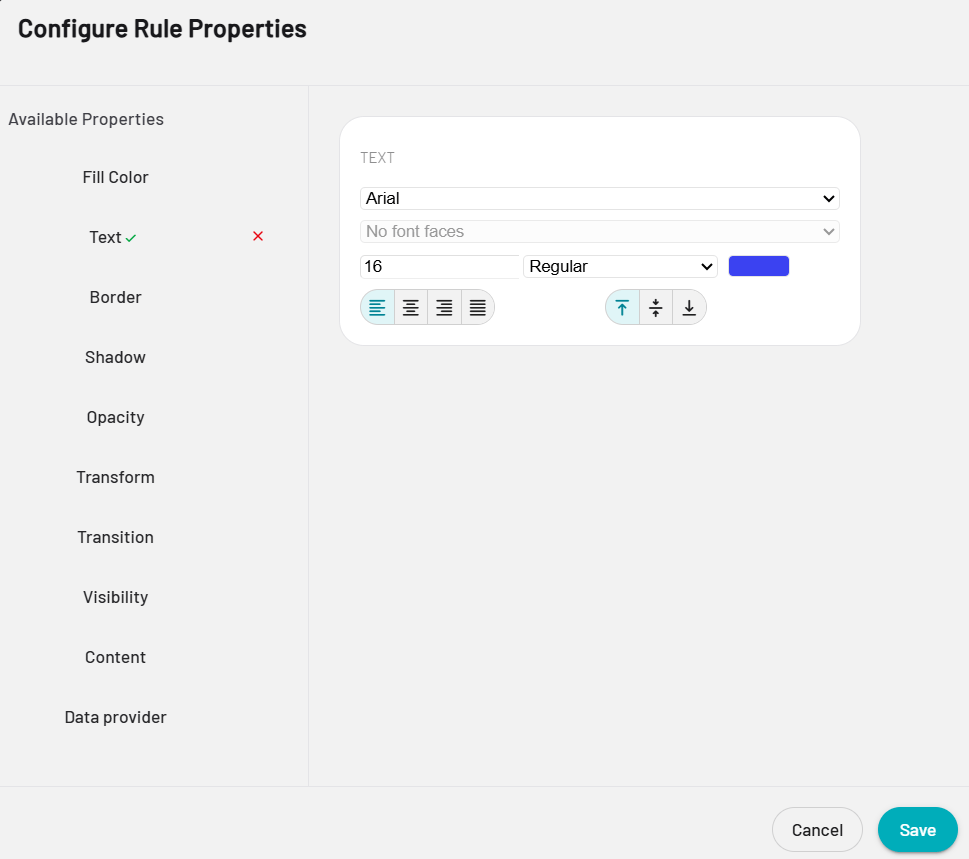
- Save the properties. Select Save to confirm the property changes.
- Save the rule. Select Save again to store the rule on the element.