First time use

During the installation, you will need to configure the PADS4 Server location. It is recommended to complete the installation of the PADS4 Server first, before continuing installations on the device.
You wi’ll need to install extra software on your PADS4 server before using the Innes DMB300 or DMB400; please contact your PADS4 representative to obtain and set up those files.
Minimum PADS4 versions:
DevicePADS4 server
DMB300PADS4 2025.1
DMB400PADS4 2025.1
Both devices provide an Administration console user interface accessible with a web browser at the URL http://<device_IP_address>/. By default, the login credentials are:
  • Username: admin
  • Password: admin
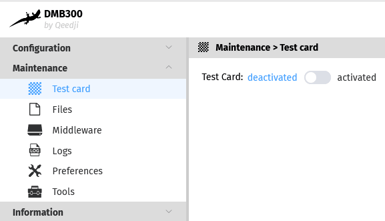
As factory default, the device content is a Test Card, a chart displaying information to assist with device configuration. This default content must be deactivated before it can be replaced with PADS4 content. You can do so in the Maintenance section of the Administration console.
Dmb300config

Updating firmware

PADS4 supports Gekkota OS version 5; hence, the device firmware needs to be upgraded accordingly. The available versions for your device model and download links are included in the table below. The appropriate firmware version can be installed in the Maintenance > Middleware page of the Administration console by dropping the .frm file in the Drop file here location. Contact Qeedji Support if additional help is needed. NOTE: If upgrading DMB300 to version 5, it is highly recommended to contact Qeedji Support.
DeviceMinimum firmware versionDownload link
DMB3005.10.10V5.10.11
DMB4005.11.10V5.11.10

Prerequisite device settings

After updating the firmware, you should have the full choice of settings available to configure your device. Note that PADS4 will automatically configure the device settings needed to work seamlessly with the device but prior to installing it, a few settings (listed in the table below) must be manually configured. When using the Administration console, most settings will prompt you to validate (and reboot). Thus, it is advised to configure the device in the same order as shown in the table.
SettingDescription
LicenseThe license number is registered at the factory when the device is ordered and it is sent to you by email. If not already set, you can enter it in the Configuration > License panel.
HostnameIn Configuration > Administrator, enter a unique value for each device. It is recommended to enter hostname values using information based on building and location (e.g. Room-D-Amsterdam-1).
PreferencesIn Maintenance > Preferences, set the values as follows: 1.       innes.app-profile.addon-manager.*.*.*.authorized = true. 2.       innes.hid.pointer-event.*.authorized = true (if HDMI/USB touchscreens).
Date and timeUpdate the date and time of your device by clicking on the UTC Date and Time value and then click on the Now button.
App configurationIn Configuration > App, select the Pull Webdav radio button the set the input fields as follows: 1.       Url: <Protocol>://<PADS4_server>:<Port>/<PADS4_hostpath>/Innes/ a.       Protocol – either http or https if the server is hosted with a public signed SSL certificate. b.       Port (optional) – if the PADS4 server is configured to use non-default ports for http or https, you must specify the port. c.       PADS4_server – the domain name or IP address of the PADS4 server. d.       PADS4_hostpath – the hostpath value configured within PADS4 System Management. The default value is PADS4. 2.       Ensure Use this URL for status server and software and configurations installation server is checked.

Installing PADS4 Viewer and connecting to the PADS4 Server

After configuring the device with the settings, and rebooting the device, as described in the previous chapter, the device will automatically download the latest version of the PADS4 HTML5 Viewer – it may take some time, please wait for it to finish. When finished, the Viewer will start and connect to the PADS4 Server. The Viewer settings such as screen orientation can then be configured with the PADS4 Agent.

Adjust PADS4 Viewer settings using the options screen

You can adjust the PADS4 Viewer settings directly on the display. To enter the options screen on the device itself, hold the Left mouse button down or touch the screen for 3 seconds. Note: Due to resource limitations on both devices, operating the Viewer settings is not fully supported.

Updating PADS4 Viewer

After the initial installation of the PADS4 Viewer, if you update the PADS4 Server, the PADS4 Viewer will automatically update to the version available on the PADS4 Server.

Install the PADS4 Viewer using a script (for advanced users)

For users with programming knowledge, the Viewer can also be installed using a configuration script written in JavaScript. One possible use case is for convenience when several devices must be configured without first connecting them to a host PC. Your PADS4 Server installation includes a configuration script which can be found in the apps folder of the PADS4 installation directory. The default PADS4 apps directory is C:\Program Files\PADS4\Clients\Apps. The folder Innes is contained within the apps directory and configuration script therein. For example, if you have installed PADS4 in the default directory, the path to the script would be:  C:\Program Files\PADS4\Clients\Apps\Innes\anonymous\.setup\configuration.js The script can then be modified as required using the documentation in the file as a guide. To upload the script to the device, you will need a WebDAV client. For Windows users, we recommend WinSCP, a free and open-source file transfer client. Once downloaded, follow the steps below to install the PADS4 Viewer using WinSCP.
StepDescription
01Start WinSCP and wait for the Login Dialog.
02Select the WebDAV file protocol.
03Enter the IP address of the device. Default port is 80.
04Enter the username and password for the device (see First time use)
05Click Login and wait for WinSCP to connect.
06In the left pane, your local filesystem, navigate to the PADS4 apps directory (see Install the PADS4 Viewer using a configuration script (for advanced users)).
07On the right pane, navigate to /.extension.
08Click and drag the configuration.js from the left pane to the right.
WinSCP also supports automated file transfers via scripting which could be particularly useful for installing PADS4 on numerous devices in a timely manner. Contact Qeedji Support for additional enquiries. Note: If configuring via automated script, it is recommended to implement a wait time of 5 seconds or more to avoid overloading the PADS4 server.

Supported features

The following features and limitations are related to the Innes DMB300 and DMB400.
AreaSupport
Landscape and portraitSupported
Block Remote Control
VideoMaximum of 1 video on DMB300 and maximum of 3
videos on DMB400
ImageSupport for JPG, PNG, GIF
Line and ShapeSupported
Scrolling textSupported
Formatted TextSupported
AreaSupport
Scrolling textSupported
Formatted TextSupported
TableSupported
Interactive ButtonNot supported
PlaylistContent from PADS4 Content Library & URL supported
WebSupported
*Usage of the interactive Address Bar not supported
ColorsSupported
*Texture and pattern colors are not supported
Data providersAll PADS4 data providers (70+) supported
TransitionsSupported
*Horizontal and vertical blinds not supported
RulesPresentation, Page and Element rules supported
Offline Content Library storagePADS4 Content Library is stored on the local device
MD5 checkPADS4 Content Library file integrity is checked during synchronization using MD5
Offline SchedulesAll scheduled presentations are cached local
Offline DataData retrieved from data providers is cached local
Property bindingsSupported
Viewer variablesSupported
Software updatesAutomatic software updates supported
Turn Off DisplayTurn off display when no presentation scheduled
PADS4 Ctrl CenterPADS4 Ctrl Center supported.
*The following Viewer functionality: Screenshot, Viewer Log, Synchronization Log, Viewer Settings, System Info, Viewer Blackbox and Proof of Play
Refresh device supported
Reboot device supported
Shutdown device not supported.
Display current connection state supported
Viewer variables supported
Monitoring & Alerts supported
*The following functionality: Network connections
Wake On Lan not supported.
\ \