> ## Documentation Index
> Fetch the complete documentation index at: https://docs.pads4.com/llms.txt
> Use this file to discover all available pages before exploring further.
# User Interface
## Interface Overview
Once inside the Web Designer, the interface is divided into key areas:
* **Canvas Area**: The main design space where you place and arrange elements.
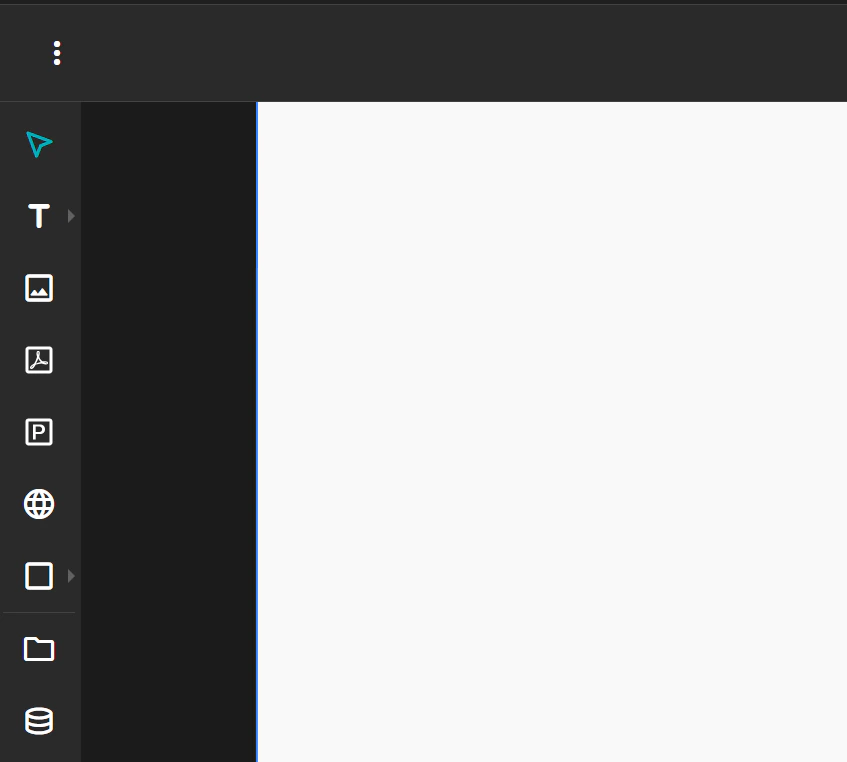
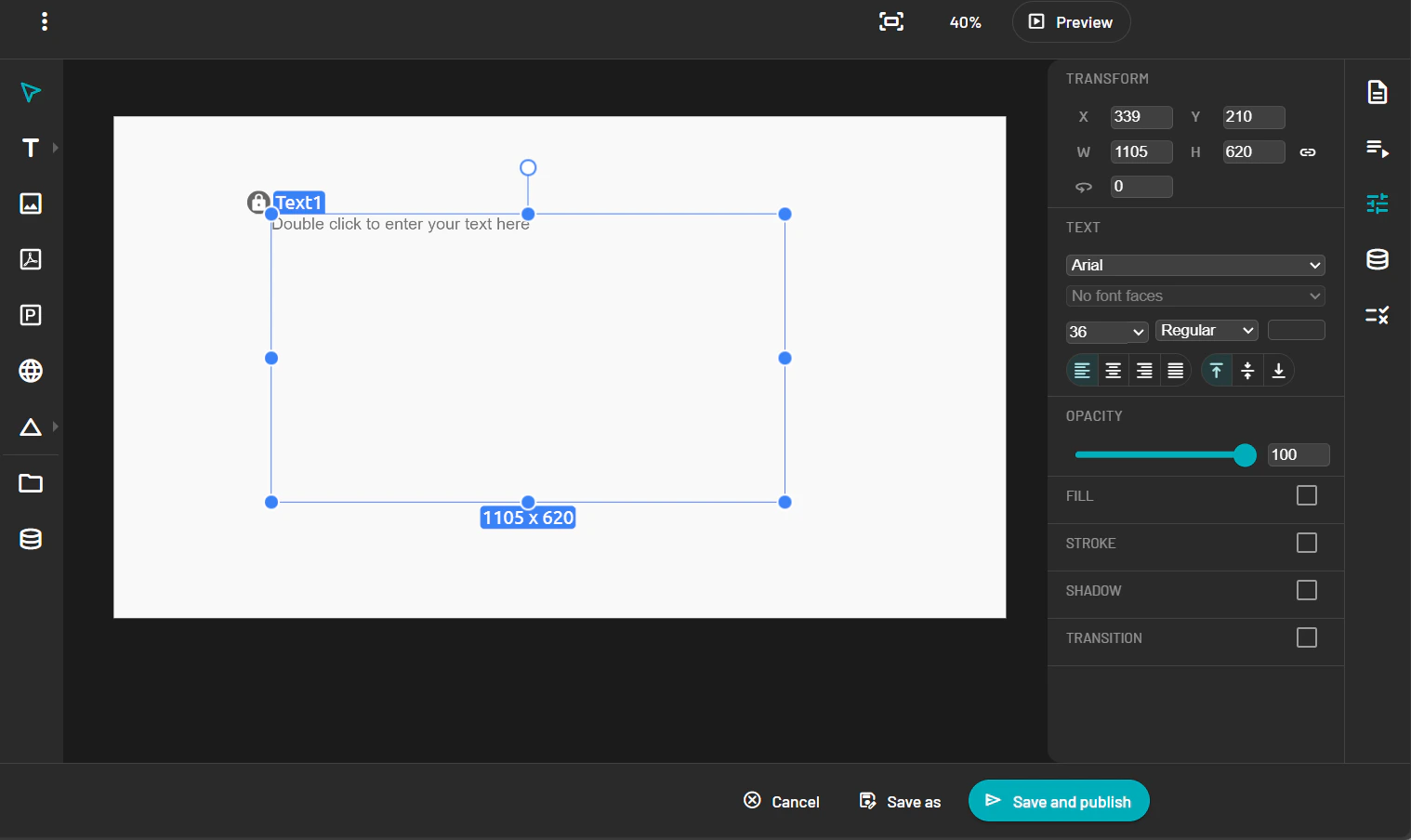 * **Toolbar**: Provides access to drawing tools, media insertion, alignment, and layer management.
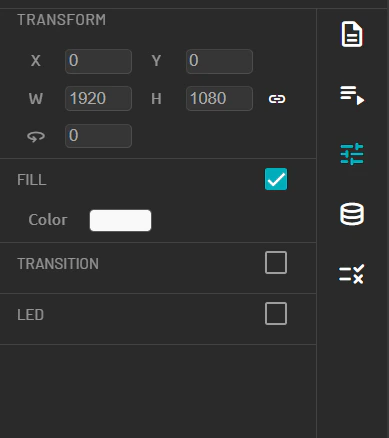
 * **Property Panel**: Located on the right, it displays configuration options for the selected element (e.g., size, color, alignment).
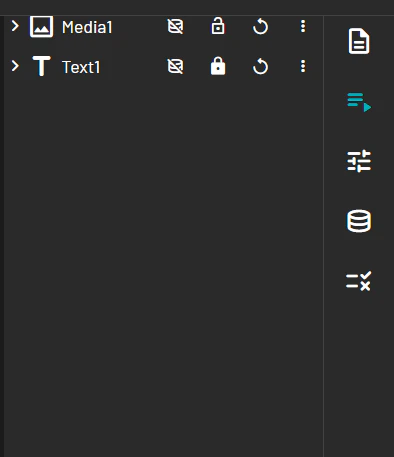
 * **Layer Panel**: Lists all objects on the template, allowing you to reorder, group, or delete elements.\\
 ## Enlarge the Main Page
To zoom or maximize the workspace:
* Use the zoom slider or zoom icons located at the bottom-right of the canvas.
## Enlarge the Main Page
To zoom or maximize the workspace:
* Use the zoom slider or zoom icons located at the bottom-right of the canvas.
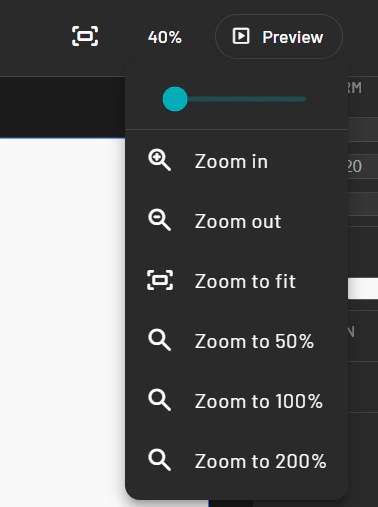 * You can also press **Ctrl + Scroll** on your mouse to zoom in and out.
This allows for more precise placement of design elements.
* You can also press **Ctrl + Scroll** on your mouse to zoom in and out.
This allows for more precise placement of design elements.