> ## Documentation Index
> Fetch the complete documentation index at: https://docs.pads4.com/llms.txt
> Use this file to discover all available pages before exploring further.
# Add a Data Vault to a PADS4 presentation
> Attach an existing Data Vault to a PADS4 Designer presentation so you can reuse content that is centrally managed in PADS4 System Management.
Data Vaults store content that can be shared across presentations and kept in sync from a single source. This guide shows you how to attach an existing Data Vault to a presentation in PADS4 Designer.
Data Vaults are created and maintained in PADS4 System Management. To create or configure a Data Vault, refer to the PADS4 System Management manual.
## Attach a Data Vault to a presentation
1. **Open the Data Vault picker.** On the **Elements** bar, select the **Data Vault** icon.
 2. **Browse available Data Vaults.** Designer displays the Data Vaults you have access to.
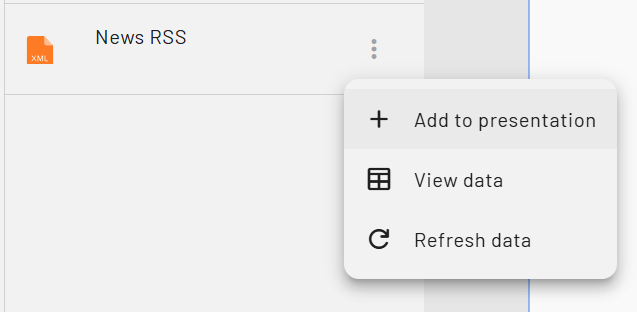
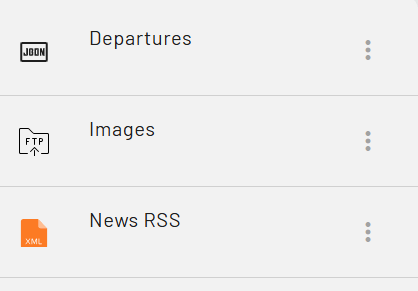 3. **Add the Data Vault to your presentation.** Open the pop-up menu next to the Data Vault you want to use, then add it to your presentation. Its contents become available immediately and stay in sync with the source defined in System Management.
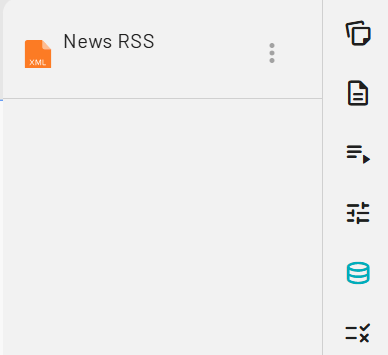
 4. **Verify the Data Vault is attached.** Open the **Properties** pane and select **Data Vaults** to see every Data Vault attached to the current presentation.
 Can't find the Data Vault you need? Verify that it has been published in PADS4 System Management and that your account has the required access rights.