> ## Documentation Index
> Fetch the complete documentation index at: https://docs.pads4.com/llms.txt
> Use this file to discover all available pages before exploring further.
# Text
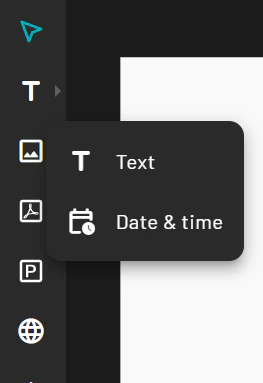
1. Click the **Text** tool in the toolbar and choose a regular text field or a date & time element.
 2. Click on the canvas to create a text box.
3. Type your desired text.
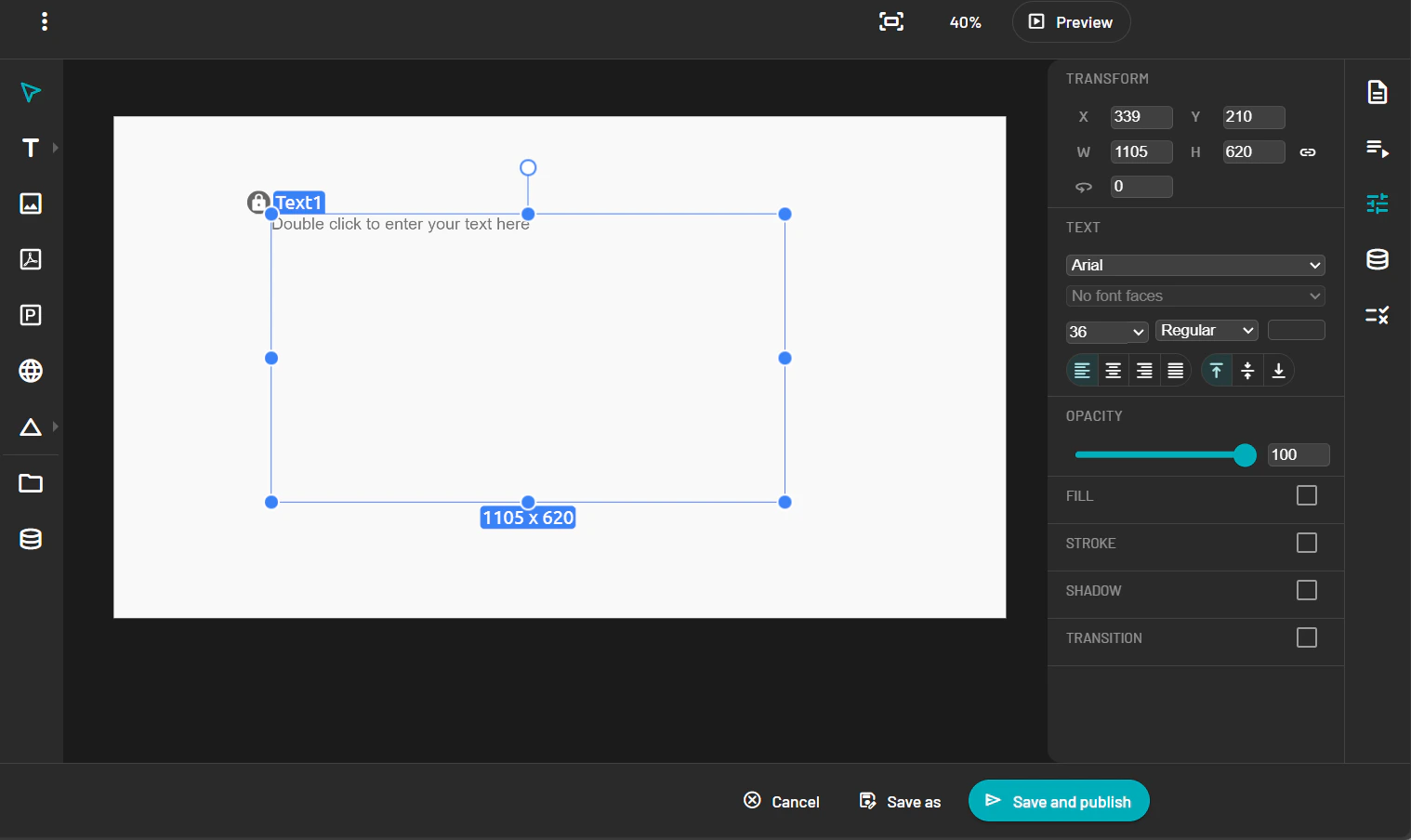
4. In the Property Panel, adjust the font, size, color, alignment, and effects.
2. Click on the canvas to create a text box.
3. Type your desired text.
4. In the Property Panel, adjust the font, size, color, alignment, and effects.