> ## Documentation Index
> Fetch the complete documentation index at: https://docs.pads4.com/llms.txt
> Use this file to discover all available pages before exploring further.
# Reset multi-factor authentication for a user
> Use Reset MFA in CTRL Center to clear a user's PADS4 MFA registration when they change device, lose their authenticator app, or are locked out.
Use **Reset MFA** when a user can no longer access their authenticator app, has changed device, or needs to register MFA again for another reason.
Resetting MFA clears the user's current MFA registration, so the user must complete the registration process again by scanning the QR code or by entering the manual code during the setup flow.
## **When to use this action**
Use **Reset MFA** in situations such as these:
* The user has a new phone.
* The authenticator app was removed or lost.
* The user cannot complete MFA with the previously registered device.
* The MFA registration must be restarted from the beginning.
## **How to reset MFA**
1. As a PADS4 Administrator, log on to the PADS4 CTRL Center
2. Open Users and locate the user account that needs MFA to be reset.
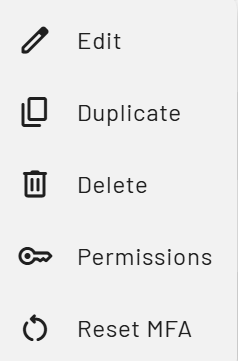
3. Open the user More Actions menu for that account.
4. Click **Reset MFA** in the menu.
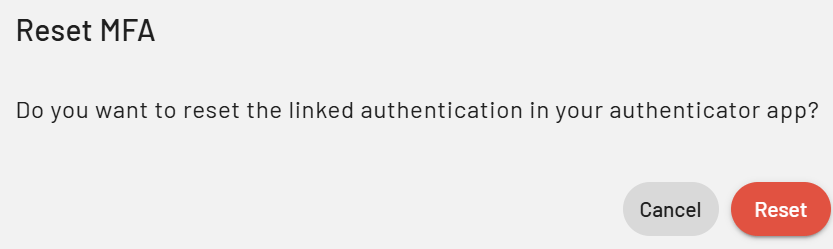
 5. Confirm the action if PADS4 asks for confirmation.