> ## Documentation Index
> Fetch the complete documentation index at: https://docs.pads4.com/llms.txt
> Use this file to discover all available pages before exploring further.
# Register a Canva provider in CTRL Center
> Add the Canva integration in PADS4 CTRL Center Credentials by registering a new Canva provider and entering the app client ID and secret.
1. Open PADS4 Control Center and select **Credentials**.
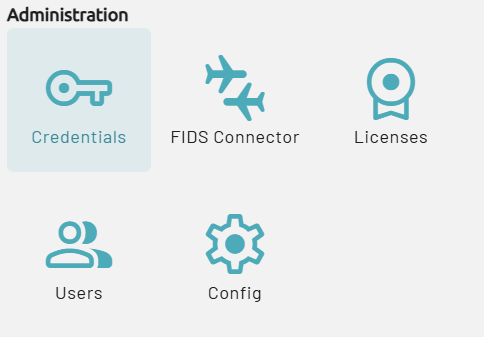 2. In the Credentials overview, select Providers.
3. Select New and choose Canva. This opens the Create a new Canva app registration window.
2. In the Credentials overview, select Providers.
3. Select New and choose Canva. This opens the Create a new Canva app registration window.
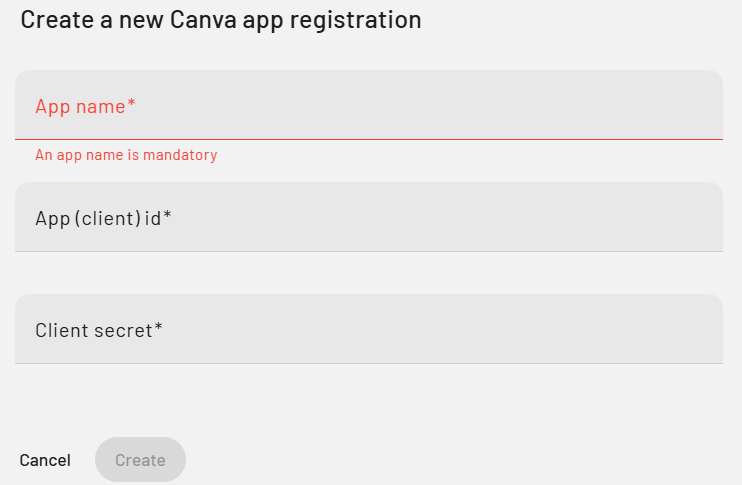 4. Enter a clear and recognizable name for the integration to identify it later if needed.
5. Enter the **App (Client) ID** and **Client Secret** that were generated earlier in the Canva Developer Portal.
6. Click **Create** to register the integration within PADS4.
Your registration is done. You can now open Designer and start using Canva.
4. Enter a clear and recognizable name for the integration to identify it later if needed.
5. Enter the **App (Client) ID** and **Client Secret** that were generated earlier in the Canva Developer Portal.
6. Click **Create** to register the integration within PADS4.
Your registration is done. You can now open Designer and start using Canva.