> ## Documentation Index
> Fetch the complete documentation index at: https://docs.pads4.com/llms.txt
> Use this file to discover all available pages before exploring further.
# Plugins
# Plugins Overview
Since PADS4 version 2025.2 the following plugin configurations has been moved the Credentials and Config section in the PADS4 Web Portal to provide a cohesive user management system in a single environment.
* [LDAP(s)](https://docs.pads4.com/ctrl-centre/administration/credentials/active-directory)
* SMTP
* [SSO](https://docs.pads4.com/ctrl-centre/administration/microsoft-entra-id)
The **Plugins** section allows you to configure essential system integrations that enhance the functionality of the PADS4 Workspace and CMS 1.0 modules. Below is an overview of the available plugin options and their purposes.
***
## Active Directory
Use this plugin to connect an **Active Directory (LDAP)** server to your PADS4 environment.
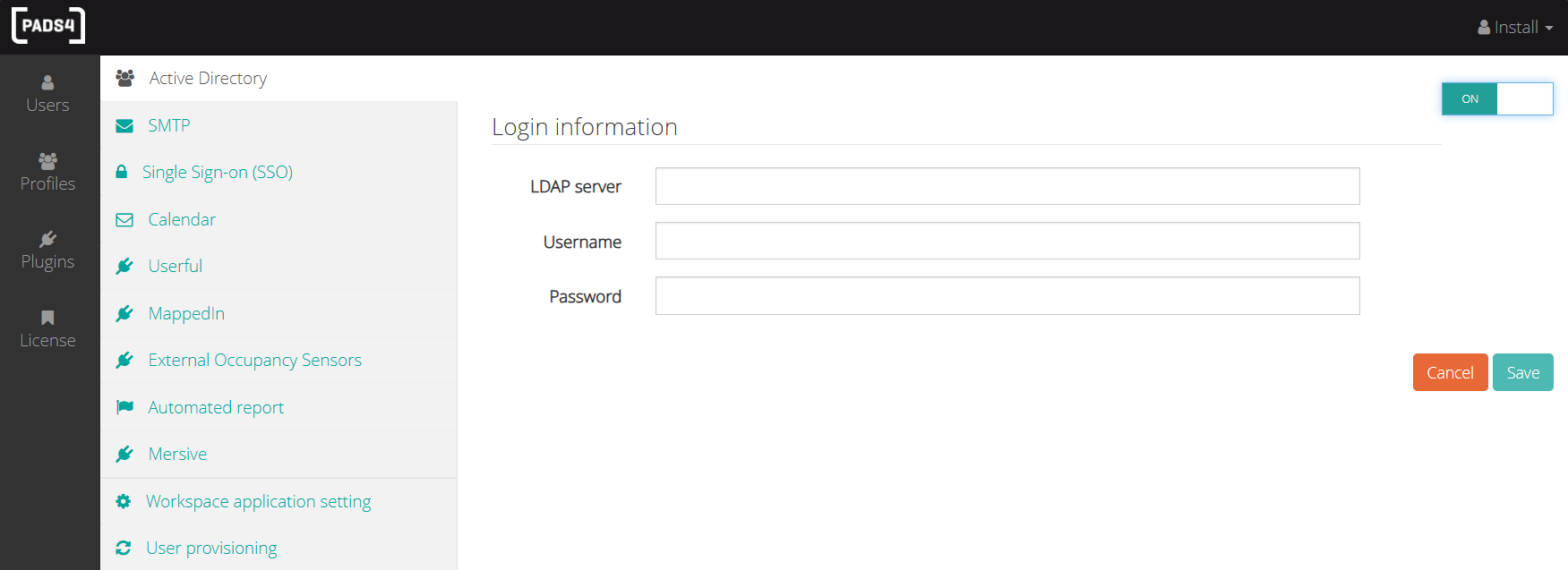 * Enter your **LDAP server**, **username**, and **password** to establish a secure connection.
The LDAP server address requires to have the following format: **LDAP://**\
* Once connected, you can import users from Active Directory directly through the **Users** tab in each module.
***
## SMTP
* Enter your **LDAP server**, **username**, and **password** to establish a secure connection.
The LDAP server address requires to have the following format: **LDAP://**\
* Once connected, you can import users from Active Directory directly through the **Users** tab in each module.
***
## SMTP
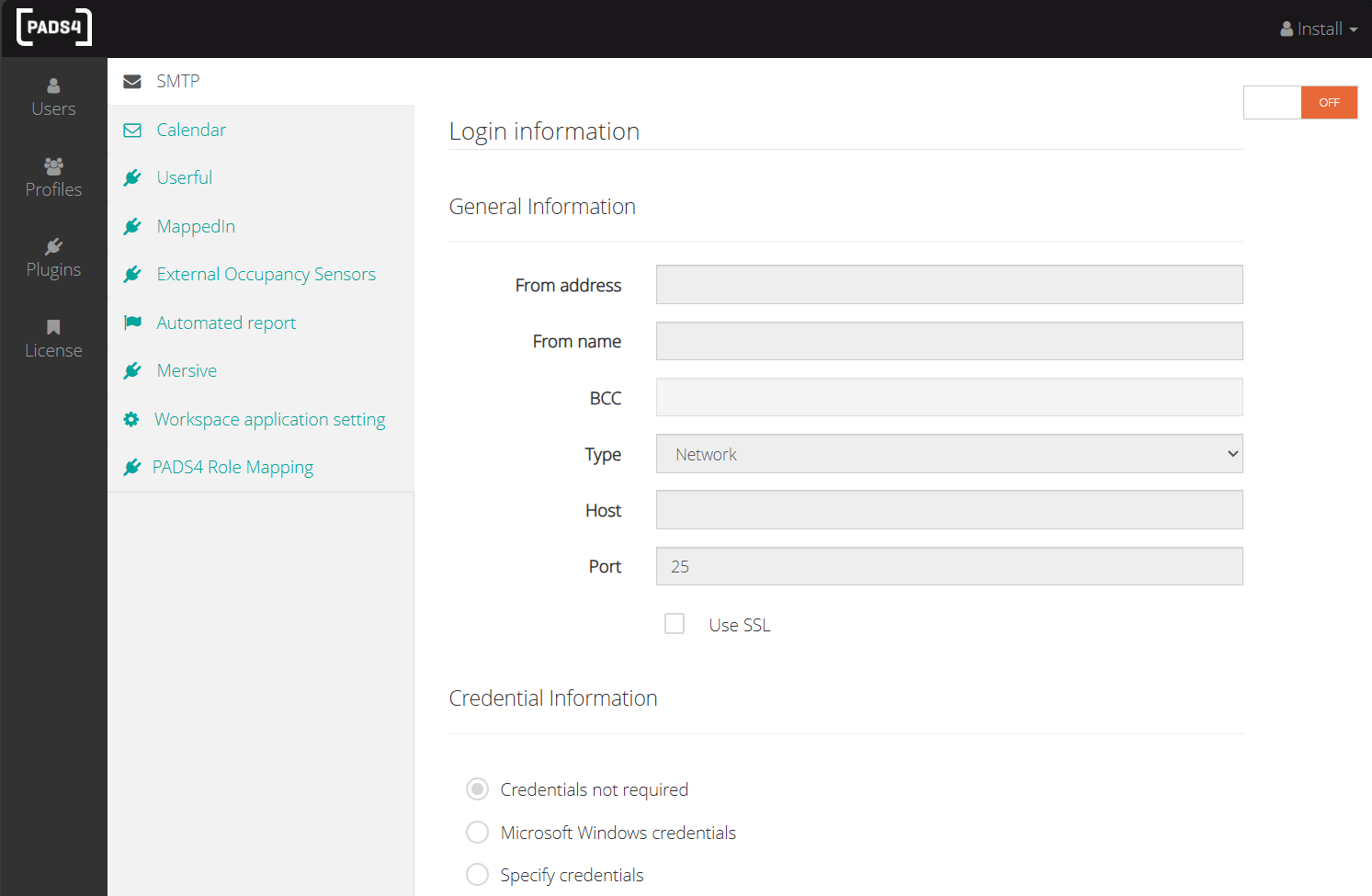 This section allows you to set up the **SMTP (Simple Mail Transfer Protocol)** server credentials to enable the platform to send:
* **Email alerts**
* **Automated reports**
You must specify the email address that will be used as the sender on behalf of the platform.
***
## Single Sign-On (SSO)
This section allows you to set up the **SMTP (Simple Mail Transfer Protocol)** server credentials to enable the platform to send:
* **Email alerts**
* **Automated reports**
You must specify the email address that will be used as the sender on behalf of the platform.
***
## Single Sign-On (SSO)
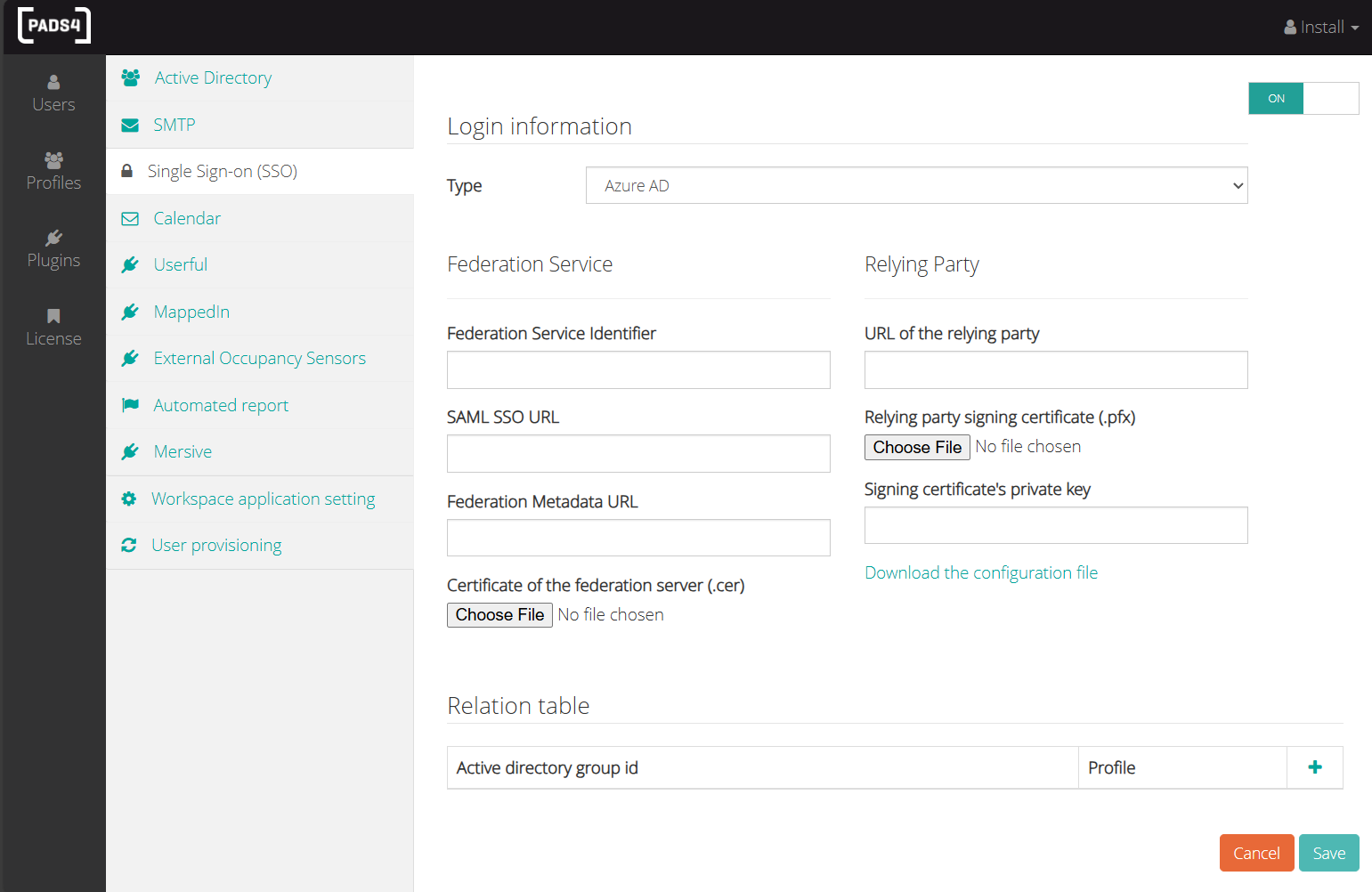 Configure a connection to either:
* **Azure Active Directory**
* **Active Directory Federation Services (ADFS)**
This enables **Single Sign-On (SSO)** capabilities, allowing users to authenticate using their Windows credentials.
> **Note:** You will need to create and configure the appropriate groups within your identity provider to manage access permissions effectively.
***
## Calendar Integration
Configure a connection to either:
* **Azure Active Directory**
* **Active Directory Federation Services (ADFS)**
This enables **Single Sign-On (SSO)** capabilities, allowing users to authenticate using their Windows credentials.
> **Note:** You will need to create and configure the appropriate groups within your identity provider to manage access permissions effectively.
***
## Calendar Integration
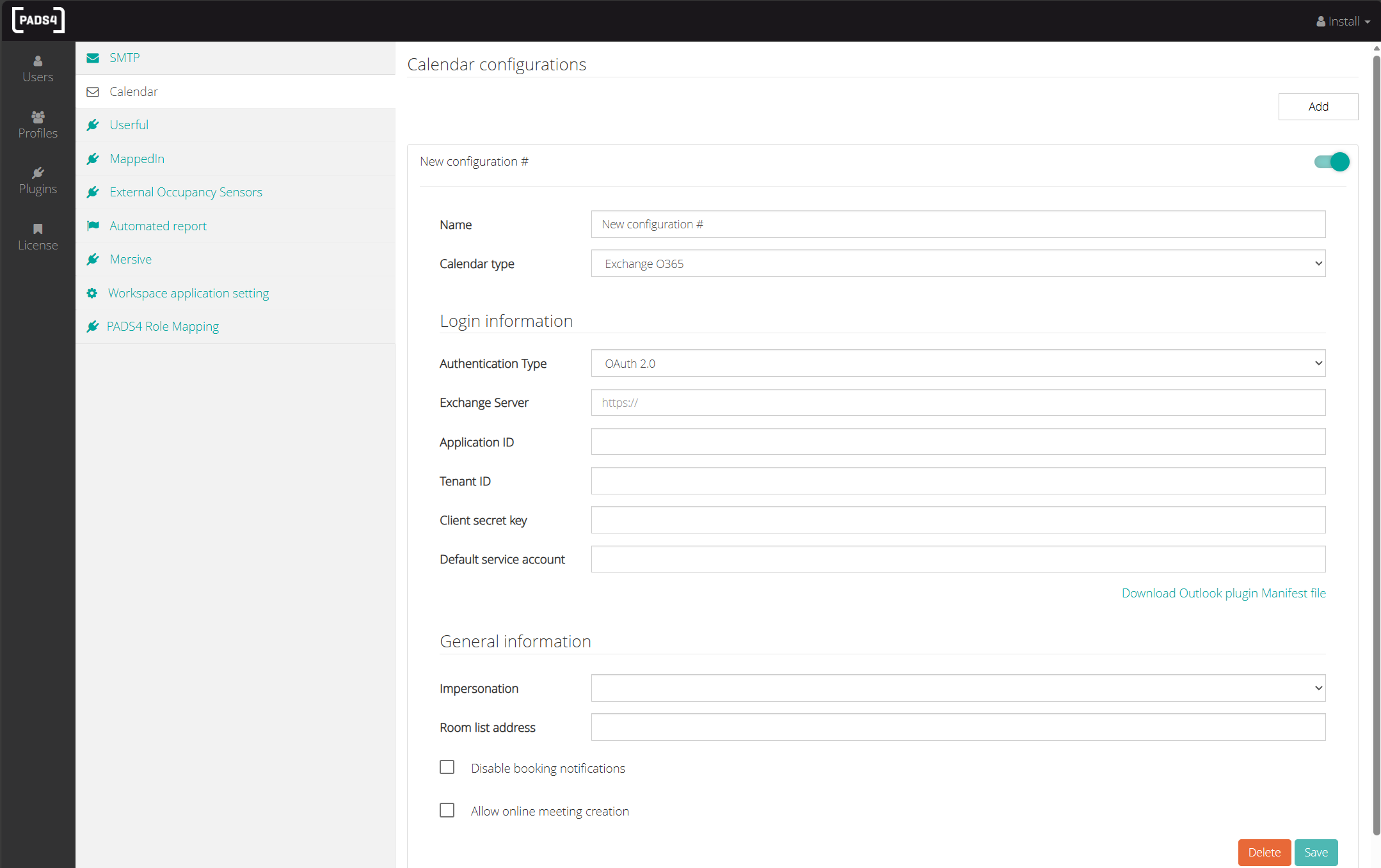 This plugin links the **PADS4 Workspace** module to your organization's calendar system. This enables the system to:
* Retrieve **meeting and resource booking information**
* Display real-time **calendar availability**
* Import resources such as meeting rooms and shared spaces
### Supported Calendar Systems:
* Microsoft Exchange 365
* Microsoft Exchange On-Premises
* Google Calendar
* iPorta Calendar
## Workspace application setting
This plugin is used to configure the default settings for PADS4 Workspace.
This plugin links the **PADS4 Workspace** module to your organization's calendar system. This enables the system to:
* Retrieve **meeting and resource booking information**
* Display real-time **calendar availability**
* Import resources such as meeting rooms and shared spaces
### Supported Calendar Systems:
* Microsoft Exchange 365
* Microsoft Exchange On-Premises
* Google Calendar
* iPorta Calendar
## Workspace application setting
This plugin is used to configure the default settings for PADS4 Workspace.
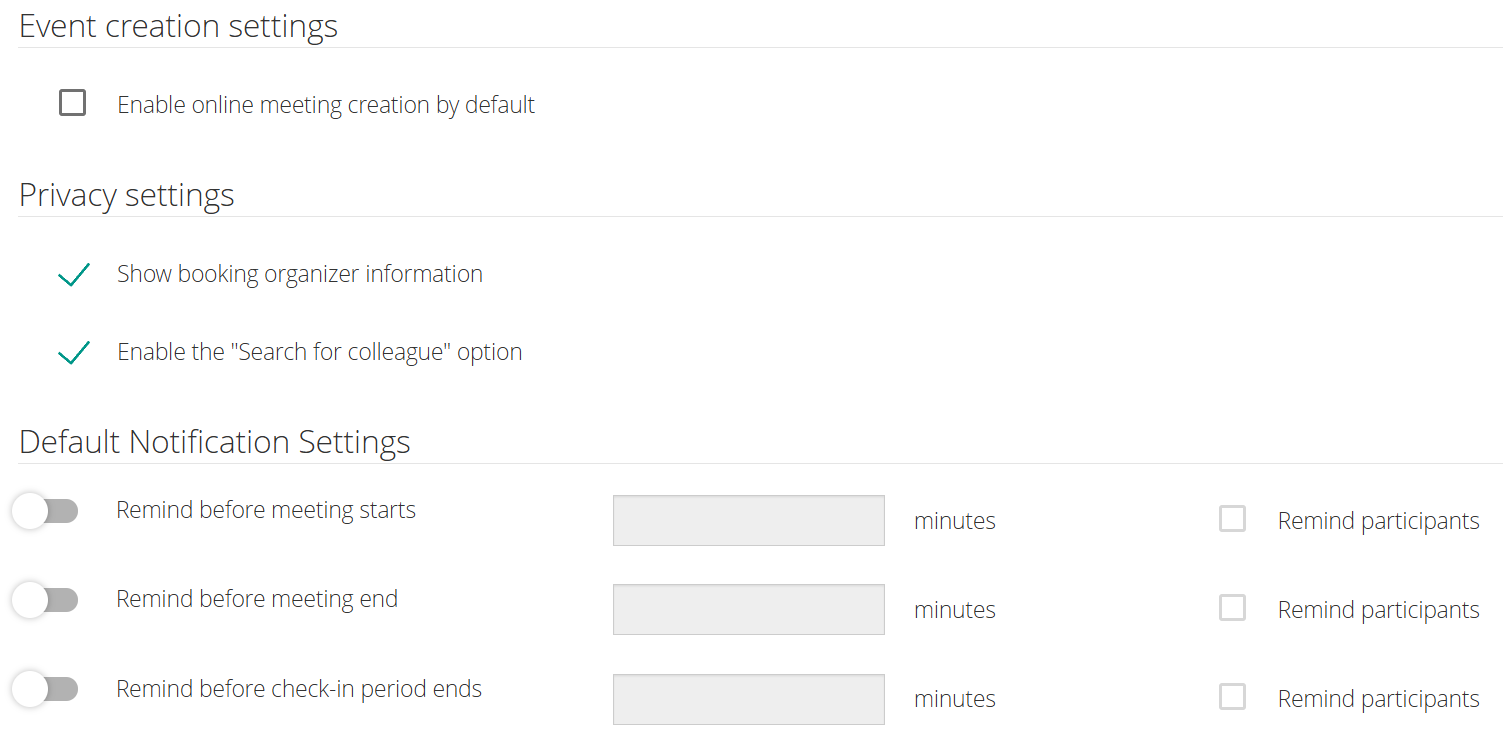 ### Event creation setting
Enable automatic Microsoft Teams online meetings by default. Available for Exchange-integrated rooms only.
### Privacy settings
This setting configures global privacy options for bookings in PADS4 Workspace, allowing control over organizer name visibility and enabling the "Search for colleague" feature.
### Default Notification Settings
This setting configures global notification preferences in PADS4 Workspace, where you can toggle notifications, set timing, and enable reminders for meeting participants.
### Event creation setting
Enable automatic Microsoft Teams online meetings by default. Available for Exchange-integrated rooms only.
### Privacy settings
This setting configures global privacy options for bookings in PADS4 Workspace, allowing control over organizer name visibility and enabling the "Search for colleague" feature.
### Default Notification Settings
This setting configures global notification preferences in PADS4 Workspace, where you can toggle notifications, set timing, and enable reminders for meeting participants.