> ## Documentation Index
> Fetch the complete documentation index at: https://docs.pads4.com/llms.txt
> Use this file to discover all available pages before exploring further.
# Media
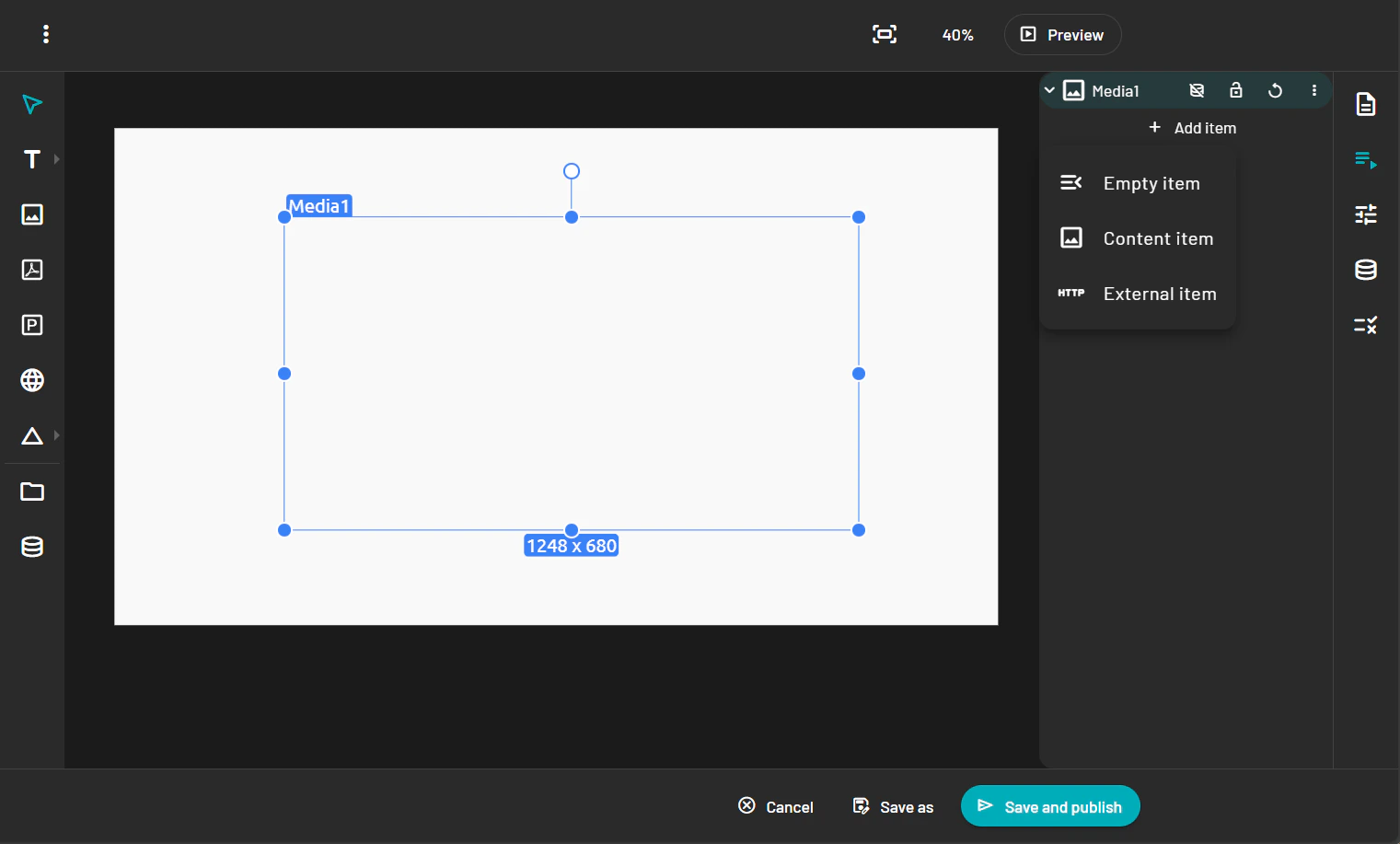
1. Select the **Image** tool from the toolbar.
2. Click on the canvas to place the image block.
3. In the Property Panel you will have three options: 4. **Empty item**: If you want the end user to add the content and you just provide the element itself. 4. **Content item**: You select the content from the content library. **External item**: Image or video hosted somwhere else.
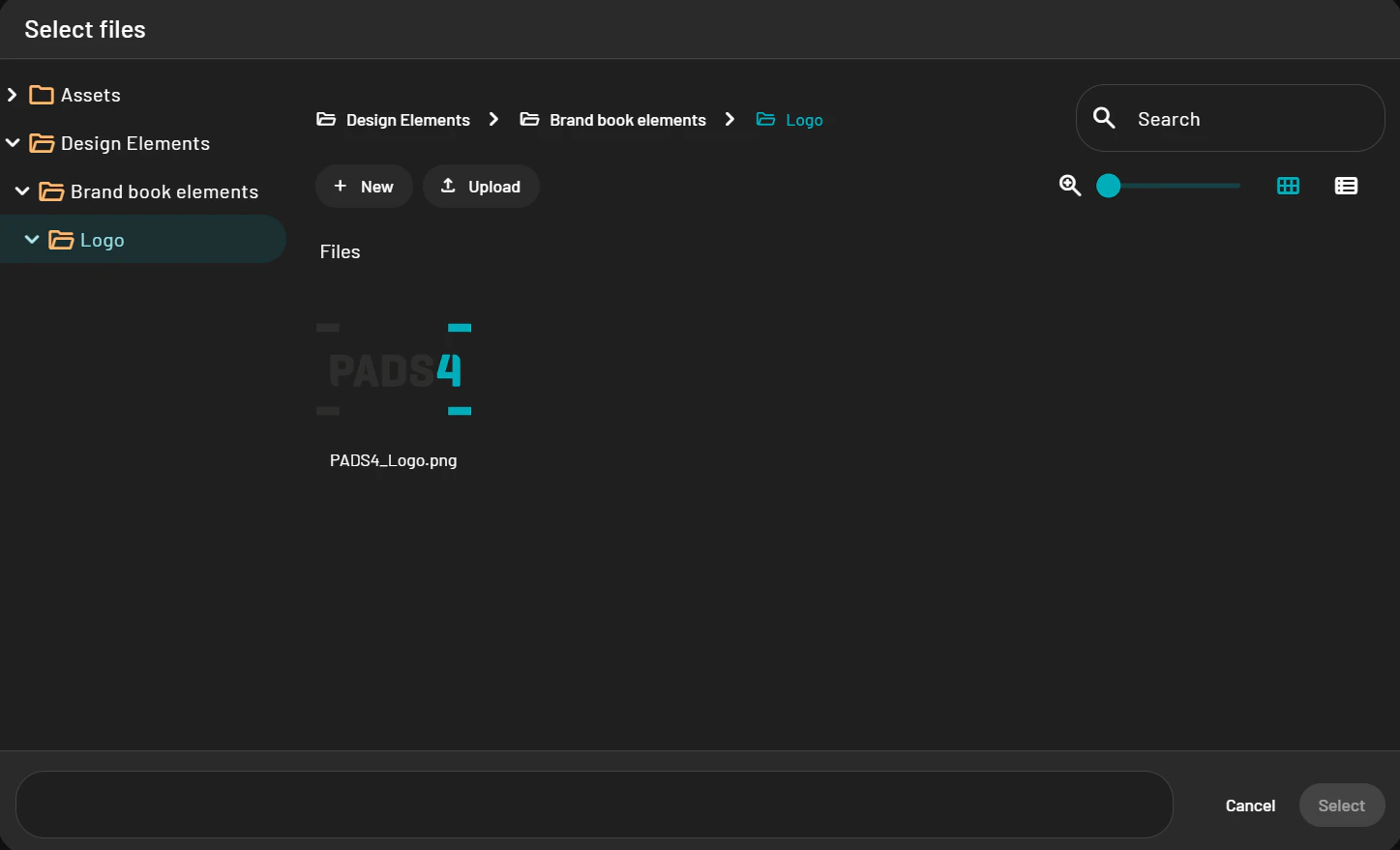
 * When using **content item** an pop-up of your PADS4 content library will show up and allows you to pick the media you want.
 * Resize and position the image as needed.