> ## Documentation Index
> Fetch the complete documentation index at: https://docs.pads4.com/llms.txt
> Use this file to discover all available pages before exploring further.
# Log in to PADS4 with MFA verification
> Sign in to PADS4 by entering the 6-digit time-based code from your authenticator app on the Two-Factor Authentication verification screen.
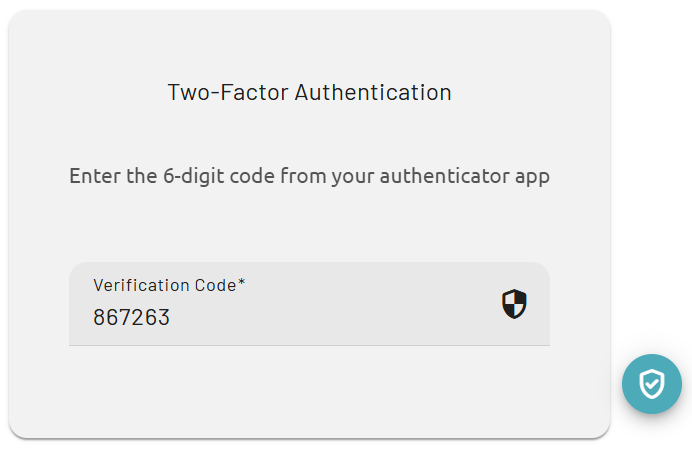
This explains the MFA verification step during login in PADS4. After the authenticator app has been configured, PADS4 asks the user to enter the 6-digit authentication code generated by the app before access is granted.
This screen appears during login after MFA has been enabled for the user account. It is the verification step where the user must confirm identity with the time-based code from the authenticator app.
## **How to log in with MFA**
1. Log in to PADS4 with the regular username and password.
2. When the **Two-Factor Authentication** screen appears, open the authenticator app on the mobile device.
3. Find the current 6-digit authentication code for the PADS4 account in the app.
4. Enter the code in the **Verification Code** field
 5. Continue the login process to access PADS4.
The authentication code changes regularly in the authenticator app, so the current code should be entered before it expires. If the code is not accepted, the user should check whether the correct account is selected in the app and then enter the newest 6-digit code.
5. Continue the login process to access PADS4.
The authentication code changes regularly in the authenticator app, so the current code should be entered before it expires. If the code is not accepted, the user should check whether the correct account is selected in the app and then enter the newest 6-digit code.