> ## Documentation Index
> Fetch the complete documentation index at: https://docs.pads4.com/llms.txt
> Use this file to discover all available pages before exploring further.
# First login with multi-factor authentication
> Complete the first-time MFA setup in PADS4 by registering an authenticator app with the QR code or manual code on the setup screen.
This manual explains the first-time Multi-Factor Authentication (MFA) setup process in PADS4. When MFA is available or required for a user account, PADS4 shows the **Setup Two-Factor Authentication** screen after login so the user can register an authenticator app
This screen appears the first time a user logs in to PADS4 and MFA setup is needed. It allows the user to connect an authenticator app by scanning the QR code or, as an alternative, by entering the manual code shown on the screen.
## **How to complete the setup**
1. Log in to PADS4
2. When the **Setup Two-Factor Authentication** screen appears, open the authenticator app on the mobile device
3. Scan the QR code shown on the screen with the authenticator app .\\
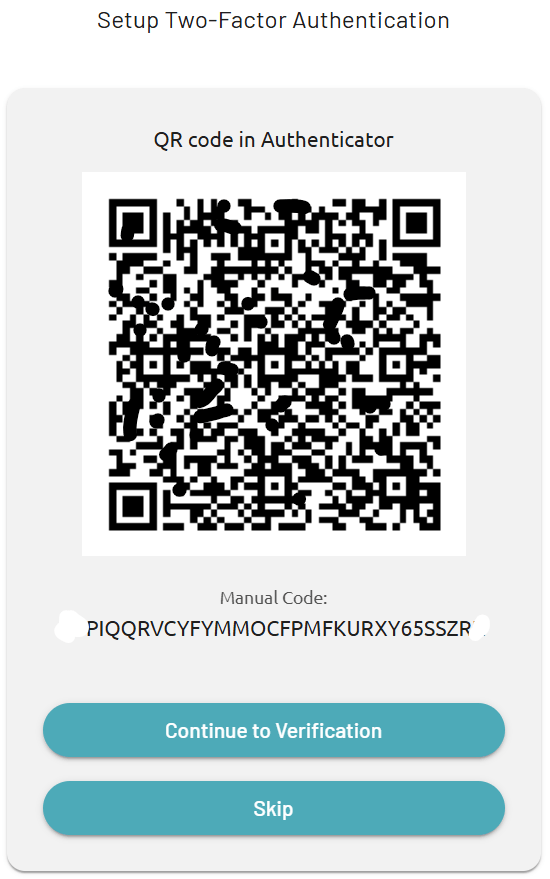 4. If scanning is not possible, enter the **Manual Code** in the authenticator app instead.
5. After the authenticator app has been configured, click **Continue to Verification** to proceed to the next step
## **Skip option**
A **Skip** button may be visible on this screen. This option is only valid until MFA is enforced, so it is recommended to complete the setup as soon as possible and not wait until the last moment.
If MFA has already been enforced for the environment or user, skipping setup may no longer be allowed. In that case, the user must complete the QR code or manual code registration process before access can continue
4. If scanning is not possible, enter the **Manual Code** in the authenticator app instead.
5. After the authenticator app has been configured, click **Continue to Verification** to proceed to the next step
## **Skip option**
A **Skip** button may be visible on this screen. This option is only valid until MFA is enforced, so it is recommended to complete the setup as soon as possible and not wait until the last moment.
If MFA has already been enforced for the environment or user, skipping setup may no longer be allowed. In that case, the user must complete the QR code or manual code registration process before access can continue