> ## Documentation Index
> Fetch the complete documentation index at: https://docs.pads4.com/llms.txt
> Use this file to discover all available pages before exploring further.
# PADS4 Configuration
The PADS4 Configuration tool lets you define and manage key system settings for your installation. Use it post-install to tailor hosting, security, and services.
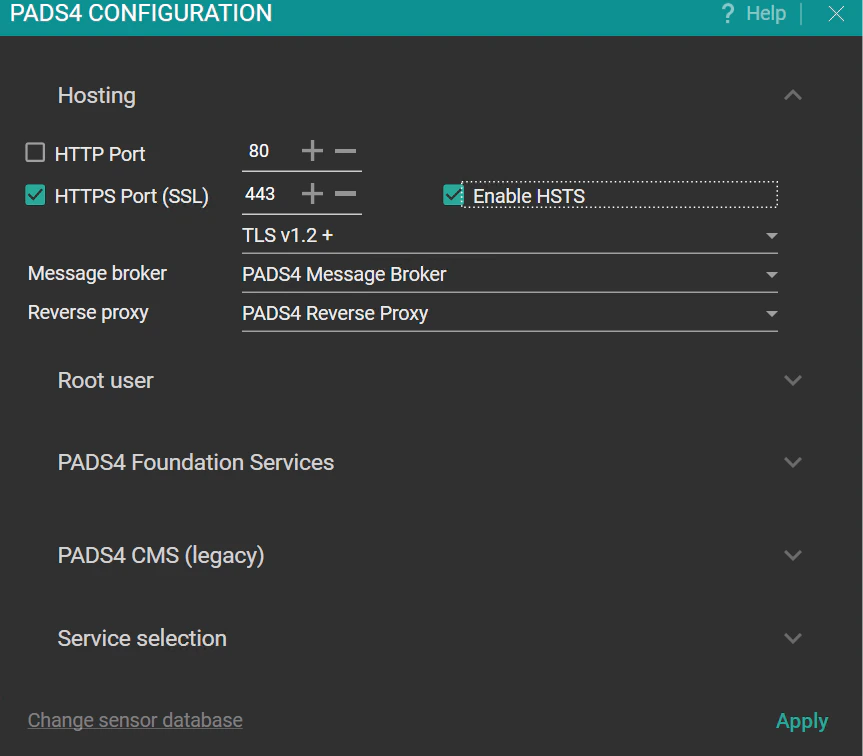 ### Hosting Configuration
Define access ports for the PADS4 interface and secure them with HTTPS.
* **HTTP Port**: For PADS4 CTRL Center (default: 80).
* **HTTPS Port (SSL)**: Enables secure communication (default: 443).
* **Enable HSTS**: Redirects HTTP to HTTPS automatically.
* **TLS Version:** Select TLS 1.2+ or 1.3. This is the minimun TLS versions that is used. If TLS 1.3 is available it will be used on TLS.1.2+
### Message Broker Configuration
* **PADS4 Message Broker** This is the default setting and applicable for most installations.
* **RabbitMQ** This is for legacy or specific installations
### **Reverse Proxy Configuration**
* **PADS4 Reverse Proxy** This is the default setting and applicable for most installations
* **NGinx** This is for legacy or specific installations
### Root User Configuration
* **Username:** su/root
* **Password:** Enter strong password for su\root user; [required for system login.](https://docs.pads4.com/ctrl-centre/account-creation)
### PADS4 Foundation Services
* **Custom Storage Location:** If required, change the **default storage** location for **PADS4 Foundation Services**.
This setting **does not** affect the **content folder**. The **content folder** location can be defined using **PADS4 System Management** for each **domain**.
### PADS4 CMS (legacy)
These settings are for PADS4 CMS 1.0.
* **Default Language:** Set the default language of the database.
* **Database Configuration:** Select the database type for storage:
* **SQLite** This is the default setting and applicable for most installations
* **Microsoft SQL Server**
* Hostname and port for Microsoft SQL Server
* Username and password for Microsoft SQL Server
When changing the database while PADS4 is in use, the existing data will not be migrated. The new database starts empty.
### Service Selection
To boost performance, disable unused microservices on the PADS4 Server. Configurable options include NDS.PADS4.FIDS.Server, NDS.Services.PowerBI, NDS.Services.Teams.Integration.
Disabling may cause instability. Contact support if unsure.
### Click Change Sensor Database.
* Select the database type you want to use. You can choose from the following options:
* SQLite (default)
* SQL Server
* PostgreSQL
* MongoDB
* The selected database is created
When changing the database while PADS4 is in use, the existing data will not be migrated. The new database starts empty.
### Save and Restart Configuration
Click **Apply** to save settings and automatically restart services (takes about 30 seconds).
### Hosting Configuration
Define access ports for the PADS4 interface and secure them with HTTPS.
* **HTTP Port**: For PADS4 CTRL Center (default: 80).
* **HTTPS Port (SSL)**: Enables secure communication (default: 443).
* **Enable HSTS**: Redirects HTTP to HTTPS automatically.
* **TLS Version:** Select TLS 1.2+ or 1.3. This is the minimun TLS versions that is used. If TLS 1.3 is available it will be used on TLS.1.2+
### Message Broker Configuration
* **PADS4 Message Broker** This is the default setting and applicable for most installations.
* **RabbitMQ** This is for legacy or specific installations
### **Reverse Proxy Configuration**
* **PADS4 Reverse Proxy** This is the default setting and applicable for most installations
* **NGinx** This is for legacy or specific installations
### Root User Configuration
* **Username:** su/root
* **Password:** Enter strong password for su\root user; [required for system login.](https://docs.pads4.com/ctrl-centre/account-creation)
### PADS4 Foundation Services
* **Custom Storage Location:** If required, change the **default storage** location for **PADS4 Foundation Services**.
This setting **does not** affect the **content folder**. The **content folder** location can be defined using **PADS4 System Management** for each **domain**.
### PADS4 CMS (legacy)
These settings are for PADS4 CMS 1.0.
* **Default Language:** Set the default language of the database.
* **Database Configuration:** Select the database type for storage:
* **SQLite** This is the default setting and applicable for most installations
* **Microsoft SQL Server**
* Hostname and port for Microsoft SQL Server
* Username and password for Microsoft SQL Server
When changing the database while PADS4 is in use, the existing data will not be migrated. The new database starts empty.
### Service Selection
To boost performance, disable unused microservices on the PADS4 Server. Configurable options include NDS.PADS4.FIDS.Server, NDS.Services.PowerBI, NDS.Services.Teams.Integration.
Disabling may cause instability. Contact support if unsure.
### Click Change Sensor Database.
* Select the database type you want to use. You can choose from the following options:
* SQLite (default)
* SQL Server
* PostgreSQL
* MongoDB
* The selected database is created
When changing the database while PADS4 is in use, the existing data will not be migrated. The new database starts empty.
### Save and Restart Configuration
Click **Apply** to save settings and automatically restart services (takes about 30 seconds).