> ## Documentation Index
> Fetch the complete documentation index at: https://docs.pads4.com/llms.txt
> Use this file to discover all available pages before exploring further.
# Windows HTML5 Viewer
## Exigences
* Windows 10 build 1909 ou supérieur
* PADS4 Server version 2025.1 ou supérieur
## Aperçu
Le Windows HTML5 Viewer offre plusieurs avantages par rapport au Windows Viewer classique :
* Prend en charge la fonctionnalité de répétition synchronisée
* Permet les changements d'orientation sans modifier les paramètres Windows
* Fournit une expérience cohérente sur tous les visualiseurs HTML
* Peut être utilisé comme économiseur d'écran
* Support plus facile pour les nouvelles fonctionnalités
* Performances améliorées
* Sécurité renforcée via le mode Kiosque
* Mises à jour automatiques depuis le PADS4 Server (aucune mise à jour manuelle requise)
> Note: This viewer shares the same limitations as other HTML viewers. Refer to the [Limitations connues du HTML5 Viewer](https://support.pads4.com/hc/en-us/articles/207590696-Known-limitations-for-HTML5-Viewer) pour plus d'informations.
***
## Téléchargement
> Téléchargez le package d'installation depuis la source fournie.\
> [https://github.com/PADS4/PADS4-Viewer-Windows/releases](https://github.com/PADS4/PADS4-Viewer-Windows/releases)
***
## Instructions d'installation
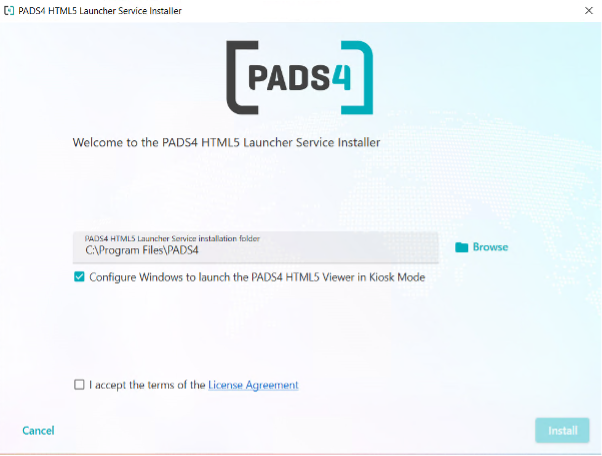
1. Exécutez `PADS4WindowsHTMLviewer.exe` en tant qu'**Administrator**.
2. Choisissez le répertoire d'installation (ou utilisez celui par défaut).
3. **Optionnel** : Décochez *"Configure Windows to launch the PADS4 HTML5 Viewer in Kiosk Mode"* if:
* Vous voulez l'utiliser comme économiseur d'écran
* Vous voulez l'exécuter sous un utilisateur Windows normal
4. Acceptez le contrat de licence et cliquez sur **Install**.
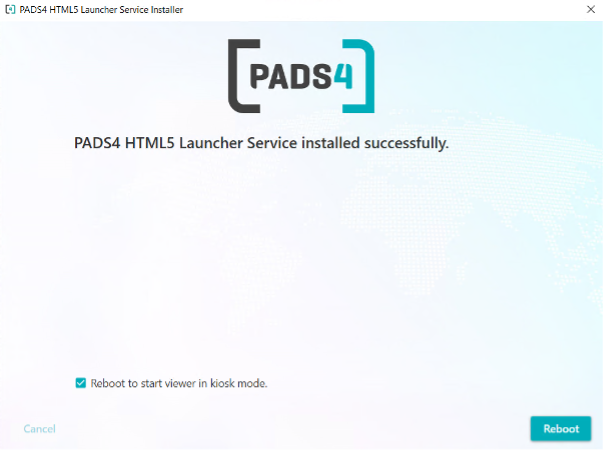
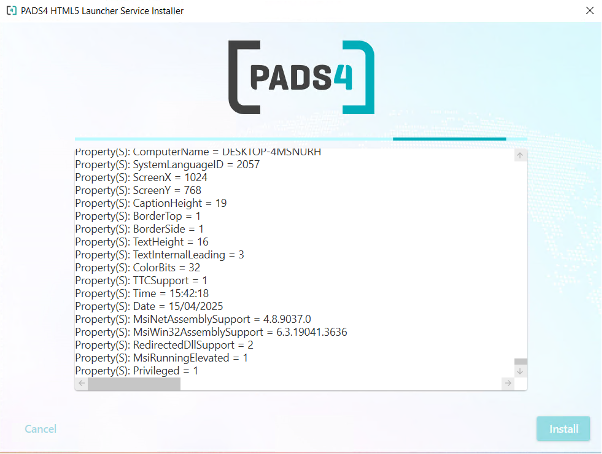 5. Une fois l'installation terminée, cliquez sur **Reboot** pour redémarrer la machine.
 ***
## Configuration initiale
Après le redémarrage, le visualiseur se lancera en **Kiosk Mode**.
1. Au premier lancement, entrez votre **PADS4 Server Address** et **Viewer Name**.
***
## Configuration initiale
Après le redémarrage, le visualiseur se lancera en **Kiosk Mode**.
1. Au premier lancement, entrez votre **PADS4 Server Address** et **Viewer Name**.
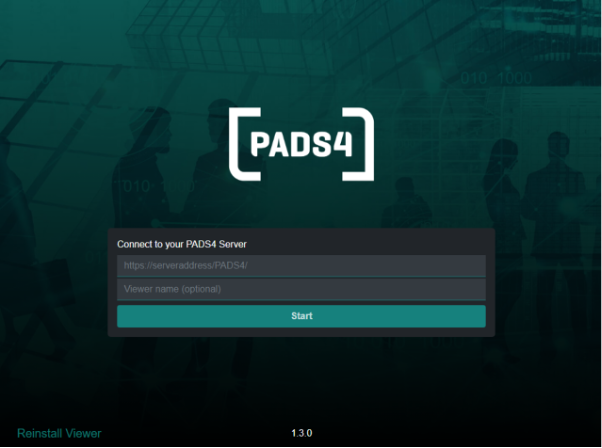 2. Cliquez sur **Start** pour connecter le visualiseur.
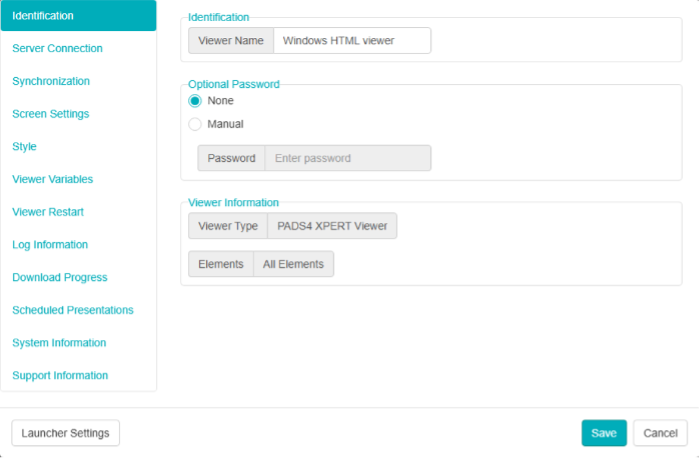
 Pour accéder aux paramètres du visualiseur ou revenir aux paramètres du lanceur, faites un clic droit n'importe où sur l'écran.
 ***
## Passer à un compte utilisateur standard
Vous pouvez quitter le mode Kiosque et passer à un compte Windows standard de deux façons :
* **Méthode 1** : Redémarrez la machine tout en maintenant la touche **Shift** enfoncée. Cela affiche l'écran de connexion Windows.
* **Méthode 2** : Utilisez **Remote Desktop** (si configuré) pour vous connecter directement avec un compte utilisateur différent.
***
## Utiliser le visualiseur comme économiseur d'écran
1. Pendant l'installation, assurez-vous que le mode Kiosque est **not** activé.
2. Ouvrez **Screensaver Settings** dans Windows.
3. Sélectionnez **Pads4viewer** comme économiseur d'écran.
***
## Passer à un compte utilisateur standard
Vous pouvez quitter le mode Kiosque et passer à un compte Windows standard de deux façons :
* **Méthode 1** : Redémarrez la machine tout en maintenant la touche **Shift** enfoncée. Cela affiche l'écran de connexion Windows.
* **Méthode 2** : Utilisez **Remote Desktop** (si configuré) pour vous connecter directement avec un compte utilisateur différent.
***
## Utiliser le visualiseur comme économiseur d'écran
1. Pendant l'installation, assurez-vous que le mode Kiosque est **not** activé.
2. Ouvrez **Screensaver Settings** dans Windows.
3. Sélectionnez **Pads4viewer** comme économiseur d'écran.
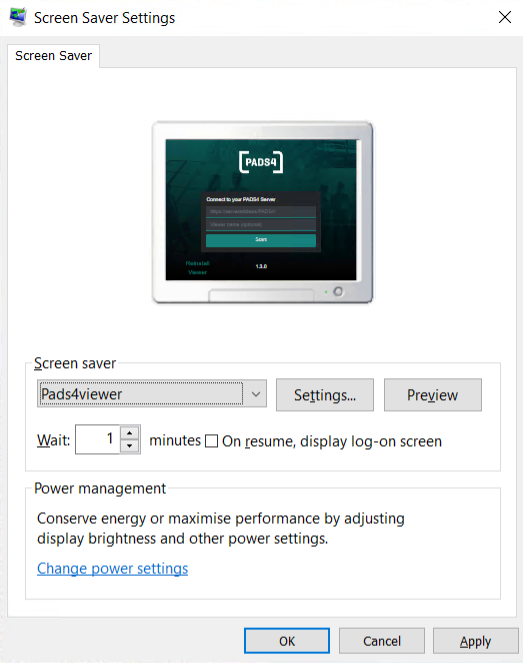 4. Cliquez sur **Apply** et **OK**.
Le visualiseur démarrera maintenant en fonction de la minuterie configurée pour l'économiseur d'écran.
***
## Référence du script du mode Kiosque
Pour examiner la configuration du mode Kiosque du système, consultez le script PowerShell :
```plaintext theme={null}
C:\Program Files\PADS4\Launcher Service\configure-kioskmode
```
***
## Fonctionnalités prises en charge et limitations
| Fonctionnalité | Description |
| --------------------------------------- | --------------------------------------------------------------- |
| ✅ Mises à jour automatiques du logiciel | Mises à jour automatiques depuis le PADS4 Server |
| ✅ Mode hors ligne | Exécute des présentations jusqu'à 7 jours sans connexion réseau |
| ✅ Support HTTP & HTTPS | Les deux protocoles sont pris en charge |
| ✅ Maximum 4 vidéos par page | Jusqu'à 4 vidéos peuvent être affichées sur une seule page |
| ❌ Rotation vidéo / Seamless / Flip | Ces améliorations vidéo ne sont pas prises en charge |
| ✅ Support de streaming | Streaming via HTTP & HTTPS |
| ✅ Mode Cluster Viewer | Pris en charge |
| ✅ Éléments interactifs | Boutons, texte, texte défilant, image, tableaux |
| ✅ PowerPoint & PDF | PowerPoint nécessite une installation sur le PADS4 Server |
| ✅ Gestion des appareils à distance | Géré via PADS4 Agent |
| ✅ Wake-on-LAN | Les appareils peuvent être allumés à distance |
| ❌ Éteindre l'écran | Non pris en charge |
***
4. Cliquez sur **Apply** et **OK**.
Le visualiseur démarrera maintenant en fonction de la minuterie configurée pour l'économiseur d'écran.
***
## Référence du script du mode Kiosque
Pour examiner la configuration du mode Kiosque du système, consultez le script PowerShell :
```plaintext theme={null}
C:\Program Files\PADS4\Launcher Service\configure-kioskmode
```
***
## Fonctionnalités prises en charge et limitations
| Fonctionnalité | Description |
| --------------------------------------- | --------------------------------------------------------------- |
| ✅ Mises à jour automatiques du logiciel | Mises à jour automatiques depuis le PADS4 Server |
| ✅ Mode hors ligne | Exécute des présentations jusqu'à 7 jours sans connexion réseau |
| ✅ Support HTTP & HTTPS | Les deux protocoles sont pris en charge |
| ✅ Maximum 4 vidéos par page | Jusqu'à 4 vidéos peuvent être affichées sur une seule page |
| ❌ Rotation vidéo / Seamless / Flip | Ces améliorations vidéo ne sont pas prises en charge |
| ✅ Support de streaming | Streaming via HTTP & HTTPS |
| ✅ Mode Cluster Viewer | Pris en charge |
| ✅ Éléments interactifs | Boutons, texte, texte défilant, image, tableaux |
| ✅ PowerPoint & PDF | PowerPoint nécessite une installation sur le PADS4 Server |
| ✅ Gestion des appareils à distance | Géré via PADS4 Agent |
| ✅ Wake-on-LAN | Les appareils peuvent être allumés à distance |
| ❌ Éteindre l'écran | Non pris en charge |
***