> ## Documentation Index
> Fetch the complete documentation index at: https://docs.pads4.com/llms.txt
> Use this file to discover all available pages before exploring further.
# Enable multi-factor authentication
> Turn on MFA in PADS4 from the Multi-Factor Authentication Configuration screen, set the issuer, choose optional or mandatory, and pick an enforcement date.
Multi-Factor Authentication (MFA) adds an extra layer of security by requiring users to verify their identity with more than one method, such as a password plus a code or authenticator app. In PADS4, MFA can be turned on from the **Multi-Factor Authentication Configuration** screen
## **Configure MFA in PADS4**
Use this screen to enable MFA, decide whether it is optional or required, and define the date from which enforcement starts. The example shown uses **PADS4 Server** as the issuer, enables MFA, makes it mandatory, and sets the enforcement date to **30/06/2026**
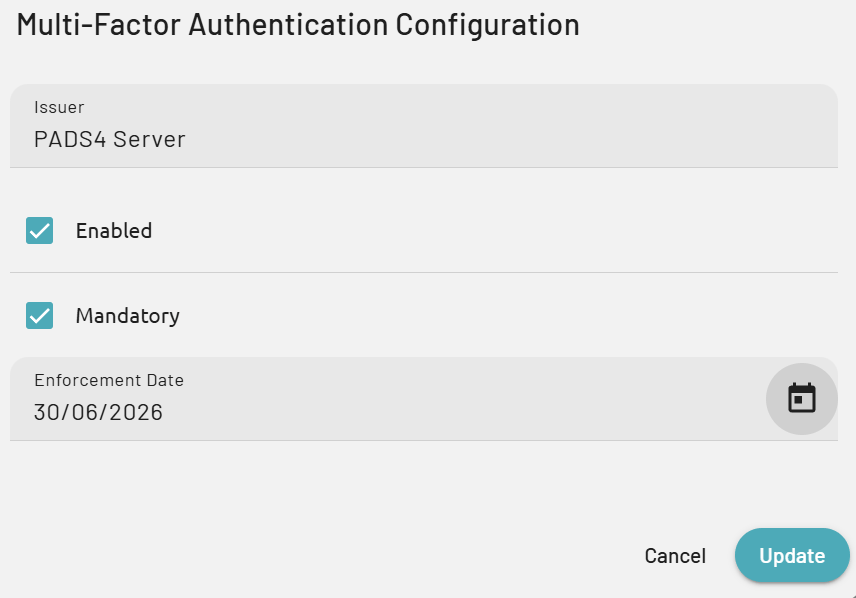 * **Issuer -** The **Issuer** identifies PADS4 in the MFA provider. Give it a proper and recognizable name, and as a good practice use the name of the PADS4 Server, such as **PADS4 Server** in the example shown.
* **Enabled -** Select **Enabled** to activate MFA in PADS4. When this option is not selected, MFA is not used for the environment.
* **Mandatory -** Check this box if MFA must be required for all users. Leave it unchecked if MFA should be available but not enforced for everyone.
* Enforcement date - Use **Enforcement Date** to define when mandatory MFA starts. From this date onward, users are expected to comply with the configured MFA requirement.
Click **Update** to save and apply the configuration. Click **Cancel** to discard unsaved changes and leave the current settings unchanged.
* **Issuer -** The **Issuer** identifies PADS4 in the MFA provider. Give it a proper and recognizable name, and as a good practice use the name of the PADS4 Server, such as **PADS4 Server** in the example shown.
* **Enabled -** Select **Enabled** to activate MFA in PADS4. When this option is not selected, MFA is not used for the environment.
* **Mandatory -** Check this box if MFA must be required for all users. Leave it unchecked if MFA should be available but not enforced for everyone.
* Enforcement date - Use **Enforcement Date** to define when mandatory MFA starts. From this date onward, users are expected to comply with the configured MFA requirement.
Click **Update** to save and apply the configuration. Click **Cancel** to discard unsaved changes and leave the current settings unchanged.