> ## Documentation Index
> Fetch the complete documentation index at: https://docs.pads4.com/llms.txt
> Use this file to discover all available pages before exploring further.
# Managing your connections
# **Managing your connections**
To be able to connect to your PADS4 Server, you must first configure your connection. A connection typically describes how to connect and log in to your PADS4 Server. Connections can be managed in the PADS4 Server Connections window. In most situations, you will have only one PADS4 Server, but optionally, you can [connect to multiple PADS4 Servers](/digital-signage/windows-applications/agent/advanced-features/connecting-to-multiple-servers).
The connections that you define in the PADS4 Server Connections window are shared by all PADS4 applications that have been installed on your computer.
#### **To view your connections**
1. Click **Manage** in the **Connections** section of the **Home** tab in the ribbon bar.
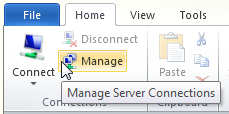 This automatically opens the PADS4 Server Connections window, where you can view your connections.
#### **PADS Server Connections window**
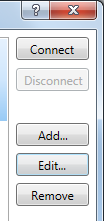
The PADS4 Server Connections window gives a list of all connections that have been defined on your computer with their actual status.
This automatically opens the PADS4 Server Connections window, where you can view your connections.
#### **PADS Server Connections window**
The PADS4 Server Connections window gives a list of all connections that have been defined on your computer with their actual status.
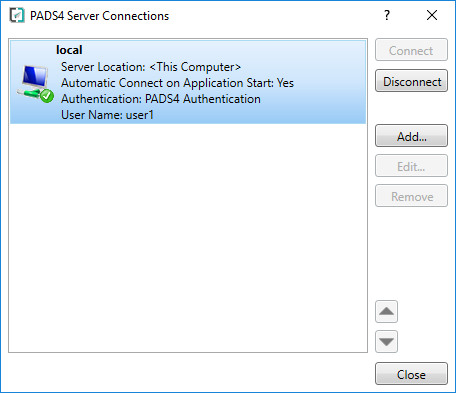 The Connections window can be used to manually connect to or disconnect from a PADS4 Server. If a connection is not connected yet, you can select it and click **Connect** to manually establish a connection. To disconnect again, simply click **Disconnect**.
Working with multiple connections and manually connecting and disconnecting can be especially useful when you have to service multiple PADS4 installations. An example of this is a design agency developing content for multiple customers running PADS4.
#### **To add a new connection**
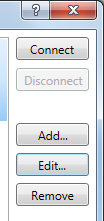
1. Click **Add...**.
The Connections window can be used to manually connect to or disconnect from a PADS4 Server. If a connection is not connected yet, you can select it and click **Connect** to manually establish a connection. To disconnect again, simply click **Disconnect**.
Working with multiple connections and manually connecting and disconnecting can be especially useful when you have to service multiple PADS4 installations. An example of this is a design agency developing content for multiple customers running PADS4.
#### **To add a new connection**
1. Click **Add...**.
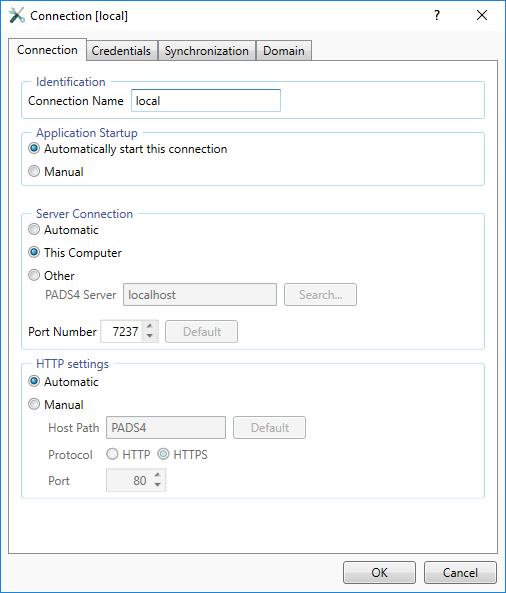
 2. Fill in the settings on the **Connection** tab.
 **Connection Name**\
A unique name that will be used to identify your connection. The name you enter here will be used everywhere in the GUI to indicate your connection.
**Application Startup**\
Decide if you want your system to automatically connect to your PADS4 Server when your PADS4 application is started.
**Server Connection**\
\
Specify where your PADS4 Server is located. Possible options are:
A PADS4 Server can only be automatically detected when the PADS4 Server process is running and the UDP port number 3702 is not blocked by a firewall on the server PC or somewhere else in the network. Automatic detection only works in a Local Area Network.
| **Connection option** | **Description** |
| :-------------------- | :------------------------------------------------------------------------------------------------------------------------------------------------------------------------------------------------------------------------------------------------------------------------------------------------------------------------------------------------------------------------------------------------------------------------------------------------------------------------------------------------------------------------------------------------------------------------------------------------------------------------------------------------------------------------------------- |
| Automatic | Your PADS4 system will automatically detect the location of your PADS4 Server. If you have only one PADS4 Server in your network, then this may be the best option to choose. When your PADS4 Server will be moved to another location in your network or get a different network address the system will automatically make the required adjustments. When you have multiple PADS4 Servers (like a backup server) running in your network, you cannot use this option, because it's not guaranteed that the system will detect the right server. |
| This Computer | Your PADS4 Server is expected to run on the same computer as your application. If you have installed both PADS4 Server and your PADS4 application on the same computer, then this is the preferred option. It guarantees that the system will keep working even when the name of your computer will change. It also will keep the communication locally which is much faster. Finally it prevents that your system will go through the network to access your PADS4 Server and may be blocked by a firewall. |
| Other | Use this option if none of the above options is applicable. With this option you can manually specify the network address of your **PADS4 Server**. Here you can enter a computer name, IP address or DNS name. Optionally you can click **Search...** to automatically search for existing PADS4 Servers in your network. When clicking **Show Advanced Options** you have the possibility to specify an alternative **Port number** to communicate with your PADS4 Server. Please note that the port number you enter here has to correspond with the port number that has been specified in your PADS4 Server via the server settings of the PADS4 System Management application. |
**Http settings**\
When set to automatic, PADS4 will identify the server connection and set the HTTP settings based on the default connection settings. This can be adjusted by setting it to **manual** and specifying a Host Path and port.\
\
PADS4 is using 2 network protocols. Web-related connections are used in the PADS4 Agent (Proof of Play and Audit log) and PADS4 Desktop Viewer (synchronization). In situations where the connection to the server is established through a router or proxy using port forwarding, it is possible that you have to specify a different host path/port to connect to the PADS4 Server.
3. Specify the logon settings on the **Credentials** tab.
**Connection Name**\
A unique name that will be used to identify your connection. The name you enter here will be used everywhere in the GUI to indicate your connection.
**Application Startup**\
Decide if you want your system to automatically connect to your PADS4 Server when your PADS4 application is started.
**Server Connection**\
\
Specify where your PADS4 Server is located. Possible options are:
A PADS4 Server can only be automatically detected when the PADS4 Server process is running and the UDP port number 3702 is not blocked by a firewall on the server PC or somewhere else in the network. Automatic detection only works in a Local Area Network.
| **Connection option** | **Description** |
| :-------------------- | :------------------------------------------------------------------------------------------------------------------------------------------------------------------------------------------------------------------------------------------------------------------------------------------------------------------------------------------------------------------------------------------------------------------------------------------------------------------------------------------------------------------------------------------------------------------------------------------------------------------------------------------------------------------------------------- |
| Automatic | Your PADS4 system will automatically detect the location of your PADS4 Server. If you have only one PADS4 Server in your network, then this may be the best option to choose. When your PADS4 Server will be moved to another location in your network or get a different network address the system will automatically make the required adjustments. When you have multiple PADS4 Servers (like a backup server) running in your network, you cannot use this option, because it's not guaranteed that the system will detect the right server. |
| This Computer | Your PADS4 Server is expected to run on the same computer as your application. If you have installed both PADS4 Server and your PADS4 application on the same computer, then this is the preferred option. It guarantees that the system will keep working even when the name of your computer will change. It also will keep the communication locally which is much faster. Finally it prevents that your system will go through the network to access your PADS4 Server and may be blocked by a firewall. |
| Other | Use this option if none of the above options is applicable. With this option you can manually specify the network address of your **PADS4 Server**. Here you can enter a computer name, IP address or DNS name. Optionally you can click **Search...** to automatically search for existing PADS4 Servers in your network. When clicking **Show Advanced Options** you have the possibility to specify an alternative **Port number** to communicate with your PADS4 Server. Please note that the port number you enter here has to correspond with the port number that has been specified in your PADS4 Server via the server settings of the PADS4 System Management application. |
**Http settings**\
When set to automatic, PADS4 will identify the server connection and set the HTTP settings based on the default connection settings. This can be adjusted by setting it to **manual** and specifying a Host Path and port.\
\
PADS4 is using 2 network protocols. Web-related connections are used in the PADS4 Agent (Proof of Play and Audit log) and PADS4 Desktop Viewer (synchronization). In situations where the connection to the server is established through a router or proxy using port forwarding, it is possible that you have to specify a different host path/port to connect to the PADS4 Server.
3. Specify the logon settings on the **Credentials** tab.
 **Credentials**\
Here you can specify the **User Name** and/or **Password** you want to be used to logon to your PADS4 Server when a connection is established. If you only specify a user name and then the user will be prompted for the password when connecting. If you choose **Automatic Login** then the system will try to automatically logon to your PADS4 Server when connecting. If the logon is unsuccessful, the user will be prompted for the correct user name and password.
1. Often the **Automatic Login** option is used in combination with the **Automatically start this connection** option on the **Connection** tab. This way your application will fully automatically connect and logon to your PADS4 Server when starting your PADS4 application.
**Domain**\
If your PADS4 Server PC hosts multiple PADS4 Servers, then you have the possibility here to manually specify the **Domain** that corresponds with your PADS4 system. Another situation where the use of domains may be required is when you have multiple connections to different PADS4 Server and you want to keep those connections separated on your client PC. In all other situations you should choose the option **Automatic**.
4. Optionally adjust the synchronization settings on the **Synchronization** tab.
**Credentials**\
Here you can specify the **User Name** and/or **Password** you want to be used to logon to your PADS4 Server when a connection is established. If you only specify a user name and then the user will be prompted for the password when connecting. If you choose **Automatic Login** then the system will try to automatically logon to your PADS4 Server when connecting. If the logon is unsuccessful, the user will be prompted for the correct user name and password.
1. Often the **Automatic Login** option is used in combination with the **Automatically start this connection** option on the **Connection** tab. This way your application will fully automatically connect and logon to your PADS4 Server when starting your PADS4 application.
**Domain**\
If your PADS4 Server PC hosts multiple PADS4 Servers, then you have the possibility here to manually specify the **Domain** that corresponds with your PADS4 system. Another situation where the use of domains may be required is when you have multiple connections to different PADS4 Server and you want to keep those connections separated on your client PC. In all other situations you should choose the option **Automatic**.
4. Optionally adjust the synchronization settings on the **Synchronization** tab.
 \
**Content Library Synchronization Activation**\
Specify the method that must be used for synchronization.\
**Automatic** will synchronize when changes are detected, **Manual** will wait for the user to click on a synchronize now button and **never** will not synchronize. When all three options are disabled it is not allowed to use synchronization. For instance when the server and Designer are on the same PC, synchronization is not needed, because they use the same environment.\
\
**PADS4 Content Library Storage Folder**\
Specify where the content must be stored if the automatic generated location is not possible.
* **Domain**\
If your PADS4 Server PC hosts multiple PADS4 Servers, then you have the possibility here to manually specify the **Domain** that corresponds with your PADS4 system. Another situation where the use of domains may be required is when you have multiple connections to different PADS4 Server and you want to keep those connections separated on your client PC. In all other situations you should choose the option **Automatic**.
* Click **OK** to save your settings.
#### **To edit a connection**
Before you can start editing a connection, you first have to make sure that the connection is disconnected. It's not possible to make any adjustments to a connection that is currently in use.
1. Click the connection in the PADS4 Server connections window to select it.
2. Click **Edit...** to open the connection properties window.
\
**Content Library Synchronization Activation**\
Specify the method that must be used for synchronization.\
**Automatic** will synchronize when changes are detected, **Manual** will wait for the user to click on a synchronize now button and **never** will not synchronize. When all three options are disabled it is not allowed to use synchronization. For instance when the server and Designer are on the same PC, synchronization is not needed, because they use the same environment.\
\
**PADS4 Content Library Storage Folder**\
Specify where the content must be stored if the automatic generated location is not possible.
* **Domain**\
If your PADS4 Server PC hosts multiple PADS4 Servers, then you have the possibility here to manually specify the **Domain** that corresponds with your PADS4 system. Another situation where the use of domains may be required is when you have multiple connections to different PADS4 Server and you want to keep those connections separated on your client PC. In all other situations you should choose the option **Automatic**.
* Click **OK** to save your settings.
#### **To edit a connection**
Before you can start editing a connection, you first have to make sure that the connection is disconnected. It's not possible to make any adjustments to a connection that is currently in use.
1. Click the connection in the PADS4 Server connections window to select it.
2. Click **Edit...** to open the connection properties window.
 3. Make the required adjustments (see description above).
4. Click **OK** to save your settings.
#### **To delete a connection**
1. Click the connection in the PADS4 Server connections window to select it.
2. Click **Remove** to delete the connection.
After this your connection will be permanently deleted for all PADS4 applications on your computer.
3. Make the required adjustments (see description above).
4. Click **OK** to save your settings.
#### **To delete a connection**
1. Click the connection in the PADS4 Server connections window to select it.
2. Click **Remove** to delete the connection.
After this your connection will be permanently deleted for all PADS4 applications on your computer.