> ## Documentation Index
> Fetch the complete documentation index at: https://docs.pads4.com/llms.txt
> Use this file to discover all available pages before exploring further.
# Windows logs
With the Windows log functions you can view the Windows event logs of your PADS4 Server or PADS4 Viewer. The logs can be remotely cleared.
#### **To view the Windows event logs of your PADS4 Server**
1. Click on the **Server** tab in the navigation pane.
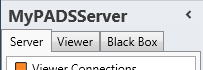 2. Click **Windows Logs** in the list of available server information categories.
After this, the system will automatically retrieve the requested information from the connected PADS4 Server and display the results in the Windows logs window. If your PADS4 installation includes sub-servers, then you must first select a server before selecting the information category.
#### **To view the Windows event logs of a PADS4 Viewer**
1. Click on the **Viewer** tab in the navigation pane.
2. Click **Windows Logs** in the list of available server information categories.
After this, the system will automatically retrieve the requested information from the connected PADS4 Server and display the results in the Windows logs window. If your PADS4 installation includes sub-servers, then you must first select a server before selecting the information category.
#### **To view the Windows event logs of a PADS4 Viewer**
1. Click on the **Viewer** tab in the navigation pane.
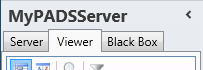 2. Select a Viewer from the list of available destinations.
3. Click **Windows Logs** in the list of available viewer information categories.
After this, the system will automatically connect to the connected PADS4 Server to retrieve the requested information from the selected Viewer and display the results in the Windows logs window.
The PADS4 application will only be able to start retrieving the requested viewer information when you have selected both a Viewer and a Category in the navigation pane.
#### **Windows logs window**
The Windows logs window shows all log messages that are stored in the event logs of your PADS4 Server or PADS4 Viewer. When you face a problem, then these logs may help you to find the possible cause of the problem.
2. Select a Viewer from the list of available destinations.
3. Click **Windows Logs** in the list of available viewer information categories.
After this, the system will automatically connect to the connected PADS4 Server to retrieve the requested information from the selected Viewer and display the results in the Windows logs window.
The PADS4 application will only be able to start retrieving the requested viewer information when you have selected both a Viewer and a Category in the navigation pane.
#### **Windows logs window**
The Windows logs window shows all log messages that are stored in the event logs of your PADS4 Server or PADS4 Viewer. When you face a problem, then these logs may help you to find the possible cause of the problem.
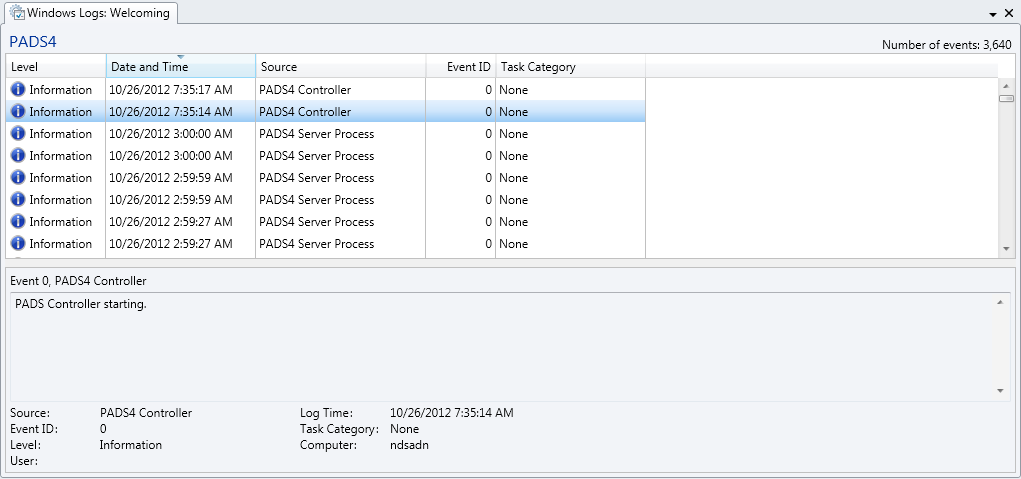 **Level**\
\
Indicates if the logged item is an information message, warning, or error.
**Date and Time**\
\
Date and time at which the item was logged.
**Source**\
\
Name of the process that logged the item. If the process is PADS4 Viewer, the viewer name that identifies the PADS4 Viewer is listed.
**Event ID**\
An optional ID to identify the log message.
**Task Category**\
An optional category to identify the task that generated the log message.
When you select a log item in the Windows logs window then additional detailed information about this item is displayed at the bottom of the window.
#### **Views**
By default, only the PADS4 log messages of the Windows application log are displayed. To change the view, click on one of the following buttons on the **Home** menu of the ribbon bar:
*
**Level**\
\
Indicates if the logged item is an information message, warning, or error.
**Date and Time**\
\
Date and time at which the item was logged.
**Source**\
\
Name of the process that logged the item. If the process is PADS4 Viewer, the viewer name that identifies the PADS4 Viewer is listed.
**Event ID**\
An optional ID to identify the log message.
**Task Category**\
An optional category to identify the task that generated the log message.
When you select a log item in the Windows logs window then additional detailed information about this item is displayed at the bottom of the window.
#### **Views**
By default, only the PADS4 log messages of the Windows application log are displayed. To change the view, click on one of the following buttons on the **Home** menu of the ribbon bar:
*  * Shows ONLY the PADS4 log messages of the Windows application log.
*
* Shows ONLY the PADS4 log messages of the Windows application log.
*  * Shows all log messages of the Windows application log.
*
* Shows all log messages of the Windows application log.
*  * Shows all log messages of the Windows security log.
*
* Shows all log messages of the Windows security log.
*  * Shows all log messages of the Windows system log.
#### **Clearing the Windows event logs**
By clearing a Windows event log, you can restart the logging process on your PADS4 Server or PADS4 Viewer. To clear a Windows log:
1. Select an event log by clicking one of the buttons in the **View** group on the **Home** menu.
2. Click **Clear Log** on the **Home** menu.
* Shows all log messages of the Windows system log.
#### **Clearing the Windows event logs**
By clearing a Windows event log, you can restart the logging process on your PADS4 Server or PADS4 Viewer. To clear a Windows log:
1. Select an event log by clicking one of the buttons in the **View** group on the **Home** menu.
2. Click **Clear Log** on the **Home** menu.
 3. Click **Yes** to confirm that you want to clear the event log.
After this, all log messages will be removed from the selected event log on the PADS4 Viewer PC.
When you have selected PADS4 as a view, then the entire Windows application log will be cleared.
3. Click **Yes** to confirm that you want to clear the event log.
After this, all log messages will be removed from the selected event log on the PADS4 Viewer PC.
When you have selected PADS4 as a view, then the entire Windows application log will be cleared.