> ## Documentation Index
> Fetch the complete documentation index at: https://docs.pads4.com/llms.txt
> Use this file to discover all available pages before exploring further.
# Viewer settings
With the viewer settings functions you can view or modify the program settings of one or more PADS4 Viewers.
#### **To view the program settings of a PADS4 Viewer**
1. Click on the **Viewer** tab in the navigation pane.
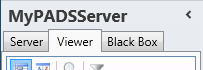 2. Select a Viewer from the list of available destinations.
3. Click **Viewer settings** in the list of available viewer information categories.
After this, the system will automatically connect to the connected PADS4 Server to retrieve the requested information from the selected Viewer and display the results in the viewer settings window.
The PADS4 application will only be able to start retrieving the requested viewer information when you have selected both a Viewer and a Category in the navigation pane.
#### **Viewer settings window**
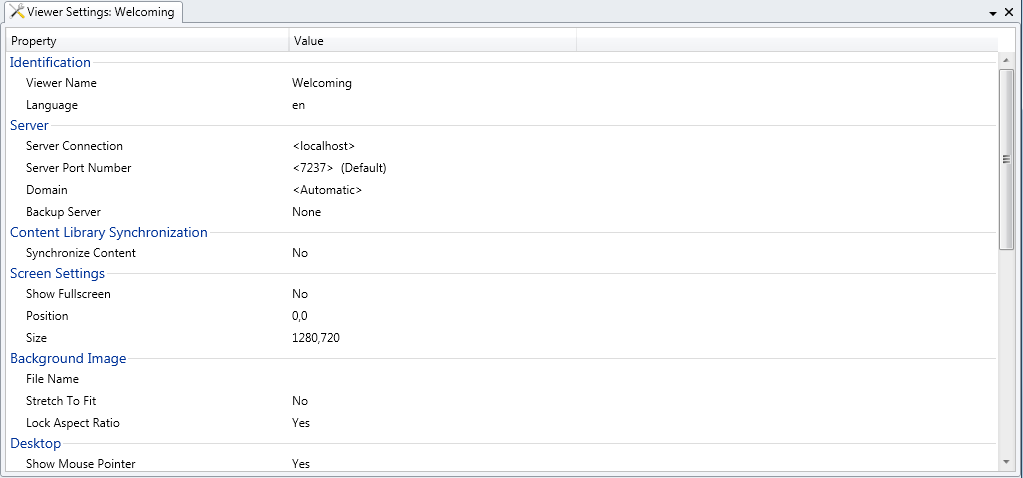
The viewer settings window shows the programs settings of a PADS4 Viewer. This enables you to check remotely if the settings of a PADS4 Viewer have been set correctly.
2. Select a Viewer from the list of available destinations.
3. Click **Viewer settings** in the list of available viewer information categories.
After this, the system will automatically connect to the connected PADS4 Server to retrieve the requested information from the selected Viewer and display the results in the viewer settings window.
The PADS4 application will only be able to start retrieving the requested viewer information when you have selected both a Viewer and a Category in the navigation pane.
#### **Viewer settings window**
The viewer settings window shows the programs settings of a PADS4 Viewer. This enables you to check remotely if the settings of a PADS4 Viewer have been set correctly.
 #### **Views**
To change the view of the viewer settings window, click one of the following buttons on the **Home** menu of the ribbon bar:
*
#### **Views**
To change the view of the viewer settings window, click one of the following buttons on the **Home** menu of the ribbon bar:
*  * (Default view) Shows the program settings of the Viewer that has been selected in the navigation pane.
*
* (Default view) Shows the program settings of the Viewer that has been selected in the navigation pane.
*  * Shows the program settings of all Viewers in your installation in one table view.
This view is typically used to compare the program settings of multiple viewers. In this comparison, the Viewer that has been selected in the navigation pane is used as a reference point. The settings of this Viewer are marked with a green color. All program settings of other Viewers that differ from the settings of this Viewer are marked with a red color.
Only viewers that have the status 'Connected' are included in the view. The program settings of Viewers that are not connected to your PADS4 Server can not be viewed.
#### **Editing the program settings of a PADS4 Viewer**
To remotely adjust the program settings of a PADS4 Viewer:
1. Click **Edit** on the **Home** menu.
* Shows the program settings of all Viewers in your installation in one table view.
This view is typically used to compare the program settings of multiple viewers. In this comparison, the Viewer that has been selected in the navigation pane is used as a reference point. The settings of this Viewer are marked with a green color. All program settings of other Viewers that differ from the settings of this Viewer are marked with a red color.
Only viewers that have the status 'Connected' are included in the view. The program settings of Viewers that are not connected to your PADS4 Server can not be viewed.
#### **Editing the program settings of a PADS4 Viewer**
To remotely adjust the program settings of a PADS4 Viewer:
1. Click **Edit** on the **Home** menu.
 2. Change or more program settings.
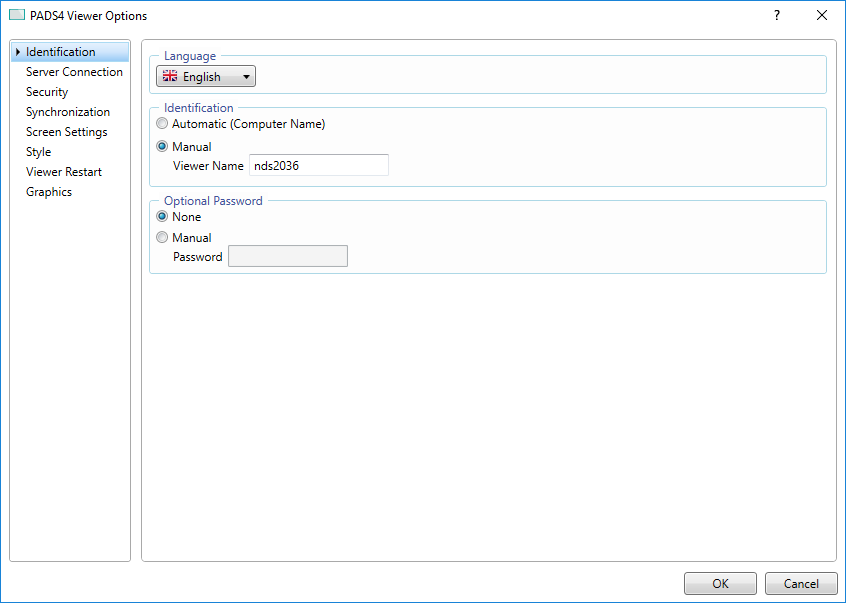 3. Click **OK** to save the adjusted settings and close the settings window.
When you change the viewer identification settings of a PADS4 Viewer, the viewer will be renamed to the new viewer name. All its existing settings, like viewer group memberships, assigned license, and scheduled presentations, will remain intact.
When you change the server connection settings of a PADS4 Viewer, the viewer may lose its connection with your PADS4 Server. As a result, you might no longer be able to access the viewer via PADS4 Agent.
#### **Editing the program settings of multiple PADS4 Viewers**
To remotely adjust the program settings of multiple PADS4 Viewers:
1. Follow the procedure as described above to view the program settings of the PADS4 Viewer you want to take as a reference point.
2. Click **Multiple Viewers** on the **Home** menu to switch to the view showing the program settings of all your PADS4 Viewers.
3. Select the Viewers for which you want to change the program settings by clicking the check boxes in front of the listed items.
4. Click **Edit** on the **Home** menu.
5. Check mark the check box of the sections for which you want to program settings to be updated for all selected PADS4 Viewers and optionally change the program settings in the section.
3. Click **OK** to save the adjusted settings and close the settings window.
When you change the viewer identification settings of a PADS4 Viewer, the viewer will be renamed to the new viewer name. All its existing settings, like viewer group memberships, assigned license, and scheduled presentations, will remain intact.
When you change the server connection settings of a PADS4 Viewer, the viewer may lose its connection with your PADS4 Server. As a result, you might no longer be able to access the viewer via PADS4 Agent.
#### **Editing the program settings of multiple PADS4 Viewers**
To remotely adjust the program settings of multiple PADS4 Viewers:
1. Follow the procedure as described above to view the program settings of the PADS4 Viewer you want to take as a reference point.
2. Click **Multiple Viewers** on the **Home** menu to switch to the view showing the program settings of all your PADS4 Viewers.
3. Select the Viewers for which you want to change the program settings by clicking the check boxes in front of the listed items.
4. Click **Edit** on the **Home** menu.
5. Check mark the check box of the sections for which you want to program settings to be updated for all selected PADS4 Viewers and optionally change the program settings in the section.
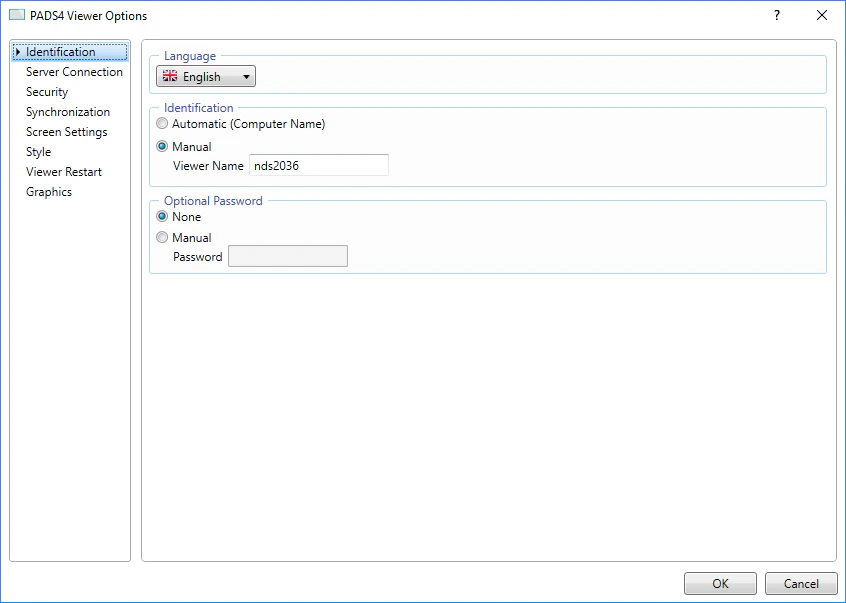 Some sections (like the Identification section) don't have a check box. This means that the program settings in this section cannot be updated for multiple PADS4 Viewers in a single action. If you want to adjust one of these program settings, you have to change it for each viewer individually.
6. Click **OK** to save the adjusted settings and close the settings window.
After this, all adjustments will be updated for all selected PADS4 Viewers.
Some sections (like the Identification section) don't have a check box. This means that the program settings in this section cannot be updated for multiple PADS4 Viewers in a single action. If you want to adjust one of these program settings, you have to change it for each viewer individually.
6. Click **OK** to save the adjusted settings and close the settings window.
After this, all adjustments will be updated for all selected PADS4 Viewers.