> ## Documentation Index
> Fetch the complete documentation index at: https://docs.pads4.com/llms.txt
> Use this file to discover all available pages before exploring further.
# Viewer log
With the viewer log functions, you can view the log messages of your PADS4 (HTML5) Viewer or black box file. The viewer log of a PADS4 Viewer can be cleared or saved to a file, together with other black box information.
#### **To view the log messages of a PADS4 (HTML5) Viewer**
1. Click on the **Viewer** tab in the navigation pane.
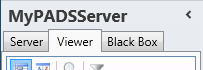 2. Select a Viewer from the list of available destinations.
3. Click **Viewer log** in the list of available viewer information categories.
After this the system will automatically connect to the connected PADS4 Server to retrieve the requested information from the selected Viewer and display the results in the viewer log window.
The PADS4 application will only be able to start retrieving the requested viewer information when you have selected both a Viewer and a Category in the navigation pane.
#### **To view the log messages of a black box file**
1. Make sure the black box has been [added](https://pads4documentation.blob.core.windows.net/agent/Content/Main%20Window/Navigation%20pane.htm) to the application.
2. Click on the **Black Box** tab in the navigation pane.
2. Select a Viewer from the list of available destinations.
3. Click **Viewer log** in the list of available viewer information categories.
After this the system will automatically connect to the connected PADS4 Server to retrieve the requested information from the selected Viewer and display the results in the viewer log window.
The PADS4 application will only be able to start retrieving the requested viewer information when you have selected both a Viewer and a Category in the navigation pane.
#### **To view the log messages of a black box file**
1. Make sure the black box has been [added](https://pads4documentation.blob.core.windows.net/agent/Content/Main%20Window/Navigation%20pane.htm) to the application.
2. Click on the **Black Box** tab in the navigation pane.
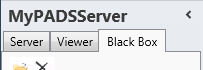 3. Select the black box item in the list of available black boxes.
4. Click **Viewer log** in the list of available black box information categories.
After this the system will automatically open the black box file to retrieve the requested information and display the results in the viewer log window.
#### **Viewer log window**
The viewer log window shows all log messages that have been generated by either the PADS4 Viewer application or PADS4 Controller. When you face a problem with a PADS4 Viewer, then the Viewer log is usually the starting point for finding the cause of your problem.
3. Select the black box item in the list of available black boxes.
4. Click **Viewer log** in the list of available black box information categories.
After this the system will automatically open the black box file to retrieve the requested information and display the results in the viewer log window.
#### **Viewer log window**
The viewer log window shows all log messages that have been generated by either the PADS4 Viewer application or PADS4 Controller. When you face a problem with a PADS4 Viewer, then the Viewer log is usually the starting point for finding the cause of your problem.
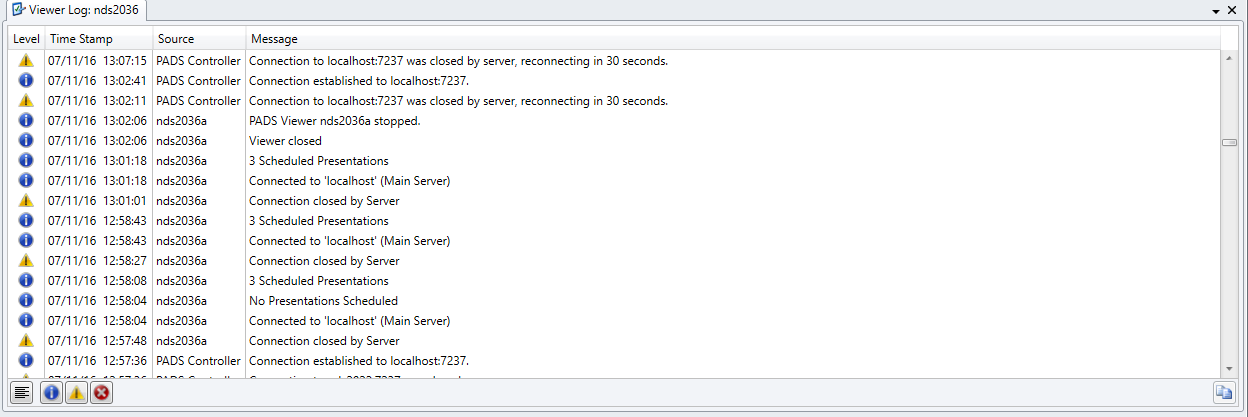 Optionally, you can use the toggle buttons at the bottom of the viewer log window to filter the displayed messages. For instance, when you only want to see warnings and error messages.\
The button below on the right copies the selected item to the **clipboard**. Another way is to use the right mouse button above the item and select copy to clipboard from the menu.
**Level**\
An icon to indicate if the logged item is an information message, warning, or error.
**Time Stamp**\
Date and time at which the item was logged.
**Source**\
Name of the process that logged the item. If the process is PADS4 Viewer, the viewer name that identifies the PADS4 Viewer is listed.
**Message**\
The actual message that is logged.
#### **Clearing the viewer log**
By clearing the Viewer log, you can restart the logging process of your PADS4 Viewer. To clear the Viewer log:
1. Click **Clear Log** on the **Home** menu.
Optionally, you can use the toggle buttons at the bottom of the viewer log window to filter the displayed messages. For instance, when you only want to see warnings and error messages.\
The button below on the right copies the selected item to the **clipboard**. Another way is to use the right mouse button above the item and select copy to clipboard from the menu.
**Level**\
An icon to indicate if the logged item is an information message, warning, or error.
**Time Stamp**\
Date and time at which the item was logged.
**Source**\
Name of the process that logged the item. If the process is PADS4 Viewer, the viewer name that identifies the PADS4 Viewer is listed.
**Message**\
The actual message that is logged.
#### **Clearing the viewer log**
By clearing the Viewer log, you can restart the logging process of your PADS4 Viewer. To clear the Viewer log:
1. Click **Clear Log** on the **Home** menu.
 2. Click **Yes** to confirm that you want to clear the Viewer log.
After this, all log messages will be removed from the viewer log on the PADS4 Viewer PC.
#### **Saving the (HTML5) Viewer log**
To save the Viewer log for viewing it offline at a later moment, you can save it together with other [black box](https://pads4documentation.blob.core.windows.net/agent/Content/Main%20Window/Navigation%20pane.htm) information of your Viewer. To save the viewer log:
1. Click **Save Black Box** on the **Home** menu.
2. Enter a **File name** and click **Save** to save the information.
After this, the black box file will be saved on your computer.
Each PADS4 Viewer automatically creates a so-called black box in which valuable information about PADS4 is stored. This includes system information and various logs. When you encounter a problem with a PADS4 (HTML5) Viewer, the black box is the ideal source of information to analyze the situation and trace the problem. So, when you contact support for a problem with a PADS4 (HTML5) Viewer it's suggested always to send the black box file.
2. Click **Yes** to confirm that you want to clear the Viewer log.
After this, all log messages will be removed from the viewer log on the PADS4 Viewer PC.
#### **Saving the (HTML5) Viewer log**
To save the Viewer log for viewing it offline at a later moment, you can save it together with other [black box](https://pads4documentation.blob.core.windows.net/agent/Content/Main%20Window/Navigation%20pane.htm) information of your Viewer. To save the viewer log:
1. Click **Save Black Box** on the **Home** menu.
2. Enter a **File name** and click **Save** to save the information.
After this, the black box file will be saved on your computer.
Each PADS4 Viewer automatically creates a so-called black box in which valuable information about PADS4 is stored. This includes system information and various logs. When you encounter a problem with a PADS4 (HTML5) Viewer, the black box is the ideal source of information to analyze the situation and trace the problem. So, when you contact support for a problem with a PADS4 (HTML5) Viewer it's suggested always to send the black box file.