> ## Documentation Index
> Fetch the complete documentation index at: https://docs.pads4.com/llms.txt
> Use this file to discover all available pages before exploring further.
# Services
With the services functions, you can view the Windows services on your PADS4 Server or PADS4 Viewer. Services can be started, paused, or restarted.
#### **To view the Windows services on your PADS4 Server**
1. Click on the **Server** tab in the navigation pane.
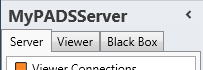 2. Click **Services** in the list of available server information categories.
After this, the system will automatically retrieve the requested information from the connected PADS4 Server and display the results in the services window. If your PADS4 installation includes sub-servers, then you must first select a server before selecting the information category.
#### **To view the Windows services on a PADS4 Viewer**
1. Click on the **Viewer** tab in the navigation pane.
2. Click **Services** in the list of available server information categories.
After this, the system will automatically retrieve the requested information from the connected PADS4 Server and display the results in the services window. If your PADS4 installation includes sub-servers, then you must first select a server before selecting the information category.
#### **To view the Windows services on a PADS4 Viewer**
1. Click on the **Viewer** tab in the navigation pane.
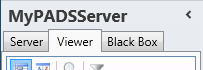 2. Select a Viewer from the list of available destinations.
3. Click **Services** in the list of available viewer information categories.
After this, the system will automatically connect to the connected PADS4 Server to retrieve the requested information from the selected Viewer and display the results in the services window.
The PADS4 application will only be able to start retrieving the requested viewer information when you have selected both a Viewer and a Category in the navigation pane.
#### **Services window**
The services window shows a complete list of all running services. This enables you to remotely check the status and startup type of individual services.
2. Select a Viewer from the list of available destinations.
3. Click **Services** in the list of available viewer information categories.
After this, the system will automatically connect to the connected PADS4 Server to retrieve the requested information from the selected Viewer and display the results in the services window.
The PADS4 application will only be able to start retrieving the requested viewer information when you have selected both a Viewer and a Category in the navigation pane.
#### **Services window**
The services window shows a complete list of all running services. This enables you to remotely check the status and startup type of individual services.
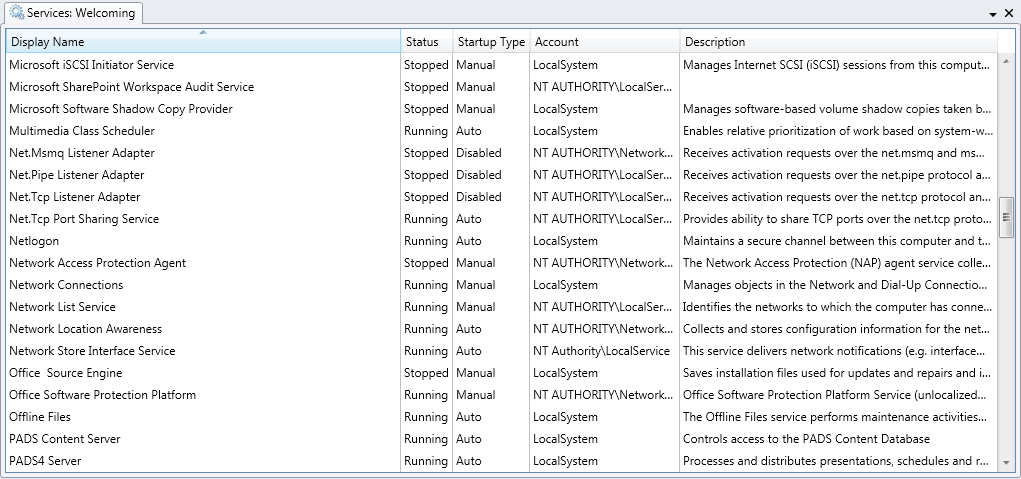 **Display Name**\
Title of the service.
**Status**\
Shows if the service is running or stopped.
**Startup Type**\
Shows if the service will start automatically or manually or has been disabled.
**Account**\
The name of the user account that is used to start the service.
**Description**\
A descriptive text, describing the function of the service.
#### **Managing services**
From the services window you can remotely start, restart, pause or stop services.
When you start or restart a service on your PADS4 Server or PADS4 Viewer, the system will use the account settings of the service to start it.
On your PADS4 Server the PADS4 Server service should NOT be stopped or restarted, because this can make your PADS4 Server inaccessible.
#### **To start a service**
1. Click the service in the services window to select it.
2. Click **Start** on the **Home** menu.
**Display Name**\
Title of the service.
**Status**\
Shows if the service is running or stopped.
**Startup Type**\
Shows if the service will start automatically or manually or has been disabled.
**Account**\
The name of the user account that is used to start the service.
**Description**\
A descriptive text, describing the function of the service.
#### **Managing services**
From the services window you can remotely start, restart, pause or stop services.
When you start or restart a service on your PADS4 Server or PADS4 Viewer, the system will use the account settings of the service to start it.
On your PADS4 Server the PADS4 Server service should NOT be stopped or restarted, because this can make your PADS4 Server inaccessible.
#### **To start a service**
1. Click the service in the services window to select it.
2. Click **Start** on the **Home** menu.
 After this, the system will try to start the service on your PADS4 Server or PADS4 Viewer. To see the updated status of the service in the services window, you might need to click **Refresh** on the **Home** menu. To see the results of this action, you can also consult the [tasks](https://pads4documentation.blob.core.windows.net/agent/Content/Main%20Window/Tasks.htm) window.
#### **To pause a service**
1. Click the service in the services window to select it.
2. Click **Pause** on the **Home** menu.
After this, the system will try to start the service on your PADS4 Server or PADS4 Viewer. To see the updated status of the service in the services window, you might need to click **Refresh** on the **Home** menu. To see the results of this action, you can also consult the [tasks](https://pads4documentation.blob.core.windows.net/agent/Content/Main%20Window/Tasks.htm) window.
#### **To pause a service**
1. Click the service in the services window to select it.
2. Click **Pause** on the **Home** menu.
 After this, the system will pause the service on your PADS4 Server or PADS4 Viewer. To see the updated status of the service in the services window, you might need to click **Refresh** on the **Home** menu. To see the results of this action, you can also consult the [tasks](https://pads4documentation.blob.core.windows.net/agent/Content/Main%20Window/Tasks.htm) window.
A service can only be paused when this feature is supported by the service.
#### **To restart a server**
1. Click the service in the services window to select it.
2. Click **Restart** on the **Home** menu.
After this, the system will pause the service on your PADS4 Server or PADS4 Viewer. To see the updated status of the service in the services window, you might need to click **Refresh** on the **Home** menu. To see the results of this action, you can also consult the [tasks](https://pads4documentation.blob.core.windows.net/agent/Content/Main%20Window/Tasks.htm) window.
A service can only be paused when this feature is supported by the service.
#### **To restart a server**
1. Click the service in the services window to select it.
2. Click **Restart** on the **Home** menu.
 3. Click **Yes** to confirm that you want to restart the service.
After this the system will try to restart the specified service on your PADS4 Server or PADS4 Viewer. To see the updated status of the service in the services window, you might need to click **Refresh** on the **Home** menu. To see the results of this action, you can also consult the [tasks](https://pads4documentation.blob.core.windows.net/agent/Content/Main%20Window/Tasks.htm) window.
#### **To stop a service**
1. Click the service in the services window to select it.
2. Click **Stop** on the **Home** menu.
3. Click **Yes** to confirm that you want to restart the service.
After this the system will try to restart the specified service on your PADS4 Server or PADS4 Viewer. To see the updated status of the service in the services window, you might need to click **Refresh** on the **Home** menu. To see the results of this action, you can also consult the [tasks](https://pads4documentation.blob.core.windows.net/agent/Content/Main%20Window/Tasks.htm) window.
#### **To stop a service**
1. Click the service in the services window to select it.
2. Click **Stop** on the **Home** menu.
 3. Click **Yes** to confirm that you want to stop the service.
After this, the system will stop the service on your PADS4 Server or PADS4 Viewer. To see the updated status of the service in the services window, you might need to click **Refresh** on the **Home** menu. To see the results of this action, you can also consult the [tasks](https://pads4documentation.blob.core.windows.net/agent/Content/Main%20Window/Tasks.htm) window.
3. Click **Yes** to confirm that you want to stop the service.
After this, the system will stop the service on your PADS4 Server or PADS4 Viewer. To see the updated status of the service in the services window, you might need to click **Refresh** on the **Home** menu. To see the results of this action, you can also consult the [tasks](https://pads4documentation.blob.core.windows.net/agent/Content/Main%20Window/Tasks.htm) window.