> ## Documentation Index
> Fetch the complete documentation index at: https://docs.pads4.com/llms.txt
> Use this file to discover all available pages before exploring further.
# Viewer Permissions
This article applies to PADS4 version 2025.2 and above.
All versions before that have the viewer permission administration in the PADS4 System Management application.
The **Viewer permissions** in **PADS4** allows you to have granular control over which **viewer group(s)** and **viewer(s)** are visible for each specific user. This way you can precisly configure what an end user is able to see and control.
## **Default Viewer Permissions**
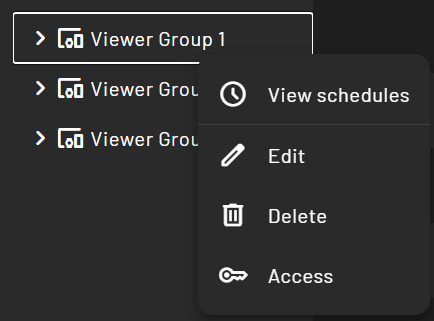
Viewer permissions work simarly as the content permissions in the PADS4 Web Portal, on each viewer group or viewer you can right click and a context menu will pop-up with the ability to open the **"Access"** menu.
* In the Detail view of the viewers:
 * In the Treeview view of the viewers:
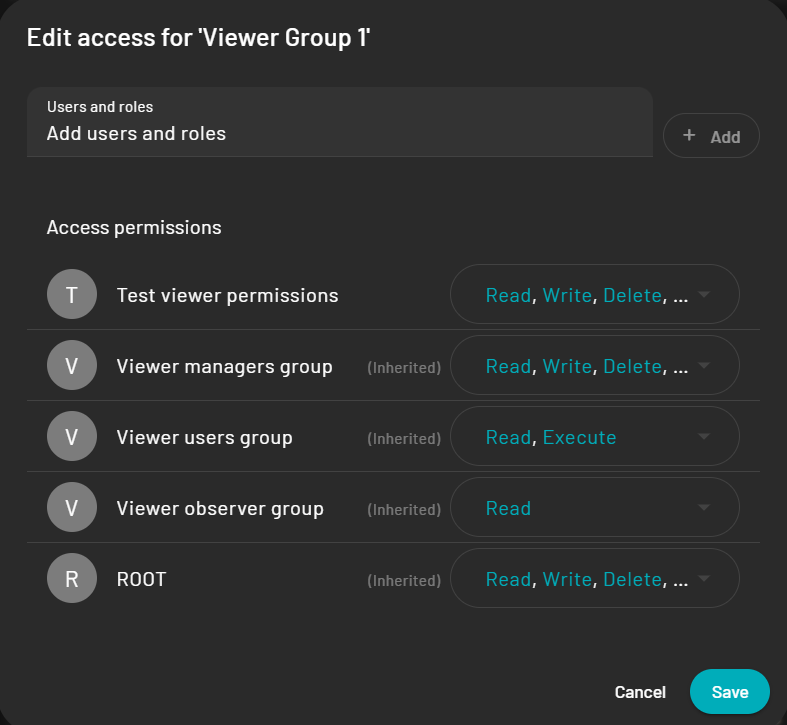
 Once you open the **Access** menu you get an overview of the current permissions that are currently on that viewer group or viewer.
 ## How to set up permissions
If you want to restrict a certain viewer group ( or viewer ) it is advised to do it as follows:
Login with your administrator account and go to the **Users** section.
* [Create a new role](https://docs.pads4.com/ctrl-centre/administration/user-management/Roles#customizing-roles)
* Assign your newly created role to the user that requires viewer restrictions.
* Remove any of the default viewer roles if assigned.
* Now go to the Viewers overview and right click on a viewer group / viewer you want the user to be able to see.
* Click on **Access**
* Now add your newly created role to the list and give it at least the **read** permission so it can see the viewer group / viewer.
* Add more permissions if required.
* Now if the user which has the new role assigned logs in, he will only see the viewer group / viewer where his role is assigned.
When you have multiple roles assigned which have different permissions, remember that the most restrictive role always overrules any other role that you might have assigned.
## How to set up permissions
If you want to restrict a certain viewer group ( or viewer ) it is advised to do it as follows:
Login with your administrator account and go to the **Users** section.
* [Create a new role](https://docs.pads4.com/ctrl-centre/administration/user-management/Roles#customizing-roles)
* Assign your newly created role to the user that requires viewer restrictions.
* Remove any of the default viewer roles if assigned.
* Now go to the Viewers overview and right click on a viewer group / viewer you want the user to be able to see.
* Click on **Access**
* Now add your newly created role to the list and give it at least the **read** permission so it can see the viewer group / viewer.
* Add more permissions if required.
* Now if the user which has the new role assigned logs in, he will only see the viewer group / viewer where his role is assigned.
When you have multiple roles assigned which have different permissions, remember that the most restrictive role always overrules any other role that you might have assigned.