> ## Documentation Index
> Fetch the complete documentation index at: https://docs.pads4.com/llms.txt
> Use this file to discover all available pages before exploring further.
# PADS4 Domains
Domains in PADS4 make it possible to manage multiple independent client environments on a single PADS4 server. This allows different organizations or departments to operate separately while using the same infrastructure.
With the enhanced domain support, all PADS4 services and applications are now domain-aware, and domains can be fully configured and managed through the PADS4 CTRL Center.
## Prerequisites
Before creating a new domain, ensure that your **PADS4 installation is updated to version 2023.1** or later, as domain functionality is only supported from this version onward.
Each domain requires its own **PADS4 license**. Verify that you have obtained the necessary license before proceeding with domain setup.
## Default Domain
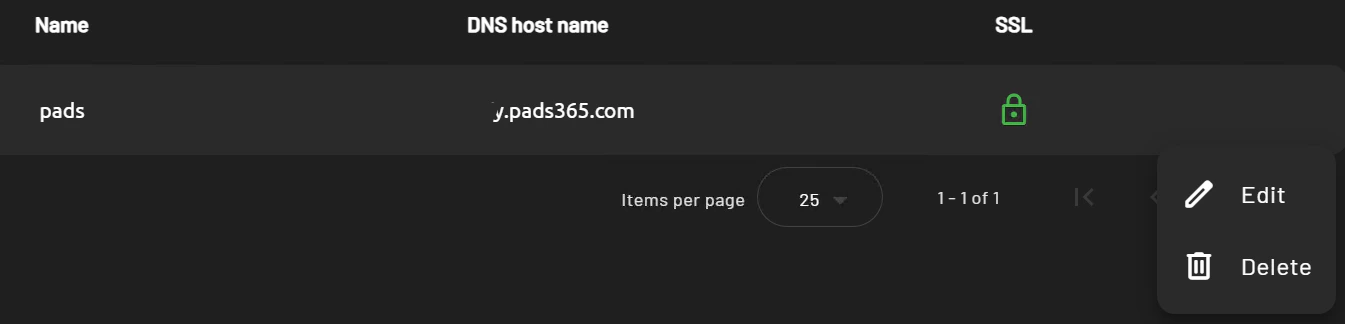
During PADS4 installation, a default domain named **PADS** is automatically created. This serves as the initial environment.
### Editing the Default Domain
From the Domains section of the root interface:
* Select the **PADS** domain entry.
* Click the **three dots ⁝** menu to access edit options.
* Update the **DNS Host Name** to match your server's address.
* Upload your third-party signed **SSL certificate** (*.CRT*) and **private key** (*.KEY*).
 ## Creating a new PADS4 Domain
Follow the steps below to create a new PADS4 domain.
1. Click **+ New** in the Domains dashboard.
2. **Enter the domain details**:\
Provide a domain **name** (e.g., "CompanyA" or "Branch1").
3. **DNS Host Name** – Specify the domain’s **DNS hostname**.
4. **Certificate File** – Upload the **third-party signed SSL certificate** (`.CRT format`).
5. **Private Key File** – Upload the **third-party signed private key** (`.KEY format`).
Click **Create**.
This will **restart PADS4 services** and apply the domain settings.
## Creating a new PADS4 Domain
Follow the steps below to create a new PADS4 domain.
1. Click **+ New** in the Domains dashboard.
2. **Enter the domain details**:\
Provide a domain **name** (e.g., "CompanyA" or "Branch1").
3. **DNS Host Name** – Specify the domain’s **DNS hostname**.
4. **Certificate File** – Upload the **third-party signed SSL certificate** (`.CRT format`).
5. **Private Key File** – Upload the **third-party signed private key** (`.KEY format`).
Click **Create**.
This will **restart PADS4 services** and apply the domain settings.