> ## Documentation Index
> Fetch the complete documentation index at: https://docs.pads4.com/llms.txt
> Use this file to discover all available pages before exploring further.
# PowerBI in CTRL Center
> Register the Power BI app registration in PADS4 CTRL Center and generate the token used to embed reports and dashboards.
Once the Azure app registration and Power BI configuration are in place, finish the integration in PADS4 CTRL Center. You'll register the app, then generate a token for each report or dashboard you want to embed in a presentation.
## Before you begin
Make sure you have completed:
* [Azure Set-up](/ctrl-centre/administration/azure-set-up-1) — client ID, tenant ID, and client secret.
* [PowerBI Services Admin Set-up](/ctrl-centre/administration/power-bi-admin-set-up) — service principal added to the workspace.
* [PowerBI Set-up](/ctrl-centre/administration/power-bi-set-up) — workspace ID and report or dashboard ID.
## Step 1: Register the Power BI app in Credential Manager
1. Sign in to **PADS4 CTRL Center**.
2. Under **Administration**, open **Credentials**.
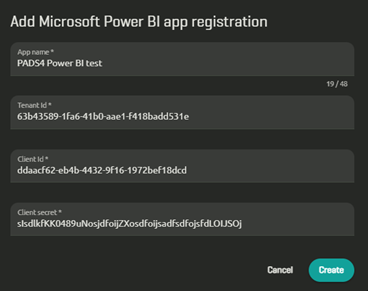
3. Open the **Providers** tab and select **New** > **Microsoft Power BI**.
4. Enter the values you collected from Azure:
* **App name** — a reference name shown in CTRL Center.
* **Application (Client) ID**
* **Directory (Tenant) ID**
* **Client secret**
5. Save the registration.
 ## Step 2: Connect a report or dashboard
For every Power BI item you want to embed, generate a token from the registered app.
1. In **Credential Manager**, go to **Overview**.
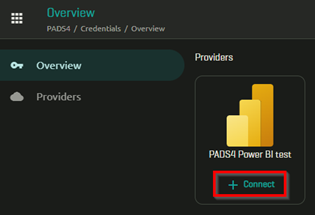
2. Find the app registration you just added and select **Connect**.
## Step 2: Connect a report or dashboard
For every Power BI item you want to embed, generate a token from the registered app.
1. In **Credential Manager**, go to **Overview**.
2. Find the app registration you just added and select **Connect**.
 3. Enter the item details:
* **Workspace ID**
* **Type** — **Report** or **Dashboard**.
* **Report ID** or **Dashboard ID**
3. Enter the item details:
* **Workspace ID**
* **Type** — **Report** or **Dashboard**.
* **Report ID** or **Dashboard ID**
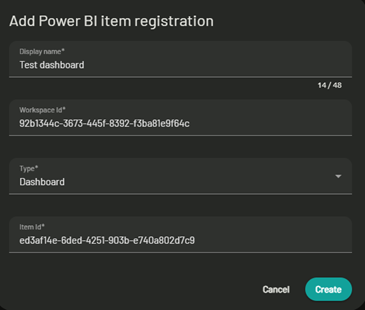 4. Select **Create**.
PADS4 generates a **Token ID** for the report or dashboard. Use this token in PADS4 **Web elements** to embed the item in a presentation.
4. Select **Create**.
PADS4 generates a **Token ID** for the report or dashboard. Use this token in PADS4 **Web elements** to embed the item in a presentation.
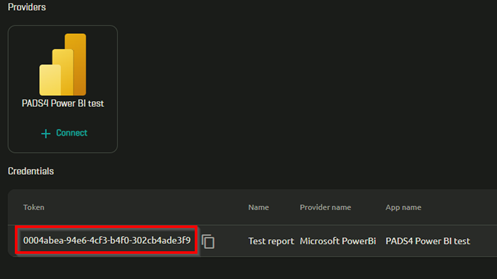 Generate a separate token for each report or dashboard you want to embed. You can reuse the same app registration for as many items as needed.