> ## Documentation Index
> Fetch the complete documentation index at: https://docs.pads4.com/llms.txt
> Use this file to discover all available pages before exploring further.
# Meta
This document assumes that the reader is familiar with the Meta developer platform, including how to create and submit apps for review.
The steps below explain how to create and configure a Meta app specifically for integration with **PADS4**.
## Create a New App
### Step 1: Access Meta Developer Platform
Go to the Meta Developer Apps page:
[https://developers.facebook.com/apps](https://developers.facebook.com/apps)
### Step 2: Create a New App
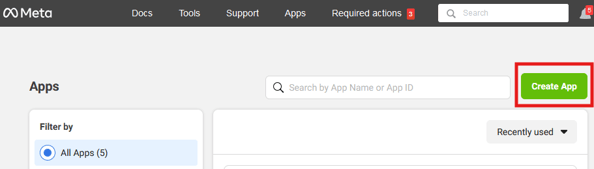
Click on the **Create App** button.
 ### Step 3: Select Business Portfolio (Optional)
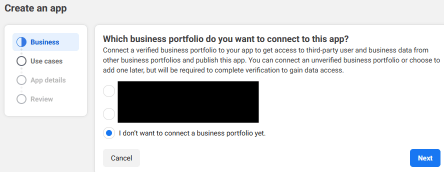
You may choose a business portfolio. This can also be selected later when logging into the app with a user.
### Step 3: Select Business Portfolio (Optional)
You may choose a business portfolio. This can also be selected later when logging into the app with a user.
 ### tep 4: Choose Use Case
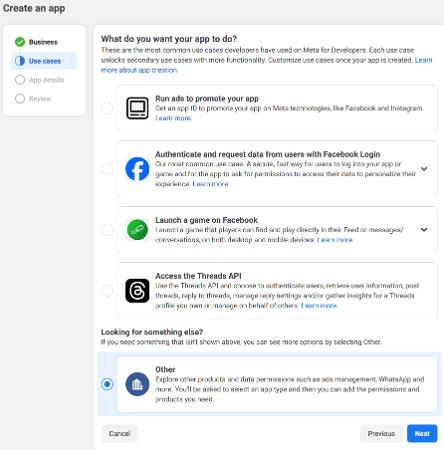
For the use case, select **Other**.
### tep 4: Choose Use Case
For the use case, select **Other**.
 ### Step 5: Select App Type
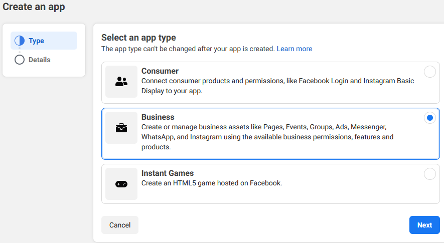
Choose **Business** as the app type.
### Step 5: Select App Type
Choose **Business** as the app type.
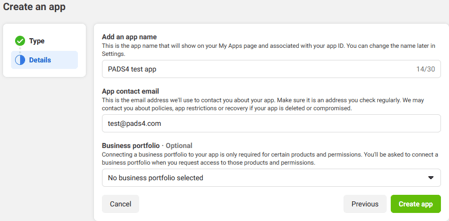
 ### Step 6: Enter App Details
Fill in the required app details. You may also select a business portfolio here if you haven’t already.
### Step 6: Enter App Details
Fill in the required app details. You may also select a business portfolio here if you haven’t already.
 ### Step 7: Access the App Dashboard
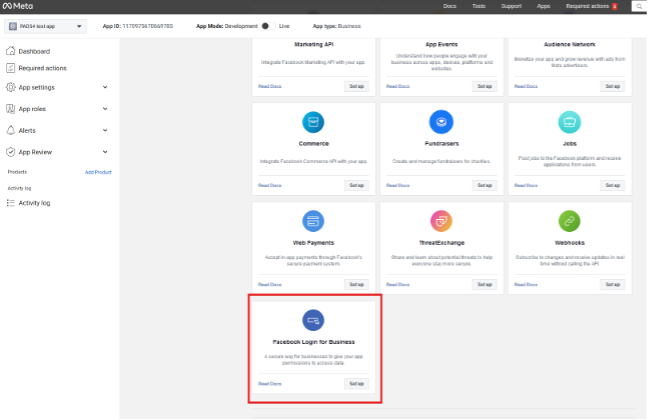
Once your app is created, you will be redirected to the app's **Dashboard**.
Add the product **Facebook Login for Business** by clicking the **Set Up** button on its tile.
### Step 7: Access the App Dashboard
Once your app is created, you will be redirected to the app's **Dashboard**.
Add the product **Facebook Login for Business** by clicking the **Set Up** button on its tile.
 ### Step 8: Configure Redirect URI
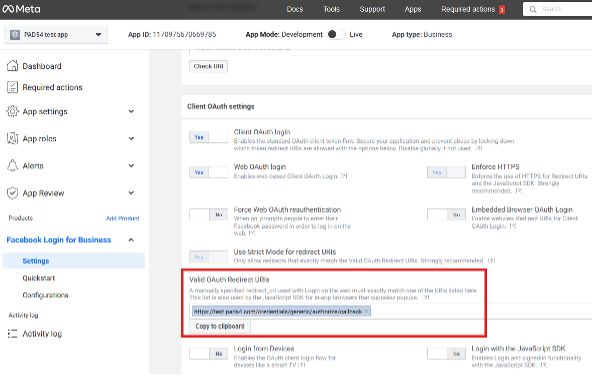
Navigate to **Settings** under **Facebook Login for Business**.
In the field **Valid OAuth Redirect URIs**, enter the following:
```text theme={null}
https://:/credentials/generic/authorize/callback
```
### Step 8: Configure Redirect URI
Navigate to **Settings** under **Facebook Login for Business**.
In the field **Valid OAuth Redirect URIs**, enter the following:
```text theme={null}
https://:/credentials/generic/authorize/callback
```
 * **Host**: DNS name or IP address of your PADS4 Ctrl Center
* **Port**: (Optional) Include if your PADS4 Ctrl Center is not using default HTTP/HTTPS ports
* **Host**: DNS name or IP address of your PADS4 Ctrl Center
* **Port**: (Optional) Include if your PADS4 Ctrl Center is not using default HTTP/HTTPS ports