> ## Documentation Index
> Fetch the complete documentation index at: https://docs.pads4.com/llms.txt
> Use this file to discover all available pages before exploring further.
# Azure Set-up
> Register an Azure Active Directory application and create the client secret used by the PADS4 Power BI integration.
To connect **Power BI** to PADS4, you first register a new application in **Microsoft Azure Active Directory**. The registration produces the client ID, tenant ID, and client secret that PADS4 CTRL Center needs.
## Before you begin
Make sure you have:
* An **Azure AD tenant** and permission to create app registrations.
* Reviewed the [Introduction](/ctrl-centre/administration/Introduction) for limitations that apply to the service principal approach.
## Step 1: Create the app registration
1. Sign in to the [Microsoft Azure Portal](https://portal.azure.com).
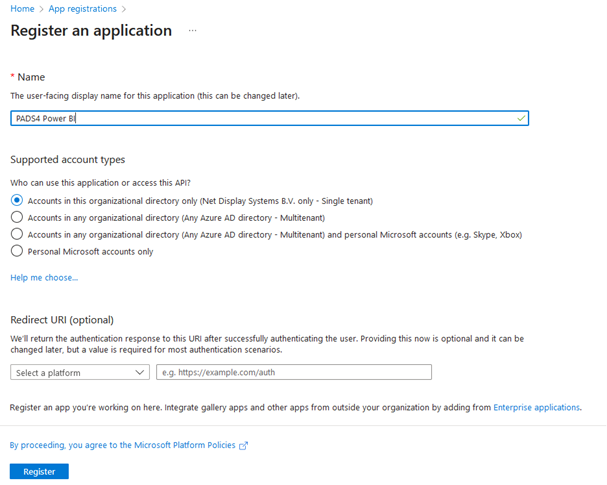
2. Go to **Azure Active Directory** > **App Registrations** and select **New registration**.
3. Configure the registration:
* **Name** — any reference name for the integration.
* **Supported account types** — select **Single-tenant** or **Multi-tenant** based on your requirements. **Do not** enable personal Microsoft accounts.
* **Redirect URI** — leave empty. Power BI integration does not require one.
4. Select **Register**.
 ## Step 2: Create a client secret
The client secret lets PADS4 authenticate to Power BI as the service principal.
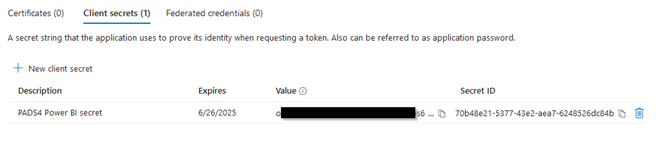
1. In the app registration, select **Certificates & secrets** in the left menu.
2. Open the **Client secrets** tab and select **New client secret**.
3. Enter a description and choose an expiration duration.
4. Select **Add**.
5. **Copy the client secret value immediately** — it will not be visible again after you leave the page.
## Step 2: Create a client secret
The client secret lets PADS4 authenticate to Power BI as the service principal.
1. In the app registration, select **Certificates & secrets** in the left menu.
2. Open the **Client secrets** tab and select **New client secret**.
3. Enter a description and choose an expiration duration.
4. Select **Add**.
5. **Copy the client secret value immediately** — it will not be visible again after you leave the page.
 Create and configure a new client secret before the current one expires, otherwise the Power BI integration will stop working.
## Step 3: Collect the values for PADS4 CTRL Center
Gather the following from your app registration. You'll enter them in PADS4 CTRL Center to complete the integration.
| Value | Where to find it |
| :-------------------------- | :---------------------------------------- |
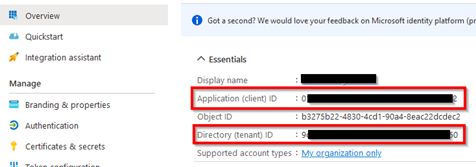
| **Application (Client) ID** | App Registration > Overview |
| **Directory (Tenant) ID** | App Registration > Overview |
| **Client secret** | App Registration > Certificates & secrets |
Create and configure a new client secret before the current one expires, otherwise the Power BI integration will stop working.
## Step 3: Collect the values for PADS4 CTRL Center
Gather the following from your app registration. You'll enter them in PADS4 CTRL Center to complete the integration.
| Value | Where to find it |
| :-------------------------- | :---------------------------------------- |
| **Application (Client) ID** | App Registration > Overview |
| **Directory (Tenant) ID** | App Registration > Overview |
| **Client secret** | App Registration > Certificates & secrets |