> ## Documentation Index
> Fetch the complete documentation index at: https://docs.pads4.com/llms.txt
> Use this file to discover all available pages before exploring further.
# Create your first user
From PADS4 version 2025.1 and onwards, the users and (most) permissions have moved to the PADS4 Web Portal. Where it was previously required that you have the System Management application installed, you are now able to do your user management administration from your web browser.
The user and roles section in PADS4 allows you to create user accounts with the ability to define exactly the access that they require.
## **How to create your first user**
1. Log in to the PADS4 Web Portal by browsing to the location your PADS4 server is located / hosted: http(s)://servername:portnumber
* HTTPS is used in secured environments, otherwise use http.
* Servername specifies on which server PADS4 CTRL Center is installed.
* Portnumber is optional when hosted on port 80 or 443
* Login with the **su\root** account created during installation.
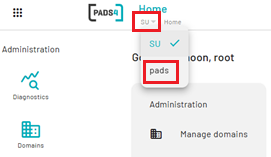
2. At the top next to the PADS4 logo, click the **SU** dropdown menu
3. From the dropdown list, select the option corresponding to your domain. The default domain is **pads**.
In case you host a multi-domain environment, click on the domain you wish to create a user for.
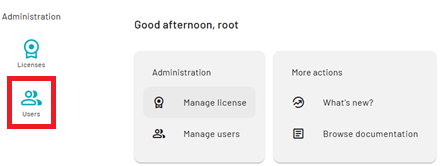
 4. Navigate to users
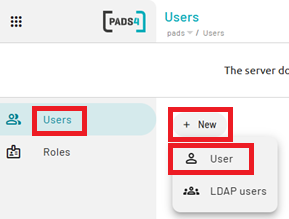
 5. Click **+New** and select User.
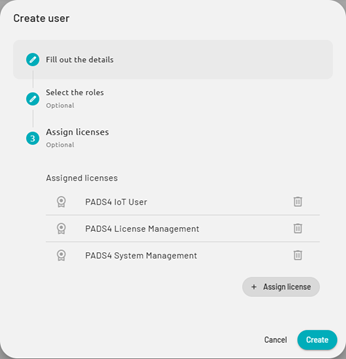
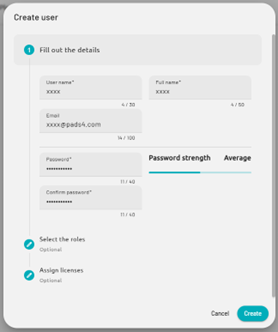
 6. Fill in the **user's detailed information (username, email, etc.).**
 7. Select a **role** to assign to the user or create a new role category by clicking **+ Create role.**
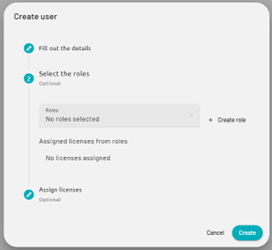 8. Assign one or more **licenses** to the user.