> ## Documentation Index
> Fetch the complete documentation index at: https://docs.pads4.com/llms.txt
> Use this file to discover all available pages before exploring further.
# Creating a rule in PADS4 Designer
> Step-by-step guide to adding a rule in PADS4 Designer that pairs a condition with an action and runs during presentation playback.
A rule pairs a **condition** with an **action**. When the condition is met during playback, the action runs. Most conditions are linked to a data provider so rules can respond to real-time data events.
## Create a rule
1. **Open the Rules properties.** In the **Properties** pane, select **Rules**, then select the element you want the rule to apply to.
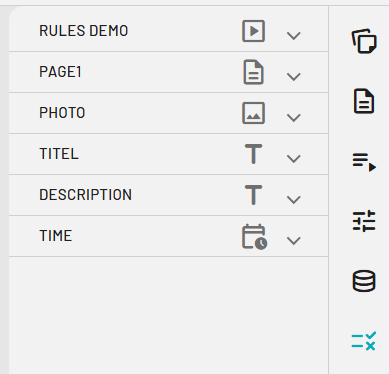 2. **Add a new rule.** Select **Add Rule**.
 3. **Open the Rules pane.** The Rules pane opens, ready for you to define the condition and action.
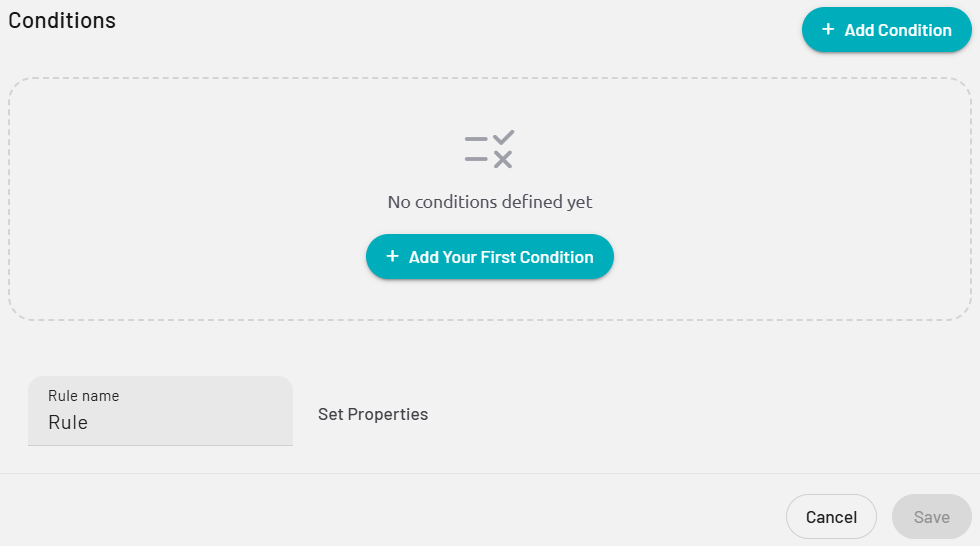 4. **Add a condition.** Select **Add Condition**.
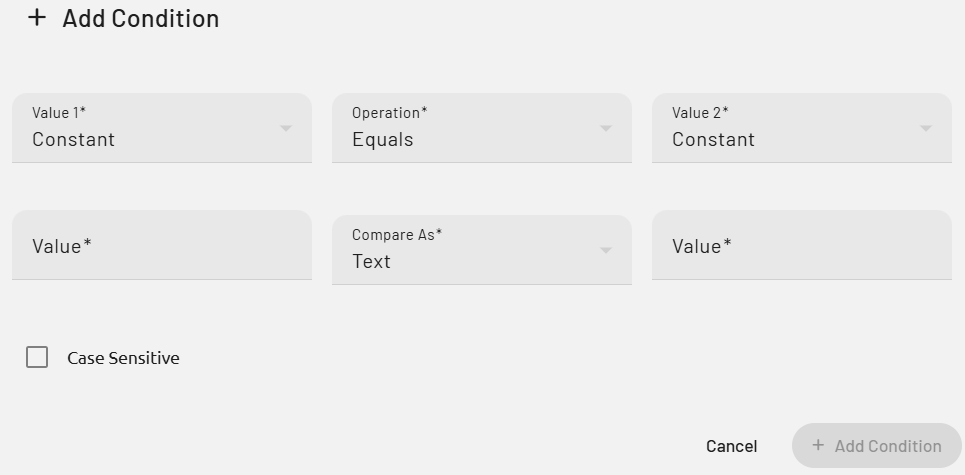 5. **Configure the condition.** Fill in the details that describe when the rule should trigger.
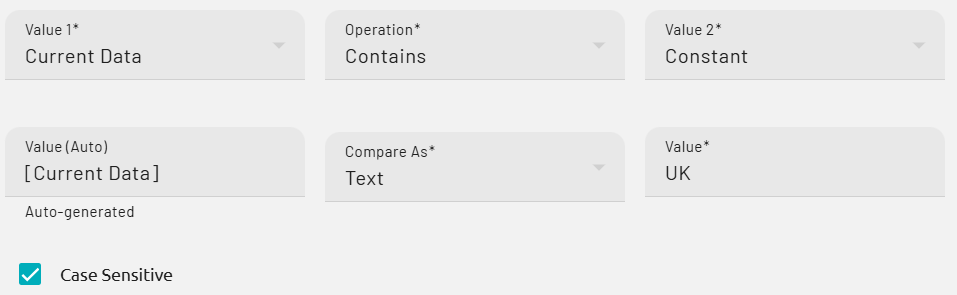 6. **Define the action.** Select **Set Properties** to specify what happens when the condition is met.
 7. **Choose which properties change.** In the **Configure Rule Properties** screen, change one or more properties that the action should update.
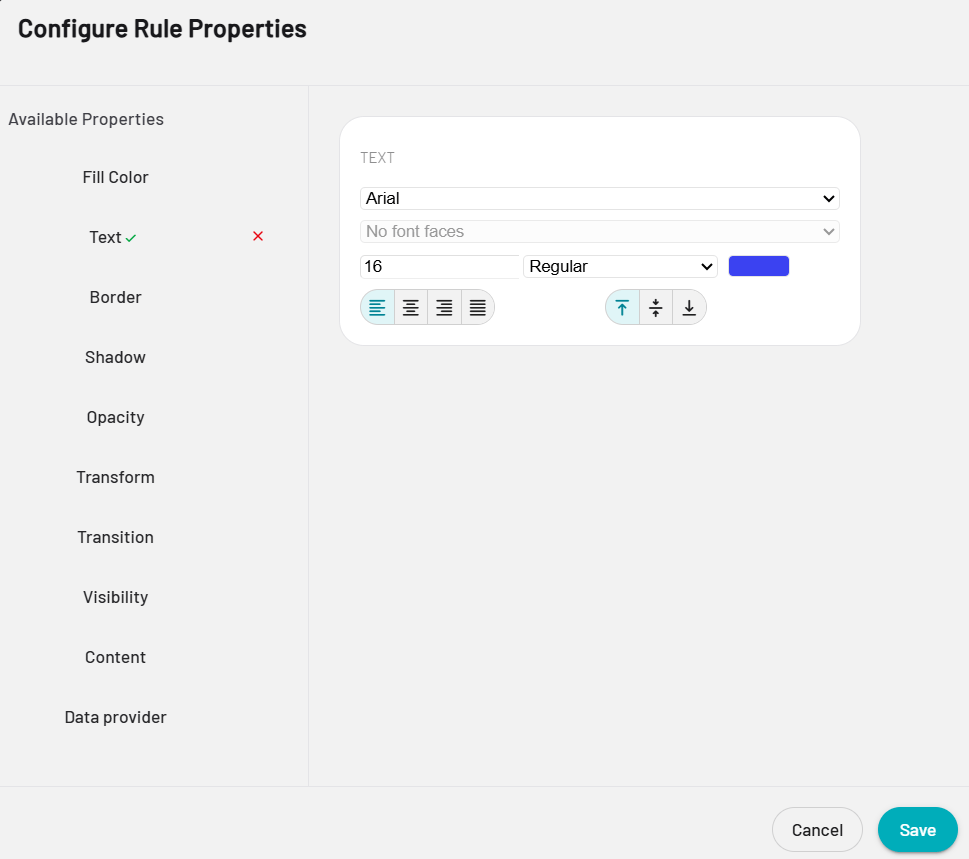 8. **Save the properties.** Select **Save** to confirm the property changes.
9. **Save the rule.** Select **Save** again to store the rule on the element.
The rule is now active and will run whenever its condition is met during playback.
8. **Save the properties.** Select **Save** to confirm the property changes.
9. **Save the rule.** Select **Save** again to store the rule on the element.
The rule is now active and will run whenever its condition is met during playback.