> ## Documentation Index
> Fetch the complete documentation index at: https://docs.pads4.com/llms.txt
> Use this file to discover all available pages before exploring further.
# Windows-HTML5-Viewer
## Requirements
* Windows 10 build 1909 or higher
* PADS4 Server version 2025.1 or higher
PADS4 Windows HTML viewer version 1.4.0 + PADS4 version 2025.2 is required to have the "Switch User" option in the Launcher settings. Which enables easy user account switching when using Windows Kiosk mode.
## Overview
The Windows HTML5 Viewer offers several advantages over the legacy Windows Viewer:
* Supports sync repeat functionality
* Allows orientation changes without modifying Windows settings
* Provides a consistent experience across all HTML viewers
* Can be used as a screensaver
* Easier support for new features
* Improved performance
* Enhanced security via Kiosk mode
* Automatic updates from the PADS4 Server (no manual updates required)
> Note: This viewer shares the same limitations as other HTML viewers. Refer to the [HTML5 Viewer Known Limitations](https://support.pads4.com/en/support/solutions/articles/204000036395-known-limitations-for-html5-viewer) for more information.
***
## Download
> Download the installation package from the provided source.\
> [https://github.com/PADS4/PADS4-Viewer-Windows/releases](https://github.com/PADS4/PADS4-Viewer-Windows/releases)
***
## Installation Instructions
1. Run `PADS4WindowsHTMLviewer.exe` as **Administrator**.
2. Choose the installation directory (or use the default).
3. **Optional**: Uncheck *“Configure Windows to launch the PADS4 HTML5 Viewer in Kiosk Mode”* if:
* You want to use it as a screensaver
* You want to run it under a regular Windows user
4. Accept the License Agreement and click **Install**.
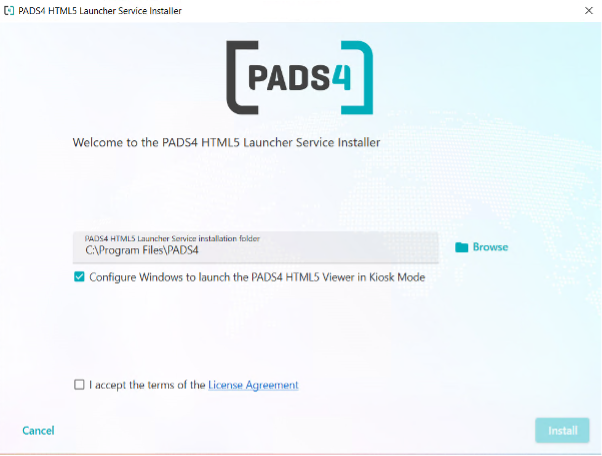
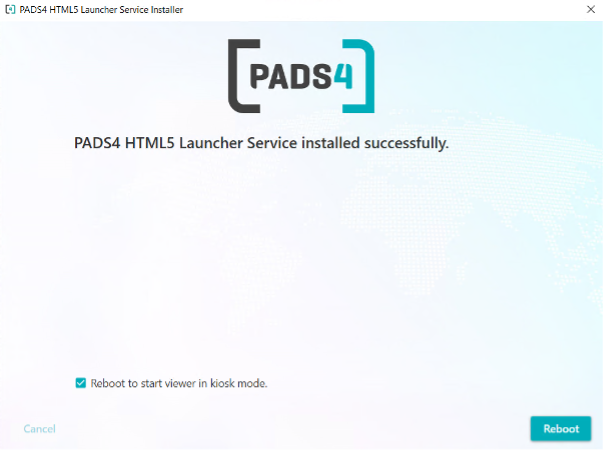
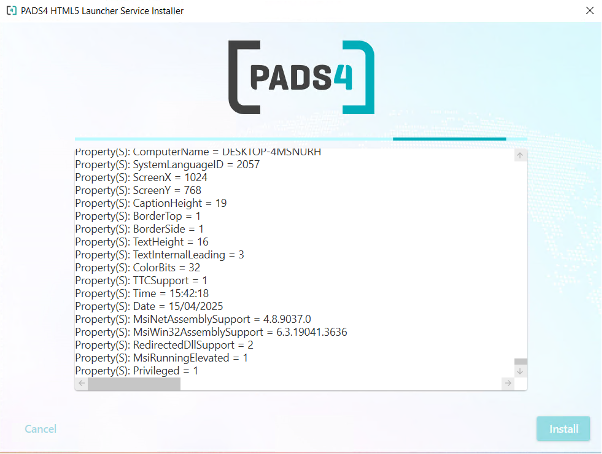 5. Once installation completes, click **Reboot** to restart the machine.
 ***
## Initial Configuration
After reboot, the viewer will launch in **Kiosk Mode**.
1. On first launch, enter your **PADS4 Server Address** and **Viewer Name**.
***
## Initial Configuration
After reboot, the viewer will launch in **Kiosk Mode**.
1. On first launch, enter your **PADS4 Server Address** and **Viewer Name**.
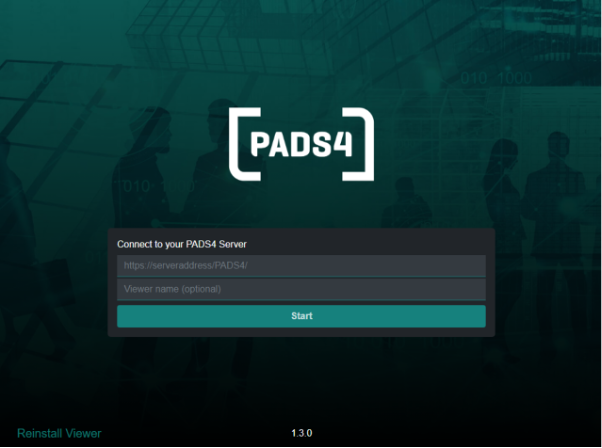 2. Click **Start** to connect the viewer.
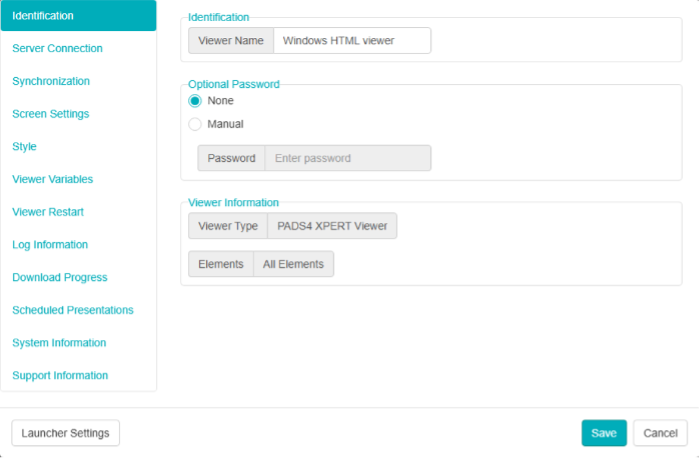
 To access viewer settings or return to launcher settings, right-click anywhere on the screen.
 ***
## Switching to a Regular User Account
You can exit Kiosk Mode and switch to a standard Windows account in three ways:
* Since PADS4 version \*\*2025.2 \*\*you can switch users with the "**Switch User**" option by entering the \*\*Viewer settings \*\*-> **Launcher settings** -> bottom right "**Switch User**"
* Use **Remote Desktop** (if configured) to log in directly using a different user account.
* Reboot the machine while holding the **Shift** key. This brings up the Windows login screen.
***
## Using the Viewer as a Screensaver
1. During installation, ensure Kiosk Mode is **not** enabled.
2. Open **Screensaver Settings** in Windows.
3. Select **Pads4viewer** as the screensaver.
***
## Switching to a Regular User Account
You can exit Kiosk Mode and switch to a standard Windows account in three ways:
* Since PADS4 version \*\*2025.2 \*\*you can switch users with the "**Switch User**" option by entering the \*\*Viewer settings \*\*-> **Launcher settings** -> bottom right "**Switch User**"
* Use **Remote Desktop** (if configured) to log in directly using a different user account.
* Reboot the machine while holding the **Shift** key. This brings up the Windows login screen.
***
## Using the Viewer as a Screensaver
1. During installation, ensure Kiosk Mode is **not** enabled.
2. Open **Screensaver Settings** in Windows.
3. Select **Pads4viewer** as the screensaver.
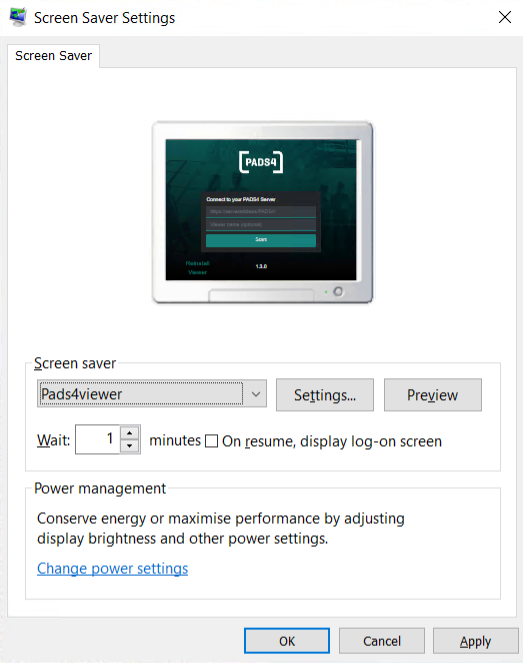 4. Click **Apply** and **OK**.
The viewer will now start based on the configured screensaver timer.
***
## Kiosk Mode Script Reference
To review the system's Kiosk mode configuration, refer to the PowerShell script:
```plaintext theme={null}
C:\Program Files\PADS4\Launcher Service\configure-kioskmode
```
***
## Supported Features & Limitations
| Feature | Description |
| ---------------------------------- | ---------------------------------------------------------------- |
| ✅ Automatic Software Updates | Updates automatically from the PADS4 Server |
| ✅ Offline Mode | Runs presentations for up to 7 days without a network connection |
| ✅ HTTP & HTTPS Support | Both protocols are supported |
| ✅ Max 4 Videos per Page | Up to 4 videos can be shown on a single page |
| ❌ Video Rotation / Seamless / Flip | These video enhancements are not supported |
| ✅ Streaming Support | Streaming via HTTP & HTTPS |
| ✅ Cluster Viewer Mode | Supported |
| ✅ Interactive Elements | Buttons, text, scrolling text, image, tables |
| ✅ PowerPoint & PDF | PowerPoint requires installation on PADS4 Server |
| ✅ Remote Device Management | Managed through PADS4 Agent |
| ✅ Wake-on-LAN | Devices can be remotely powered on |
| ❌ Turn Off Display | Not supported |
***
4. Click **Apply** and **OK**.
The viewer will now start based on the configured screensaver timer.
***
## Kiosk Mode Script Reference
To review the system's Kiosk mode configuration, refer to the PowerShell script:
```plaintext theme={null}
C:\Program Files\PADS4\Launcher Service\configure-kioskmode
```
***
## Supported Features & Limitations
| Feature | Description |
| ---------------------------------- | ---------------------------------------------------------------- |
| ✅ Automatic Software Updates | Updates automatically from the PADS4 Server |
| ✅ Offline Mode | Runs presentations for up to 7 days without a network connection |
| ✅ HTTP & HTTPS Support | Both protocols are supported |
| ✅ Max 4 Videos per Page | Up to 4 videos can be shown on a single page |
| ❌ Video Rotation / Seamless / Flip | These video enhancements are not supported |
| ✅ Streaming Support | Streaming via HTTP & HTTPS |
| ✅ Cluster Viewer Mode | Supported |
| ✅ Interactive Elements | Buttons, text, scrolling text, image, tables |
| ✅ PowerPoint & PDF | PowerPoint requires installation on PADS4 Server |
| ✅ Remote Device Management | Managed through PADS4 Agent |
| ✅ Wake-on-LAN | Devices can be remotely powered on |
| ❌ Turn Off Display | Not supported |
***